
How to Turn On YouTube Automatic Dubbing, Review Dubs and Fix Wrong Languages
YouTube can automatically generate translated audio tracks for eligible videos. The safest setup is to enable dubbing, set the correct original language and manually review generated dubs before publication.
By Digital Pulse Brief • Steps verified against YouTube Help • Desktop Studio workflow
Editorial context photo: Videodeck.co / Unsplash. Not a screenshot of YouTube Studio.
Quick steps
- Open YouTube Studio on a computer.
- Go to Settings → Channel → Advanced settings.
- Find Automatic dubbing.
- Check Allow automatic dubbing.
- For safer publishing, also check Manually review dubs before publishing.
- Click Save.
Important: YouTube says automatic dubbing is enabled by default for eligible creators. If the control does not appear, your channel or video may not currently be eligible.
What automatic dubbing does
YouTube automatic dubbing creates translated audio tracks so viewers can listen to eligible videos in supported languages. Viewers can choose their preferred audio language or switch back to the original track. Videos with generated tracks are marked as auto-dubbed in the description.
Automatic dubbing is best treated as a localization assistant, not a finished translation service. The generated track inherits whatever clarity or ambiguity exists in the source. A clean spoken tutorial with one presenter is a much easier input than a round-table discussion with overlapping voices, music and specialized terminology. Before enabling automatic publication across a large back catalog, test a representative sample of your channel: a normal talking-head video, a technical episode, an interview and a video with brand or product names. That small audit reveals where manual review creates the most value.
Creators should also separate three quality checks. First, semantic accuracy: did the dub preserve the meaning, numbers and names? Second, listening quality: is the pace understandable and are pauses natural enough for the audience? Third, editorial risk: would a mistranslated claim create a problem for the viewer? Entertainment channels may tolerate an awkward phrase; medical, financial, legal or safety content needs a much higher review threshold. If a translated track changes a material claim, leave that dub unpublished rather than assuming the viewer will infer the original meaning.
For teams: document who is responsible for reviewing dubs and which languages can be approved confidently. A channel that publishes in ten languages without anyone checking the output may technically reach more viewers while creating a larger quality-control problem. It is better to approve fewer language tracks reliably than to treat every generated dub as automatically publishable.
For
For creators, the feature can expand accessibility without recording every translation manually. It is not the same as subtitles: YouTube is generating a spoken audio track. That also means mistakes can be more noticeable, especially with names, technical vocabulary, accents or fast speech.
YouTube’s September 2026 roadmap goes further with a planned Live auto-dubbing pilot in early 2027. That live feature is separate from the automatic dubbing covered in this guide. Read our Made on YouTube 2026 explainer for the broader rollout.
Step 1: set the correct original video language
Before troubleshooting bad translations, check the source language. YouTube explicitly recommends setting the original video or channel language correctly because that setting is used as the source for translation.
For an uploaded video, open YouTube Studio, select the video, and review its language settings. If the original language is wrong, update it and save. YouTube says mistranslated automatic dubs can be regenerated after the original language is corrected.
This is especially important for bilingual channels. If a video is primarily in Spanish but the source is set to English, the system starts from the wrong assumption before translation even begins.
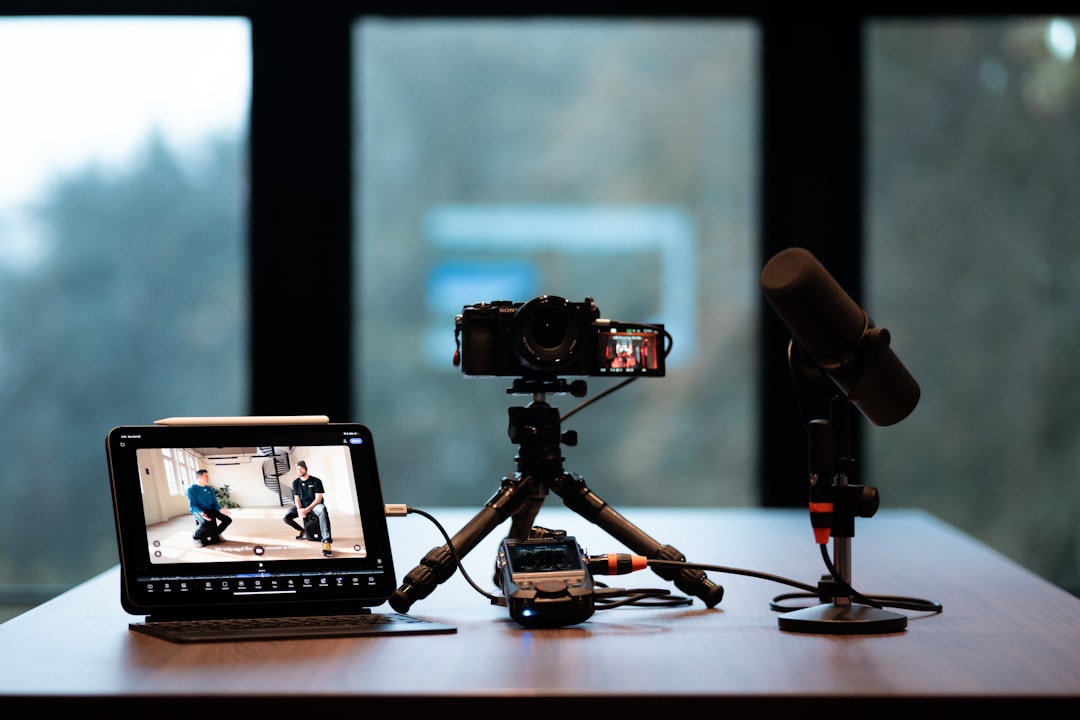
Editorial context photo: Videodeck.co / Unsplash.
Step 2: turn automatic dubbing on or off for the channel
On a computer:
- Sign in to YouTube Studio.
- Click Settings in the left sidebar.
- Select Channel.
- Open the Advanced settings tab.
- Scroll to Automatic dubbing.
- Check Allow automatic dubbing to enable it, or uncheck it to disable it.
- Click Save.
YouTube says eligible channels may have automatic dubbing enabled by default. Some creators who do not have the feature enabled may see an early-access option in Advanced settings.
Editorial context photo: Videodeck.co / Unsplash.
Step 3: manually review dubs before they publish
For channels where accuracy matters—education, medicine, finance, software tutorials, interviews or branded content—manual review is the safer default.
- Open Studio → Settings → Channel → Advanced settings.
- Make sure Allow automatic dubbing is checked.
- Enable Manually review dubs before publishing.
- Save the channel setting.
Once a dub is generated, listen for names, product terms, numbers and words that may be ambiguous. YouTube says automatically generated dubs cannot be manually edited. If the dub is wrong because the source language was misidentified, correct the original language and allow YouTube to regenerate the dub.
Editorial context photo: Detail.co / Unsplash.
Why a video may be ineligible
YouTube lists several reasons a video may not receive automatic dubbing:
- The video is longer than 120 minutes.
- It contains no speech, only music, or very little spoken content.
- The original audio language is not currently supported.
- YouTube cannot reliably detect the source language.
- The speech is too fast to create a listenable translated track.
- The video contains copyrighted content that prevents dubbing.
If one video fails while others work, check those conditions before changing the whole channel setting.
How to fix wrong or poor-quality dubs
1. Confirm the source language
This is the first check because YouTube says an incorrect default language can produce mistranslations. Correct it, save, then allow regeneration.
2. Review names and specialist terms
Automatic speech translation can struggle with company names, model numbers, acronyms and proper nouns. If those terms are critical, manual review is more important than speed.
3. Improve the source audio on future videos
Clear speech, lower background noise and a moderate pace make automatic speech recognition easier. YouTube specifically identifies very fast speech as an eligibility problem.
4. Do not assume every language will be equal
YouTube warns that quality can vary between languages and that generated tracks may contain pronunciation, accent or dialect errors.
5. Turn off dubbing for the channel if the risk is too high
If inaccurate translated speech creates a legal, safety or trust problem for your content, disable automatic dubbing until your workflow can review it properly.
Editorial context photo: Videodeck.co / Unsplash.
What about automatic lip sync?
YouTube’s current Help documentation describes lip sync as an experimental automatic-dubbing feature that changes a speaker’s lip movement to better match dubbed audio. Early access is limited to select channels and qualifying videos/languages.
That means you should not expect the lip-sync control on every channel. It is also a more sensitive form of transformation than adding an audio track because the visual appearance is modified. Review the result carefully before allowing publication if the option reaches your account.
Creator checklist before enabling auto-dubbing
- Set the correct original channel/video language.
- Enable manual review if accuracy matters.
- Check proper nouns, product names, numbers and technical vocabulary.
- Keep source audio clean and intelligible.
- Do not assume every generated language is equally accurate.
- Remember that auto-dubbing and live auto-dubbing are separate features.
- Re-check YouTube Help when the feature changes—rollout and language support are not static.
Editorial context photo: Videodeck.co / Unsplash.
FAQ
Can I edit an automatic dub?
YouTube says automatic dubs cannot be manually edited. You can review them before publishing, correct the original video language if it was wrong, and allow regeneration.
Why do I not see automatic dubbing?
Eligibility varies by creator, video and supported language. A video can also be excluded because of length, minimal speech, fast speech, source-language detection or copyright content.
Can viewers switch back to the original audio?
Yes. Viewers can select an available audio track and can choose the original language when a dub is present.
Does automatic dubbing work on live streams?
The standard feature covered here applies to uploaded videos. YouTube separately announced a Live auto-dubbing pilot planned for early 2027.
Sources
- YouTube Help — Use automatic dubbing
- YouTube Help — Change the language of your uploaded video
- Made on YouTube 2026 official hub
Image credits: Videodeck.co and Detail.co via Unsplash. Images are contextual editorial photography, not screenshots of YouTube Studio.
DIGITAL PULSE BRIEF NEWSLETTER
Get clear AI, technology and business insights in your inbox
Breaking developments, practical explainers, reviews and useful tech intelligence — without the noise.
WHAT TO READ NEXT
How to Back Up Windows 11 Properly: OneDrive, External Drives and the 3-2-1 Rule  Gemini Call for Me on Pixel 11: How It Works, Requirements, Privacy and Limits
  How to Fix iOS 27 Battery Drain After Updating: What to Check Before You Reset Anything
MORE FROM DIGITAL PULSE BRIEF