

How to Fix iOS 27 Battery Drain After Updating: What to Check Before You Reset Anything
If battery life dropped immediately after installing iOS 27, do not erase or reset your iPhone first. Apple says post-update tasks can continue in the background for a few days. Start with the Battery screen, identify what is actually using power, then work through settings, battery health and temperature in that order.
By Digital Pulse Brief • Based on Apple’s current battery and charging guidance • No device-specific repair claim
Editorial context photo: Andreas Haslinger / Unsplash. Not a screenshot of iOS 27 settings.
Quick answer: what should you do first?
- Open Settings → Battery and look for the Ongoing iOS Update insight or unusual app/system activity.
- If you just updated and Apple shows background update activity, give the phone a few days to finish indexing, setup and other post-update work.
- Tap View All Battery Usage to identify the apps or system activities actually consuming power.
- Update apps and install the current public iOS update available under Settings → General → Software Update.
- Use Adaptive Power if your iPhone supports it and your usage pattern benefits from it.
- Check Battery Health, charging limits and temperature before considering a reset.
Do not erase the iPhone as a first troubleshooting step. A reset cannot fix normal background indexing and can create more setup/background activity immediately afterward.
Why battery life can look worse just after an iOS 27 update
Apple says an iPhone may temporarily use more battery after a software update because some update-related tasks continue in the background. These can include app optimization, indexing and completing system setup. Apple’s battery troubleshooting guidance specifically recommends waiting a few days after an update before judging battery life.
On supported versions, the Battery screen can show an Ongoing iOS Update insight while this work is still happening. If you see that message, it is useful evidence: the phone is telling you that the update has not finished all background work yet.
This does not mean every case of battery drain is normal. If the phone is getting unusually hot, shutting down, losing large amounts of charge while idle, or the drain continues after the post-update period, move through the checks below rather than assuming the update is the only cause.
Step 1: use the Battery screen before changing settings
Go to Settings → Battery. Apple’s current Battery view lets you inspect recent usage and identify which apps and system activities account for the largest share of consumption.
Tap View All Battery Usage to see more detail. Look for patterns rather than one isolated percentage:
- An app with high screen-on usage may simply match how long you used it.
- High background activity can point to syncing, location, uploads, downloads or a poorly behaved app.
- Low-signal cellular conditions can increase radio power use.
- Navigation, camera, games, video calls and hotspot use can legitimately draw much more power than messaging or reading.
The goal is to find evidence. Turning off ten unrelated features at once makes it harder to learn what caused the drain.
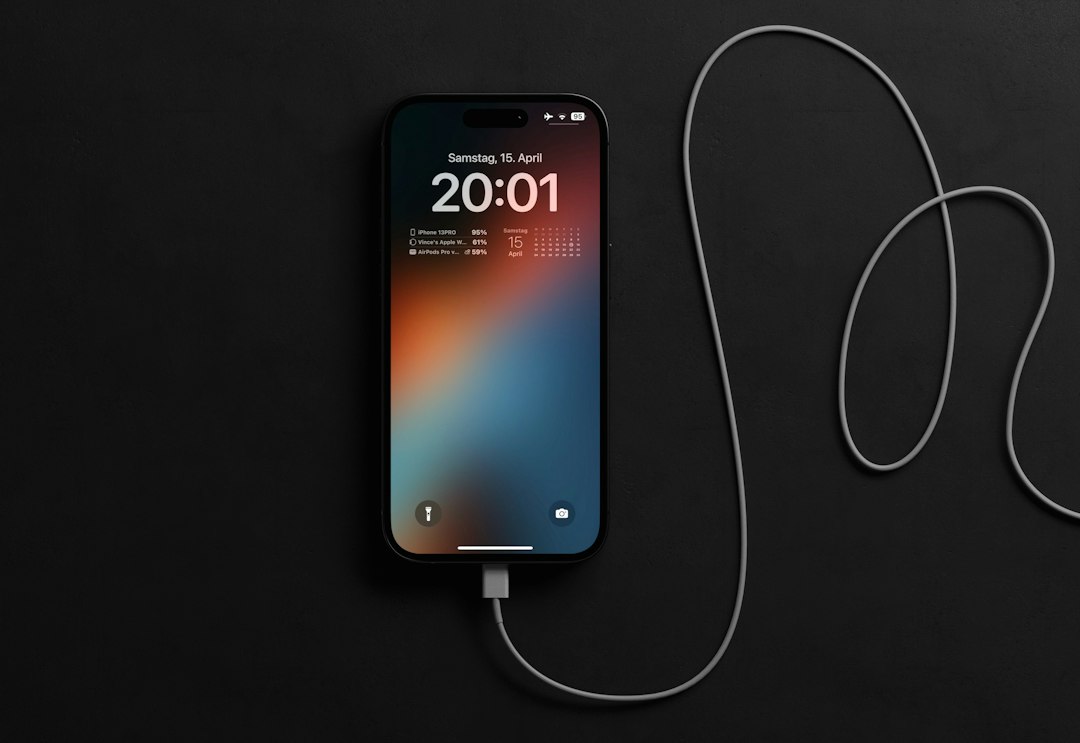
Editorial context photo: Vince Picipo / Unsplash.
Step 2: if the update is still processing, give it time
If Settings → Battery reports ongoing update activity and the iPhone was updated recently, keep normal charging access available and allow background tasks to finish. Apple says battery life may improve after a few days once update-related processes complete.
There is no universal number of hours that guarantees completion. How long it takes depends on the device, available storage, photo/library size, apps, network conditions and what changed in the update. That is why Apple’s advice is expressed as “a few days” rather than a fixed countdown.
If the battery screen no longer shows update-related activity but one app continues dominating background usage, troubleshoot that app instead of blaming iOS generally.
Step 3: update apps and check for a newer iOS build
After a major iOS release, third-party apps often ship compatibility and efficiency updates. Open the App Store and install pending app updates, especially for apps showing unusually high battery use.
Then go to Settings → General → Software Update and install the current public iOS version offered to your device if an update is available. Do not rely on an old troubleshooting article that names a specific patch as “the latest”; the current Software Update screen is the source of truth for your device and region.
Before installing, make sure the iPhone has enough storage and a reliable power/network connection.
Editorial context photo: Steve A Johnson / Unsplash.
Step 4: use Adaptive Power when it fits your usage
Apple’s current battery guidance includes Adaptive Power on supported devices. The feature can make small performance and display-related adjustments when the system predicts higher-than-usual battery use, with the goal of extending runtime.
Adaptive Power is not the same as Low Power Mode. Low Power Mode makes a more visible set of temporary reductions. Adaptive Power is designed to respond automatically to demand and may be useful for users whose battery drain varies by day.
If your iPhone exposes the feature, look under the Battery settings. Availability can vary by model and software version, so do not assume every iPhone running iOS 27 has the same controls.
Step 5: fix the app or service that is actually consuming power
Once the Battery screen identifies a culprit, adjust that app rather than applying blanket restrictions to the whole phone. Common checks include:
- Background activity: does the app need to refresh constantly?
- Location: does it need “Always” access, or would “While Using” work?
- Uploads/sync: photo, cloud-drive or media apps may be finishing a large backlog after an update.
- Notifications: excessive wake-ups can add unnecessary activity.
- Cellular usage: poor signal can make data-heavy apps more expensive in battery terms.
Avoid disabling core services purely because someone online lists them as a battery “hack.” The useful optimization is the one that matches your Battery data and does not break features you rely on.
Editorial context photo: Kamil Switalski / Unsplash.
Step 6: check Battery Health and cycle count
If battery life was already weakening before iOS 27, the update may simply make an aging battery more noticeable. On supported iPhones, go to Settings → Battery → Battery Health to review battery condition and any service recommendation.
Apple also exposes cycle-count information on newer iPhone generations, including iPhone 15 and later. Battery chemistry ages with time and charging cycles; software optimization cannot restore lost physical capacity.
A battery-health warning, unexpected shutdowns or a service recommendation is a different problem from temporary post-update background activity. In that case, use Apple or an authorized service provider rather than repeatedly resetting the operating system.
If you use an iPhone 18 Pro, our iPhone 18 Pro review explains the current hardware and battery context without pretending to have performed independent endurance testing.
Step 7: understand Charge Limit and Optimized Charging
On iPhone 15 and later, Apple lets you choose a maximum charge level under Settings → Battery → Charging. A lower limit can reduce time spent at a very high state of charge, which is aimed at long-term battery health.
But a lower charge limit also means you begin the day with less stored energy. If you set an 80% or 90% limit and then complain that the phone does not last as long as when it charged to 100%, that is expected behavior rather than a software battery drain.
Apple says the iPhone may occasionally charge to 100% even when a lower limit is configured so it can keep the battery’s state-of-charge estimate accurate. That is normal.
If you need more runtime for a travel day, temporarily choosing a higher limit can be more useful than disabling dozens of background features.
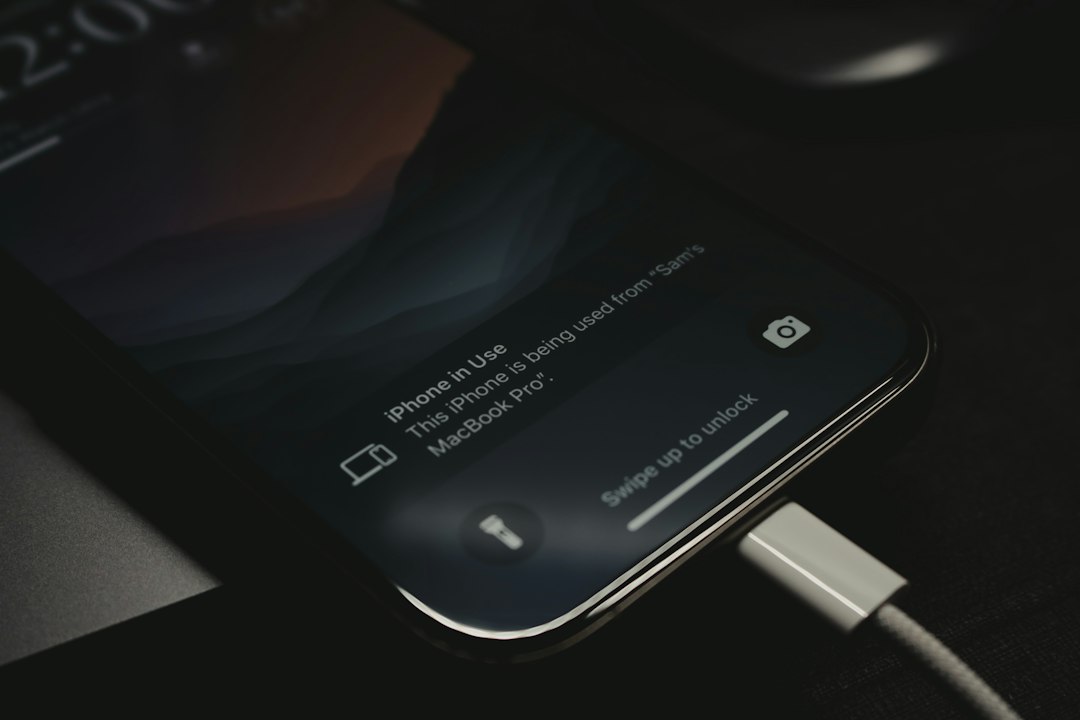
Editorial context photo: Samuel Angor / Unsplash.
Step 8: check heat and charging temperature
Heat affects both battery performance and charging behavior. Apple says iPhone is designed to charge in an ambient temperature range of roughly 0°C to 35°C (32°F to 95°F). Charging may slow or pause when the device is too hot or too cold.
If the phone becomes unusually warm while charging:
- Move it out of direct sunlight or a hot car.
- Stop demanding workloads such as gaming or navigation while it cools.
- Remove a case if Apple’s guidance or the heat pattern suggests the case is trapping heat during charging.
- Use a known-good charger and cable.
Do not put a hot phone in a refrigerator or freezer. Rapid temperature changes and condensation can damage electronics.
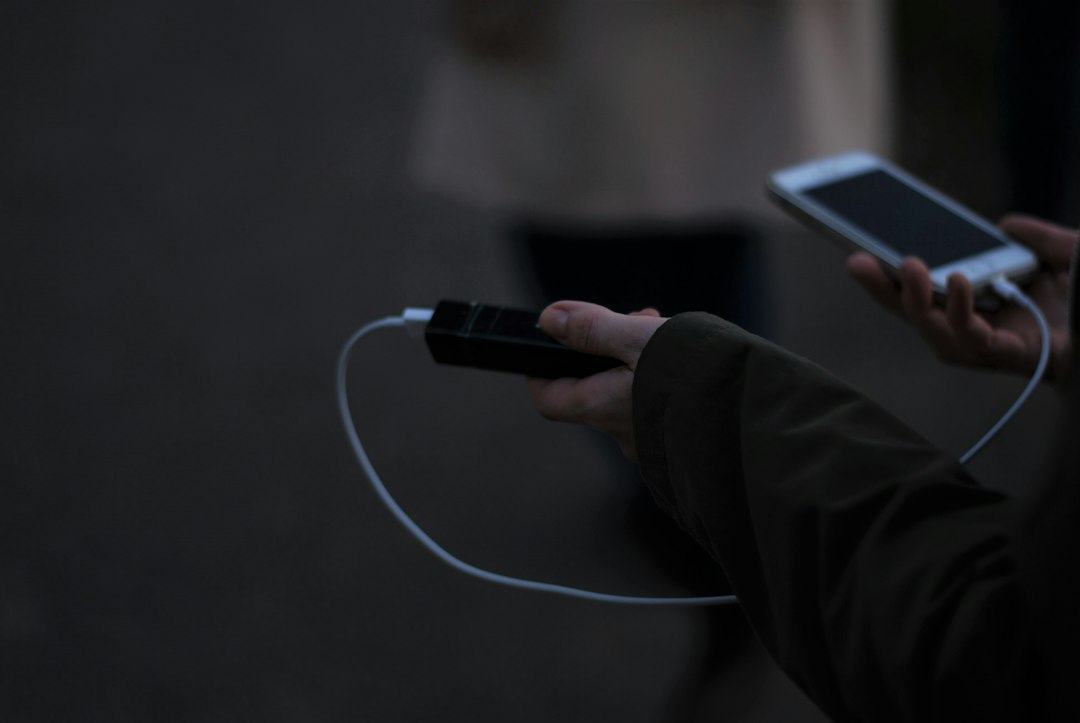
Editorial context photo: Reka Sarudi / Unsplash.
Step 9: restart before you reset
If battery drain persists after background update activity has finished and no obvious app explains it, perform a normal restart. A restart is low-risk and can clear a stuck process without deleting settings or data.
Reset All Settings is a later troubleshooting step—not a default battery fix. It changes system preferences and can create reconfiguration work. Before any reset, make sure you have a current backup and understand exactly what the chosen reset option removes.
Erasing the device should be a last resort after the problem has been isolated and other evidence points toward a software configuration problem. If the battery is physically degraded, no reset will restore its capacity.
When to stop troubleshooting and seek service
Seek professional service rather than continuing to experiment if you see a battery-service warning, repeated unexpected shutdowns, visible swelling, physical damage, charging-port damage or persistent abnormal heat.
If the iPhone is swollen or damaged, stop charging it and follow Apple’s service guidance. Physical battery problems are safety issues, not optimization problems.
For routine charging accessories, see our best iPhone 18 Pro chargers guide, which explains wattage, USB-C Power Delivery, MagSafe and cable considerations.
iOS 27 battery-drain checklist
- Check Settings → Battery before changing anything.
- If “Ongoing iOS Update” appears, give background tasks a few days.
- Use View All Battery Usage to identify actual app/system consumption.
- Update high-drain apps and install the current public iOS update when offered.
- Use Adaptive Power on supported models if it suits your routine.
- Review location/background permissions for the specific apps consuming power.
- Check Battery Health and cycle count.
- Remember that an 80–90% Charge Limit intentionally reduces starting charge.
- Keep the phone within a safe temperature range while charging.
- Restart before considering a settings reset.
Best diagnostic rule: change one thing at a time and compare Battery data over a normal usage cycle. Otherwise, you will not know which change actually helped.
FAQ
How long can battery drain last after installing iOS 27?
Apple says update-related activity can continue for a few days. Check Settings → Battery for an ongoing update insight and judge battery life after those background tasks have had time to finish.
Should I reset my iPhone to fix battery drain?
Not as a first step. Check post-update activity, app usage, software updates, battery health and temperature first. Restarting is lower risk than resetting settings, and erasing the phone should be a last resort.
Why does my iPhone die sooner after setting an 80% charge limit?
Because the phone intentionally stops charging at a lower level. Charge Limit is designed to reduce time spent at a high state of charge for long-term battery health; it does not increase the energy available during that day.
How do I find which app is draining the battery?
Go to Settings → Battery and use View All Battery Usage. Compare app percentages with screen-on and background activity instead of assuming the top app is malfunctioning simply because you used it most.
Sources
- Apple — 2026 software platform updates
- Apple Support — If the battery in your iPhone or iPad drains too quickly
- Apple Support — Check battery usage and health
- Apple Support — Charge Limit and Optimized Battery Charging
- Apple Support — Charging may be limited by temperature
Image credits: Andreas Haslinger, Kamil Switalski, Reka Sarudi, Steve A Johnson, Vince Picipo and Samuel Angor via Unsplash. Context photography only; no image is presented as an iOS 27 settings screenshot.
DIGITAL PULSE BRIEF NEWSLETTER
Get clear AI, technology and business insights in your inbox
Breaking developments, practical explainers, reviews and useful tech intelligence — without the noise.
WHAT TO READ NEXT
How to Back Up Windows 11 Properly: OneDrive, External Drives and the 3-2-1 Rule  Gemini Call for Me on Pixel 11: How It Works, Requirements, Privacy and Limits
  How to Use GPT-6 Sol and Luna in ChatGPT Work and Codex: Model Picker, Reasoning Levels and Best Use Cases
MORE FROM DIGITAL PULSE BRIEF