How to Back Up Windows 11 Properly: OneDrive, External Drives and the 3-2-1 Rule

A reliable Windows 11 backup should protect both everyday files and the possibility that your PC, drive or cloud account fails. Windows Backup and OneDrive are useful, but important data deserves an independent copy too.
What Windows Backup protects
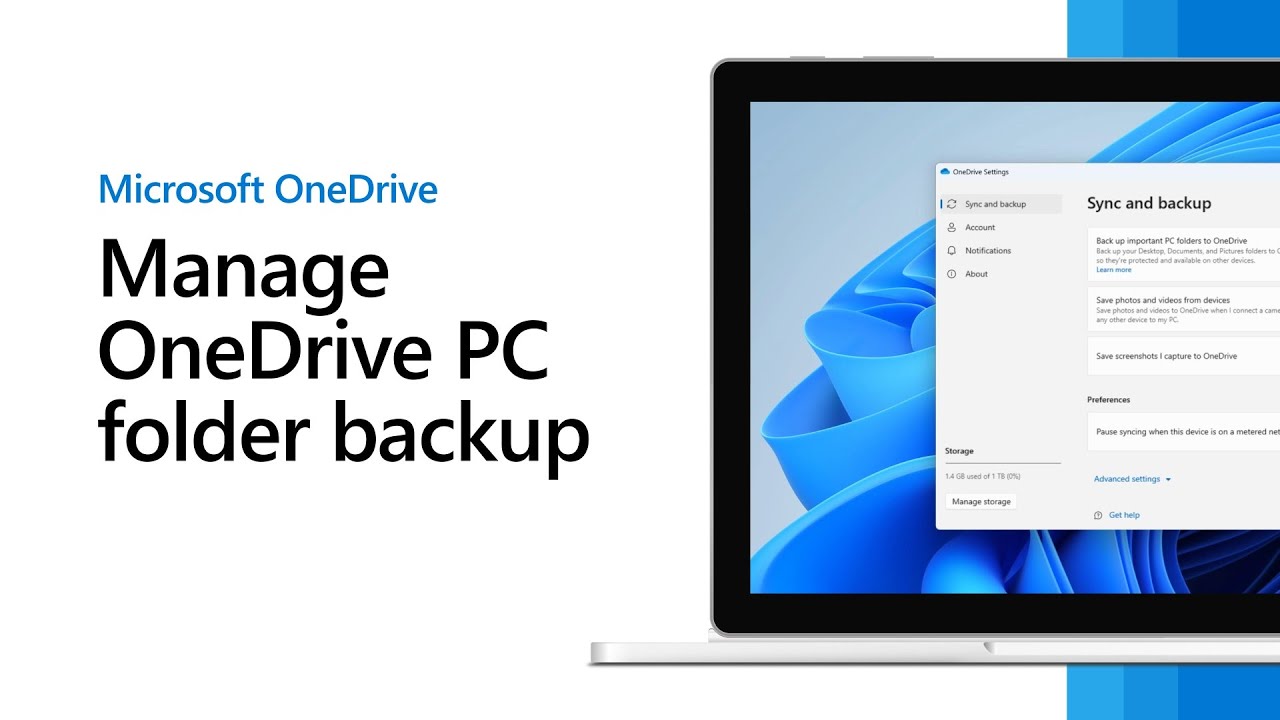
Microsoft’s Windows Backup can save key settings and help back up important folders through your Microsoft account and OneDrive. It is designed to make recovery and moving to a new PC easier. It is not the same thing as a complete offline image of every file and application on the machine.
Sync is useful, but it is not your only backup
Cloud sync keeps files available across devices and can provide version history or recycle-bin recovery, depending on the service. But accidental deletion, account compromise, ransomware, sync mistakes or subscription problems can affect cloud copies too. An independent local backup reduces that shared risk.
The 3-2-1 backup rule
The classic 3-2-1 principle means keeping three copies of important data, on two different types of storage, with one copy offsite. A practical home setup is: your working files on the PC, a backup on an external drive, and an offsite/cloud copy.
Step 1: Check what OneDrive is actually protecting
- Open the OneDrive cloud icon from the Windows notification area.
- Open Settings.
- Go to Sync and backup.
- Open Manage backup.
- Review whether Desktop, Documents and Pictures are protected.
Then check for important files outside those folders: Downloads, project directories, local databases, email archives, virtual machines and application-specific folders may need separate treatment.
Step 2: Add an external backup
Use an external SSD/HDD or another trusted backup destination for an independent copy. The exact tool can vary—File History, a reputable backup application, NAS software or manual archival for small datasets—but the important part is separation from the live system.
Step 3: Disconnect or isolate backup media
An external drive that remains writable and permanently attached can be affected by malware or accidental deletion. For critical data, rotate drives or use a backup target with snapshots/immutability and separate credentials.
Step 4: Test restore
A backup is only useful if it can be restored. Pick a few files periodically and restore them to a temporary location. For business-critical systems, document the full recovery order and test it.
What to back up
- Documents and creative project files
- Photos and videos
- Desktop files
- Email archives stored locally
- Browser exports or synced profile data where needed
- License keys and recovery codes stored securely
- Website/project source files
- Application databases and configuration that cannot be recreated easily
What not to rely on
Do not assume that because a file appears in File Explorer it is available offline. OneDrive Files On-Demand can represent cloud files with placeholders. Also do not assume a successful “backup completed” message proves every important folder was included—verify scope.
Fast backup plan for most Windows users
- Enable OneDrive folder backup for supported important folders.
- Identify valuable data outside those folders.
- Back that data to an external drive on a schedule.
- Keep one backup isolated/offsite.
- Test recovery every few months and after major changes.
FAQ
Does Windows 11 automatically back up everything?
No. Coverage depends on your Windows Backup, OneDrive and other backup settings. Verify which folders and settings are included.
Is OneDrive enough?
For convenience it is excellent, but valuable data is safer with an independent backup that does not share the same account and sync path.
Source
Windows Backup is useful, but it is not a complete disaster-recovery plan
Microsoft’s Windows Backup can protect selected user folders through OneDrive and remember settings, app information and other preferences tied to a personal Microsoft account. That is valuable when moving to a new PC, but it should not be confused with a full independent copy of everything on the drive. Business accounts and enterprise recovery workflows also have different requirements.
OneDrive sync and backup solve different problems
Cloud synchronization protects files from a single-disk failure and makes them available on other devices, but a synchronized deletion or unwanted change can also propagate. Version history and recycle-bin features can help, yet an independent backup provides another recovery path if an account is locked, corrupted or compromised.
Build a practical 3-2-1 setup
- Primary copy: the working files on the PC.
- Second copy: an external drive or local backup device that is disconnected when not in use where practical.
- Off-site copy: a cloud service or another protected location.
The “two media types” idea is less literal than it once was; the important objective is independence. Do not let every copy depend on the same account, the same device or the same always-connected storage.
What to back up beyond Documents and Pictures
- Project files stored outside standard Windows folders.
- Browser bookmarks or profiles if they are not already synchronized.
- Application configuration and licence information where relevant.
- Encryption recovery keys.
- Exported password-manager recovery material stored securely.
- Photos, design assets and client archives on secondary drives.
- Any local databases or virtual machines that applications do not automatically protect.
How to test a backup without risking the original
Pick several representative files, restore them to a separate folder and open them. Test at least one older version, one large file and one file from each important data location. For a business-critical system, document the full recovery order and measure how long restoration actually takes.
Backup security matters too
Encrypt portable drives that contain sensitive data, protect cloud accounts with strong authentication and keep at least one recovery path that ransomware or a compromised administrator cannot easily modify. A backup that is always online with the same credentials as production can fail at exactly the moment it is needed.
Related: our troubleshooting guides · ransomware prevention and response