How-To · iPhone
How to Fix iOS 27 Touchscreen Not Responding: 7 Safe Steps Before You Reset Anything
If your iPhone started ignoring taps, freezing for a few seconds or stuttering after iOS 27, start with iOS 27.0.1 and simple hardware checks before resetting settings or restoring the phone. One specific touchscreen freeze is confirmed fixed; broader reports need more careful troubleshooting.
Digital Pulse Brief • Published September 30, 2026 • Steps verified against current Apple Support guidance
Quick fix: update to iOS 27.0.1 first
Go to Settings → General → Software Update and install iOS 27.0.1 if it is available for your iPhone. Apple released iOS 27.0.1 on September 28, 2026. Apple’s security-release page confirms it as the current iOS version.
Apple’s iOS 27.0.1 release notes confirm a fix for a bug where opening Notification Center and Control Center at the same time could make the touchscreen unresponsive. That means some users have a concrete software fix available now.
It does not mean every iOS 27 touch complaint is the same bug. Users have also reported intermittent missed taps, frozen apps and animation stutter in situations that are not covered by that specific release-note fix.
First, identify which problem you actually have
| Symptom | Most useful first action | What it may indicate |
|---|---|---|
| Screen freezes while opening Notification Center + Control Center together | Install iOS 27.0.1 | Confirmed iOS 27 bug addressed in 27.0.1 |
| One app stops accepting taps but Home Screen still works | Close/reopen that app; update it | App-specific hang |
| Whole phone stops responding to touch | Restart or force restart | System hang, accessory issue or hardware problem |
| Touch works but animations are choppy after updating | Update apps, restart, allow post-update work to finish | Performance issue rather than failed touch input |
| Only certain areas of screen miss taps consistently | Remove case/protector and arrange service if persistent | Possible display/digitizer hardware issue |
Step 1: Install iOS 27.0.1
Apple’s first iOS 27 point update is the safest place to start because it directly addresses at least one touchscreen-freeze scenario and is newer than the original iOS 27 release.
- Open Settings.
- Tap General.
- Tap Software Update.
- If iOS 27.0.1 is offered, connect to power/Wi-Fi as appropriate and install it.
Apple’s current security-release page lists iOS 27.0.1 as released September 28. If your iPhone already shows 27.0.1 under Settings → General → About, move to the next step.
Step 2: Restart normally — then force restart only if the screen is stuck
A normal restart is preferable when the screen still responds. If the phone is completely frozen, Apple documents a force-restart sequence for modern Face ID iPhones and other recent models:
- Press and quickly release Volume Up.
- Press and quickly release Volume Down.
- Press and hold the Side button.
- Keep holding until the Apple logo appears. Apple notes that this can take longer than 10 seconds.
A force restart does not erase your data. It is appropriate when the interface cannot accept normal touch input; it should not be used as a substitute for investigating a problem that returns repeatedly.
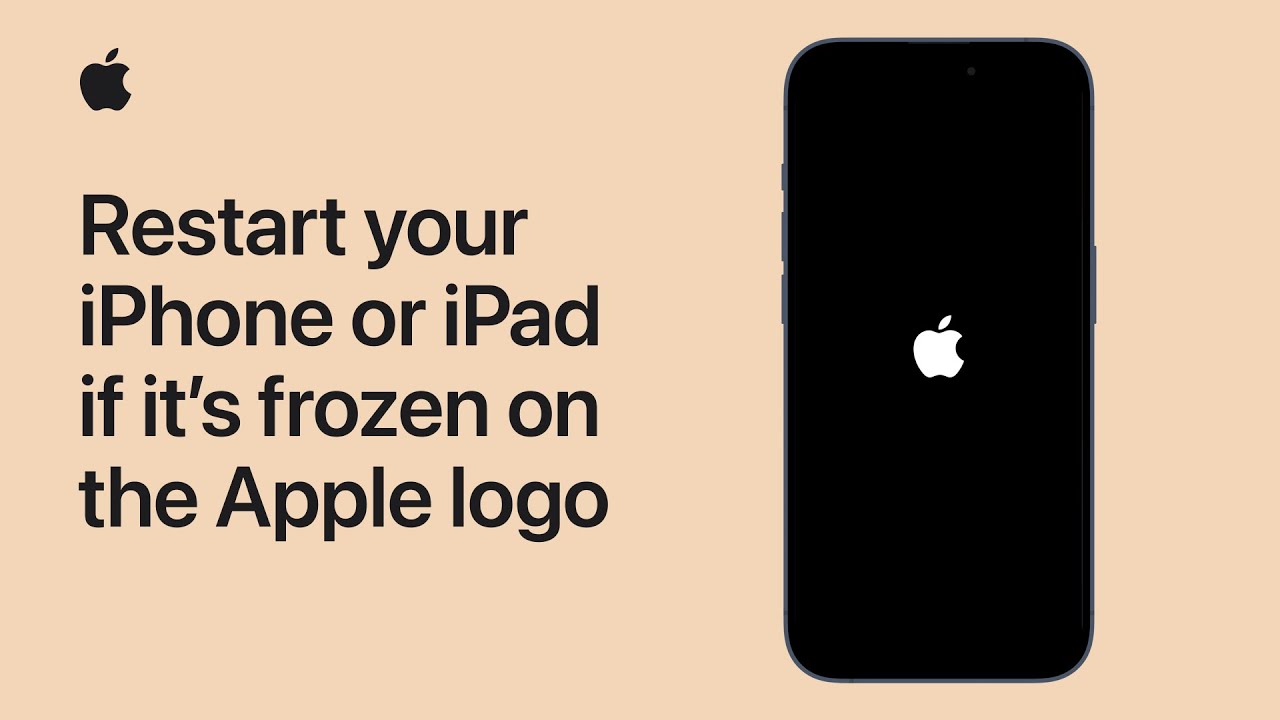
Watch Apple Support’s official force-restart tutorial
Source: Apple Support’s verified YouTube channel. The video demonstrates restart/recovery steps for an unresponsive iPhone or iPad.
Step 3: Clean and dry the screen, then disconnect accessories
Apple’s own touchscreen troubleshooting is deliberately simple before it moves toward service. If the screen is intermittent or overly sensitive, Apple recommends making sure the display is clean and free of water or debris.
Then disconnect any Lightning or USB-C accessory. A bad cable, charger or accessory can sometimes coincide with touch problems. If touch behavior returns to normal after disconnecting an accessory, try a different cable, charger or wall outlet before assuming the iPhone itself is faulty.
Step 4: Remove the case and screen protector temporarily
Apple also recommends removing cases and screen protectors when diagnosing intermittent touch response. This matters most when the problem appears along an edge, after a new protector was installed, or only when pressure is applied near the display frame.
Test the phone bare for a few minutes. If the issue disappears, inspect the protector for lifting, bubbles, thickness around the edges or poor alignment. Reinstalling the same accessory before confirming the cause only makes troubleshooting harder.
Step 5: If only one app freezes, troubleshoot the app — not the whole iPhone
If you can still swipe Home, open Control Center or use other apps, a single frozen app is a different problem from a dead touchscreen.
Apple’s app troubleshooting order is:
- Close and reopen the affected app.
- Restart the iPhone.
- Check the App Store for an app update.
- Make sure iOS itself is current.
- If the app remains broken, consider deleting and reinstalling it — but remember locally stored app data may be lost.
Do not erase or reset the entire iPhone because one third-party app stops responding.
Step 6: If the screen feels delayed rather than dead, check Touch Accommodations
Touch Accommodations is an accessibility feature that can intentionally change how taps and swipes are recognized. If Hold Duration, Ignore Repeat or Tap Assistance was enabled accidentally—or configured differently than expected—the phone can feel as if touches are delayed or ignored.
- Go to Settings → Accessibility → Touch → Touch Accommodations.
- Review whether the feature is enabled.
- If you do not intentionally use it, compare behavior with the setting off.
- If you rely on Touch Accommodations for accessibility, use Apple’s built-in recalibration/reset options rather than simply disabling a setting you need.
This step is for delayed/misinterpreted input, not for a screen that is physically dead.
Step 7: Separate post-update lag from real touch failure
Some iOS 27 users are reporting both touchscreen problems and animation stutter, but these should not automatically be treated as one issue. Apple says software updates can continue background work after installation and may temporarily affect battery and thermal performance. A phone that feels generally busy or warm shortly after updating may improve as that work finishes.
A screen that repeatedly stops accepting touch after several days is different. If taps fail across the whole UI, or the same area of the display consistently does not respond, do not assume indexing is the explanation.
For battery-specific post-update troubleshooting, DPB already has a separate iOS 27 battery drain guide. Our iOS 27 settings guide covers performance, privacy and battery settings without duplicating this touchscreen workflow.
What not to do first
- Do not immediately erase the iPhone. A full restore is disruptive and is not Apple’s first recommendation for intermittent touch.
- Do not reset all settings just because a forum suggests it. Start with the specific software update and Apple’s physical checks.
- Do not repeatedly force-close every app. Apple notes elsewhere that unnecessary force-closing can make app relaunches slower; close an app when that app is actually stuck.
- Do not assume iOS 27 damaged the display. Software, accessories, moisture, a protector and hardware can all produce different symptoms.
- Do not ignore a persistent dead zone. Consistent non-responsive areas can require hardware inspection even if the problem appeared after an update.
When should you contact Apple or arrange service?
Apple’s screen-support guidance says service may be needed when touch still does not work after restarting, cleaning/drying the screen, disconnecting accessories and removing the case or protector.
Service becomes more reasonable when:
- the same area of the display consistently ignores touch;
- the problem survives iOS 27.0.1 and restarts;
- the phone has recent drop, impact or liquid exposure;
- the display is lifting, cracked or showing visual damage;
- the iPhone cannot be used reliably enough to back up important data.
If the screen is still usable, make a current backup before any service or restore operation. DPB’s iOS 27 update guide covers the broader release and supported-device context.
Is iOS 27.0.1 a complete fix for all touchscreen problems?
No. The verified part is narrow: release notes for iOS 27.0.1 identify a touchscreen freeze that can happen when Notification Center and Control Center are opened simultaneously. Independent reports describe other intermittent touch and performance complaints, but Apple has not publicly documented every reported symptom as one common iOS 27 defect.
That is why the safest troubleshooting order is specific and conservative: install the current update, restart, eliminate accessories/protectors, isolate app-specific problems, then consider service if the behavior persists.
Frequently asked questions
Why is my iPhone touchscreen not responding after iOS 27?
There is at least one confirmed software scenario fixed by iOS 27.0.1, while other cases can involve app hangs, accessories, screen protectors or hardware. Update first, then use Apple’s standard touchscreen checks.
Does iOS 27.0.1 fix the touchscreen issue?
It fixes a specific bug where opening Notification Center and Control Center simultaneously could make the touchscreen unresponsive. It is not documented as a universal fix for every touchscreen complaint.
Will a force restart delete my iPhone data?
No. A force restart reboots an unresponsive iPhone without erasing personal data.
Should I factory reset my iPhone if touch is lagging?
Not as a first step. Update iOS, restart, check the screen/accessories and isolate app-specific issues first. A restore is a much more disruptive step and should normally follow a backup and stronger evidence that simpler fixes have failed.
What if only one part of the screen does not respond?
Remove the case and screen protector and test again. If the same physical area remains non-responsive after restart and software update, hardware service becomes more likely than a general iOS performance problem.
Sources
- Apple Support — current Apple security releases; iOS 27.0.1 release date
- Apple Support — if the screen isn’t working on iPhone or iPad
- Apple Support — restart an unresponsive iPhone
- Apple Support — Touch Accommodations in iOS 27
- Apple Support — troubleshooting an unresponsive app
- Apple Support — if iPhone or iPad is running slow
- Apple Support — About iOS 27 Updates (including iOS 27.0.1)
- TechRadar — broader user reports of iOS 27 touch/performance issues
DIGITAL PULSE BRIEF NEWSLETTER
Get clear AI, technology and business insights in your inbox
Breaking developments, practical explainers, reviews and useful tech intelligence — without the noise.
WHAT TO READ NEXT
Windows 11 24H2 Support Ends October 13: How to Upgrade Safely to 26H2 How to Use iOS 27 Call Screening to Stop Unknown and Spam Calls on iPhone
 Windows 11 Backup to External Drive: File History, OneDrive and 3-2-1
MORE FROM DIGITAL PULSE BRIEF