How-To · iPhone
How to Use iOS 27 Call Screening to Stop Unknown and Spam Calls on iPhone
iPhone Call Screening can ask an unknown caller who they are and why they are calling before your phone rings. Here is how to turn it on in iOS 27, choose between screening and silencing, separate spam from legitimate unknown callers, and fix the most common setup problems.
Digital Pulse Brief • Published September 30, 2026 • Steps verified against current Apple Support guidance
Quick answer: turn on Ask Reason for Calling
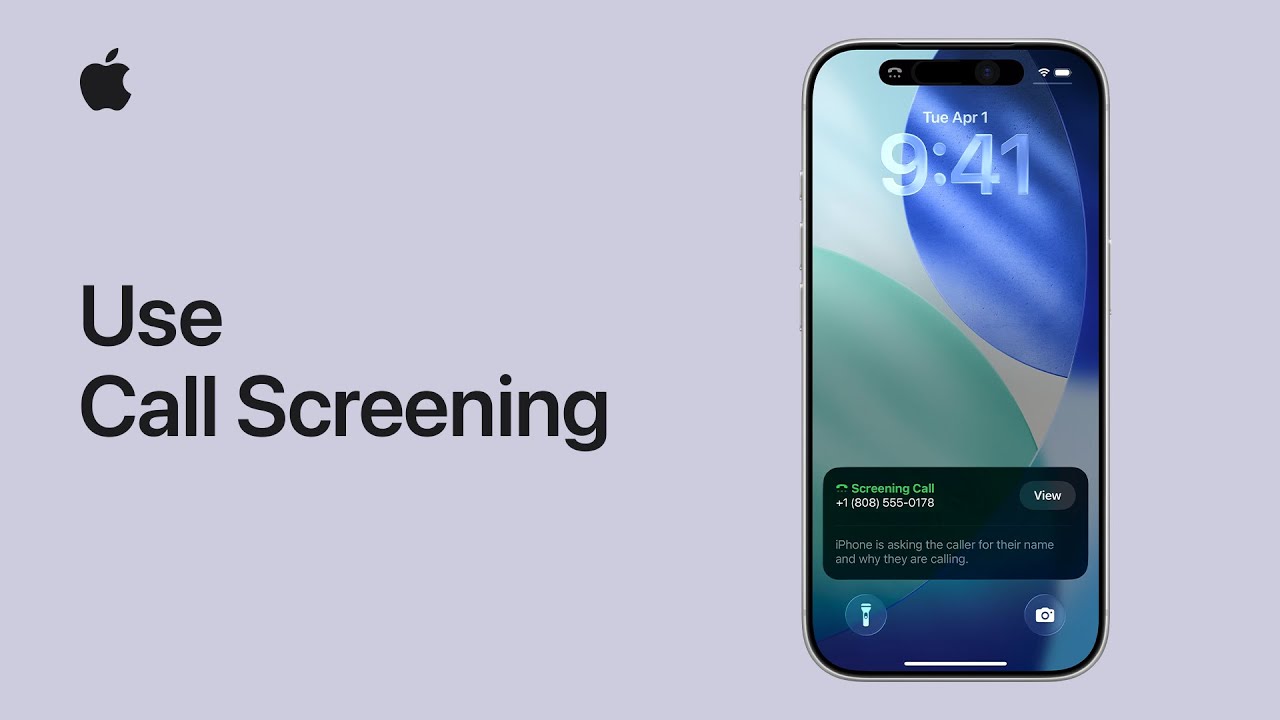
On an iPhone running the current iOS 27 interface, go to Settings → Apps → Phone → Screen Unknown Callers, then choose Ask Reason for Calling.
When an unsaved number calls, Call Screening answers without interrupting you and asks the caller for their name and reason for calling. Your iPhone then rings and shows the caller’s response so you can decide whether to answer.
If you want unknown numbers sent straight to voicemail instead, choose Silence. Choose Never to turn Call Screening off.
Call Screening is not new to iOS 27 — but these are the current iOS 27 steps
Apple introduced Call Screening with iOS 26. The feature remains part of the Phone experience in iOS 27, and Apple’s current iPhone guide still documents the same three choices: Never, Ask Reason for Calling and Silence.
That distinction matters because many people are now searching for “iOS 27 Call Screening” after updating their phones. The feature is not a brand-new iOS 27 invention, but the settings path and behavior described here are verified against Apple’s current iOS 27 documentation.
Apple also notes that features can vary by iPhone model, region, language and carrier. If the exact option does not appear on your device, use the troubleshooting section below instead of assuming the menu has simply moved.
What each Screen Unknown Callers option actually does
| Setting | What happens | Best for |
|---|---|---|
| Never | Unsaved numbers ring normally. Call Screening is off. | People who must answer many first-time callers immediately. |
| Ask Reason for Calling | iPhone answers first, asks who is calling and why, then rings with the response. | Most users who want fewer interruptions without missing legitimate calls. |
| Silence | Unsaved numbers are silenced and sent to voicemail. | People who rarely need calls from new numbers. |
How to turn on Call Screening in iOS 27
- Open the Settings app.
- Scroll down and tap Apps.
- Tap Phone.
- Find Screen Unknown Callers.
- Select Ask Reason for Calling.
You do not have to answer the unknown call immediately. Apple says Call Screening automatically handles the first interaction, collects the caller’s name and reason, and then lets the iPhone ring with that context visible.
When Call Screening speaks to the caller, Apple says Siri uses your iPhone’s default language. That can matter if your phone language is different from the language most callers use.
Watch Apple Support’s official Call Screening tutorial
Source: Apple Support’s verified YouTube channel. Apple’s tutorial demonstrates how unknown callers are screened before the iPhone rings.
Call Screening vs Silence Unknown Callers: which should you use?
The two options solve different problems.
Call Screening with Ask Reason for Calling is designed to preserve useful unknown calls. A delivery driver, doctor’s office, school, recruiter, repair service or new client can identify themselves before you decide whether to answer.
Silence is more aggressive. Unsaved numbers do not ring and go to voicemail. This is useful if nearly all of your important callers are already in Contacts, but it can also hide legitimate first-time calls.
For most people, Ask Reason for Calling is the better default because it reduces interruption without automatically treating every unknown caller as unwanted.
Screening, filtering and spam blocking are three different controls
One reason iPhone call settings are confusing is that Apple separates screening, filtering and spam handling.
Screening decides what happens before an unknown call rings. Filtering changes where unknown calls appear in your Phone app. Spam filtering uses carrier identification to silence calls identified as potential spam or fraud.
To enable the additional filters:
- Go to Settings → Apps → Phone.
- Scroll to Call Filtering.
- Turn on Unknown Callers if you want unknown calls moved out of the main Recents view.
- Turn on Spam if available to silence calls your carrier identifies as potential spam or fraud.
Apple says filtered unknown calls move to an Unknown Callers list, while carrier-identified spam can be silenced, sent to voicemail and moved to a separate Spam list.
How to find calls that iPhone filtered
If you think a legitimate call disappeared from your normal call history, open the Phone app and use the Filter button.
- With Apple’s Unified Phone layout, open Calls, then tap the Filter button.
- With the Classic layout, open Recents, then tap the Filter button.
- Choose Unknown Callers or Spam.
This is important if you use aggressive filtering. A screened or filtered call may still exist; it is simply organized outside the main list.
How to mark a legitimate unknown caller as known
Apple lets you teach the Phone app that a particular number should no longer be treated as unknown.
- Open the Phone app.
- Tap the Filter button.
- Open Unknown Callers.
- Find the call and tap Mark as Known.
- Confirm Mark as Known.
Apple also allows a number to be marked unknown again from the bottom of its contact card. This is useful when a number was trusted temporarily but should no longer bypass your organization rules.
How to turn Call Screening off
If you are asking “why is my iPhone screening calls?” and you no longer want the behavior:
- Open Settings → Apps → Phone.
- Open Screen Unknown Callers.
- Select Never.
If unknown calls are still disappearing after that, also review the Unknown Callers and Spam switches under Call Filtering. Screening and filtering are independent controls, so disabling one does not necessarily disable the other.
Important limitations: roaming, emergency calls and rates
There are three Apple-documented limitations worth knowing before relying on Call Screening.
Roaming: Apple says phone calls are not screened while you are roaming, regardless of your selected setting.
Emergency calls: if you call emergency services, Call Screening is disabled for 24 hours. Apple recommends saving important numbers such as family, a child’s school or a doctor’s office in Contacts so they are easy to recognize.
Calling/data charges: Apple states that standard calling and data rates may apply when using Call Screening. The feature itself is built into iPhone software, but your carrier plan still governs network usage.
Does iOS 27 Call Screening require Apple Intelligence?
Apple’s current Call Screening instructions do not list Apple Intelligence as a requirement for the basic Screen Unknown Callers feature. In Apple’s Phone documentation, Call Screening is described separately from Apple Intelligence-specific features such as certain voicemail suggestions and Call Context capabilities.
That said, Apple repeatedly notes that software features can vary by model, language, region and carrier. The safest test is the settings path itself: if Settings → Apps → Phone → Screen Unknown Callers is present, your device exposes the feature.
Can Call Screening stop scam calls completely?
No. Call Screening is a triage tool, not a guarantee that a caller is legitimate.
A scammer can still provide a believable name or reason. The feature is most useful because it forces unknown callers to provide context before they interrupt you. Carrier spam identification adds another layer, but caller ID can still be spoofed and fraudsters can impersonate real organizations.
For banking, account-security, government or payment requests, do not rely on the caller’s explanation alone. End the call and use an official number from the organization’s website, app, bank card or statement if you need to verify the request.
Call Screening not showing in iOS 27? Check these first
- Confirm your iOS version. Install the current stable iOS update available for your device.
- Use the current settings path. Look under Settings → Apps → Phone rather than searching older tutorials that use pre-iOS-18 menu layouts.
- Check whether you are roaming. Apple says calls are not screened while roaming.
- Restart the iPhone. This is a reasonable first step after an update or settings migration.
- Check region, language and carrier availability. Apple says some software features vary by these factors.
- Do not confuse Call Screening with Spam or Unknown Callers filtering. Those controls live in the same general Phone settings area but perform different jobs.
If your iPhone has other post-update behavior problems, DPB’s iOS 27 touchscreen troubleshooting guide covers a separate issue without mixing it into call settings.
A practical setup for most iPhone users
For a balance between convenience and protection, a sensible configuration is:
- Screen Unknown Callers: Ask Reason for Calling.
- Unknown Callers filter: On if your Recents list is noisy.
- Spam filter: On when supported by your carrier.
- Important real-world numbers: save them to Contacts.
- Unexpected financial/security calls: verify independently instead of trusting caller ID.
This setup lets legitimate first-time callers identify themselves while reducing the number of unknown calls that interrupt you immediately.
It also complements DPB’s broader iOS guide, 15 iOS 27 settings to change first for battery, privacy and Siri AI, which covers broader post-update settings rather than going deep on call handling.
Frequently asked questions
How do I turn on Call Screening on iPhone in iOS 27?
Go to Settings → Apps → Phone → Screen Unknown Callers and choose Ask Reason for Calling. Unknown callers will be asked for their name and reason before your iPhone rings.
Why is my iPhone screening calls automatically?
Screen Unknown Callers is likely set to Ask Reason for Calling. Change it to Never if you want unsaved numbers to ring normally.
Is iPhone Call Screening free?
Apple does not list a separate subscription fee for the built-in feature, but its support documentation says standard calling and data rates may apply.
Does Call Screening work while roaming?
No. Apple says phone calls are not screened while you are roaming, regardless of the selected screening setting.
What happens after I call emergency services?
Apple says Call Screening is disabled for 24 hours after you call emergency services.
What is the difference between Call Screening and Silence Unknown Callers?
Ask Reason for Calling screens an unknown caller and lets them identify themselves before your iPhone rings. Silence sends unsaved callers directly to voicemail without ringing.
Sources
DIGITAL PULSE BRIEF NEWSLETTER
Get clear AI, technology and business insights in your inbox
Breaking developments, practical explainers, reviews and useful tech intelligence — without the noise.
WHAT TO READ NEXT
Windows 11 24H2 Support Ends October 13: How to Upgrade Safely to 26H2 How to Fix iOS 27 Touchscreen Not Responding: 7 Safe Steps Before You Reset Anything
 Windows 11 Backup to External Drive: File History, OneDrive and 3-2-1
MORE FROM DIGITAL PULSE BRIEF