
HOW-TO · WINDOWS 11
Windows 11 24H2 Support Ends October 13: How to Upgrade Safely to 26H2
Microsoft is ending updates for Windows 11 24H2 Home and Pro. Here’s how to check whether you’re affected, choose between 25H2 and 26H2, and upgrade without defeating compatibility safeguards.
Digital Pulse Brief Editorial Desk • Published October 4, 2026 • About 10 min read
Windows 11 version 24H2 Home and Pro is almost out of support. Microsoft’s release-health documentation says those editions stop receiving updates after October 13, 2026. That matters because the end-of-updates date is not just a feature milestone: Microsoft says affected PCs will no longer receive monthly security and preview updates, fixes for known issues, time-zone updates or normal technical support.
There is now a clear migration target. Microsoft released Windows 11 version 26H2 on September 29, 2026, and says eligible 24H2 and 25H2 devices can receive it through Windows Update using the same servicing foundation as recent releases. The rollout is phased, however, and safeguard holds can delay the offer on specific hardware.
The practical advice is simple: first confirm your edition and version, back up important files, then take the supported update Windows Update offers. Do not bypass a compatibility hold just to get a newer version number.
Key takeaways
- Home and Pro on 24H2: end of updates is October 13, 2026.
- Enterprise and Education on 24H2: support continues until October 12, 2027, so the consumer deadline does not apply in the same way.
- 26H2 is generally available: Microsoft says eligible 24H2 and 25H2 systems can receive it, with a phased rollout.
- 25H2 remains supported: if that is the feature update your PC is currently offered, it is still a supported destination rather than a dead end.
- Do not force a blocked upgrade: a missing 26H2 offer can indicate staged availability or a safeguard hold.
Windows 11 24H2 support deadline: the dates that matter
Microsoft’s current Windows release table separates consumer and business servicing. These are the dates relevant to the upgrade decision:
| Windows 11 version | Home / Pro end of updates | Enterprise / Education end of updates |
|---|---|---|
| 24H2 | October 13, 2026 | October 12, 2027 |
| 25H2 | October 12, 2027 | October 10, 2028 |
| 26H2 | October 10, 2028 | October 9, 2029 |
Dates above are from Microsoft’s Windows 11 release information. Microsoft lifecycle pages can display dates differently by locale/time zone; the Windows release-health table lists October 13, 2026 as the Home/Pro 24H2 end-of-updates date.
What actually happens when 24H2 support ends?
Your PC will not suddenly stop booting on October 14. The risk is more gradual and more important: once Home or Pro 24H2 is outside servicing, newly discovered vulnerabilities and reliability problems can arrive after Microsoft has stopped producing normal monthly fixes for that version.
Microsoft specifically lists the loss of fixes for known issues, time-zone updates, technical support, and monthly security and preview updates. For a PC that connects to the internet, opens email, signs in to cloud services or stores personal information, that is a meaningful security and maintenance downgrade.
This is also why “it still works” is not a good reason to stay on an unsupported Windows release. The operating system can appear normal while its protection gap grows with each new update cycle.
What this means
If you are on Windows 11 Home or Pro 24H2, this is a security-maintenance deadline, not a cosmetic version change. The goal is to move onto a release that is still receiving monthly fixes.
First, check whether your PC is actually on 24H2
Before changing anything, check both the version and the edition you are running.
- Select the Search box on the Windows taskbar.
- Type winver and press Enter.
- In the About Windows dialog, look for Version 24H2, 25H2 or 26H2.
- Then open Settings > System > About and check the Windows edition. The October 13, 2026 deadline is specifically for 24H2 Home and Pro-class editions; Enterprise and Education have a longer lifecycle.
If you are already on 25H2 or 26H2, the immediate 24H2 Home/Pro deadline does not apply to your current installation.
Should you upgrade to 26H2 or 25H2?
For most eligible consumer PCs, 26H2 is the preferred long-term destination. Microsoft says 26H2 reached general availability on September 29 and resets the normal support lifecycle: Home and Pro receive 24 months of support, while Enterprise and Education receive 36 months.
But a supported 25H2 installation is also acceptable. Microsoft’s release table keeps 25H2 Home and Pro in support until October 12, 2027. If Windows Update offers 25H2 but not 26H2, taking the supported update is better than staying on 24H2 past its deadline while trying to force a release your device has not yet been cleared to receive.
Microsoft describes 26H2 as an enablement-package update for eligible 24H2 and 25H2 devices. Because the versions share a servicing foundation, the transition can be much smaller than a traditional operating-system upgrade and, when offered normally, should complete with a quick installation and a restart.
Before you update: protect your files and reduce avoidable risk
Feature updates are designed to preserve your apps and files, but an operating-system upgrade is still a sensible moment to protect the data you cannot replace.
- Back up important files first. If you want a practical strategy, see our Windows 11 backup guide using File History, OneDrive and the 3-2-1 rule.
- Install currently available Windows updates. Starting from a fully serviced build reduces the number of moving parts during the feature update.
- Save your work and connect a laptop to power. Avoid interrupting the restart/install phase.
- If your PC is managed by work or school, follow your administrator’s deployment policy. Corporate devices can intentionally receive feature updates later than consumer PCs.
How to upgrade Windows 11 24H2 using Windows Update
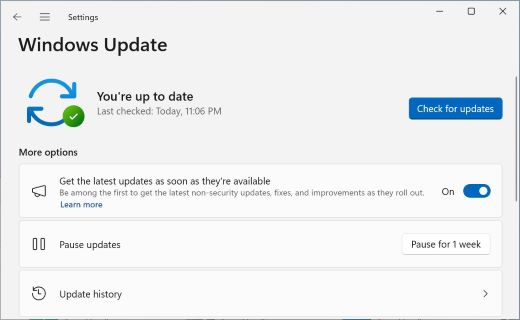
- Open Settings > Windows Update.
- Turn on Get the latest updates as soon as they’re available if you want to be prioritized for the current feature rollout.
- Select Check for updates.
- If Windows 11, version 26H2 is offered, choose the download/install option shown by Windows Update.
- If 25H2 is offered instead, remember that 25H2 remains supported. You do not need to bypass Windows Update just to reach 26H2 immediately.
- Allow Windows to restart when prompted.
- After sign-in, run winver again to confirm the installed version.
Microsoft says the 26H2 rollout is controlled and expands over time. Seeing no 26H2 offer today does not automatically mean your PC is incompatible.
What if Windows 11 26H2 is not offered?
There are several legitimate reasons 26H2 may not appear immediately:
- Phased rollout: Microsoft is expanding 26H2 availability over the months after launch.
- Safeguard hold: Microsoft can pause an update for specific hardware, drivers or software when a known compatibility problem could affect the upgrade experience.
- Managed device policy: an organization can control when feature updates are offered.
- Architecture/tool limitations: Microsoft’s Windows Update Assistant is supported on x86/64 PCs but not ARM-based PCs.
The safest response to a safeguard hold is usually to wait for the underlying issue to be resolved rather than using unofficial scripts, modified installers or registry tricks to bypass the block. Keep installing the security updates available to your current supported build and monitor Microsoft’s release-health page.
If you use an x86/64 PC and Microsoft’s official Update Assistant explicitly offers the applicable feature update, that is an official manual path. Windows Update remains the first choice because it reflects Microsoft’s device-specific rollout and compatibility decisions.
Do not bypass a safeguard hold just for the version number
A compatibility block exists to prevent a known problem from reaching affected hardware or software. Waiting for Microsoft or the vendor to clear the issue is usually safer than forcing the update and then troubleshooting a failure.
After the upgrade: verify the version and update history
Once the upgrade is complete, verify that Windows actually moved to the expected release instead of assuming the restart did it.
- Run winver and confirm the version.
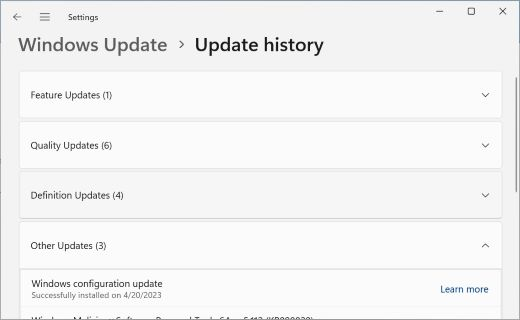
- Open Settings > Windows Update > Update history to review recent updates.
- Run Check for updates again so the new release can pick up any newer cumulative fixes.
- If something behaves unexpectedly, check Microsoft’s official 26H2 release-health page before attempting a rollback or major repair.
That last step matters because Microsoft publishes known issues and mitigation status centrally. It is a better source than random “fix” videos or third-party download sites.
Does the October deadline affect Enterprise and Education?
No. The October 13, 2026 end-of-updates deadline applies to Windows 11 24H2 Home, Pro, Pro Education and Pro for Workstations. Microsoft lists October 12, 2027 for 24H2 Enterprise and Education.
Organizations should still plan a migration rather than wait until the final month. Microsoft recommends targeted 26H2 deployments so IT teams can validate applications, devices and business-critical workflows before expanding the rollout. Existing management tools, update rings and policies can continue to be used.
Frequently asked questions
Will Windows 11 24H2 stop working after October 13, 2026?
No. A Home or Pro PC on 24H2 should continue to boot and run after October 13, 2026. The problem is that Microsoft stops normal servicing for that release, including monthly security and preview updates and support for newly discovered issues.
Is Windows 11 25H2 still safe to use?
Yes. Windows 11 25H2 Home and Pro remains supported until October 12, 2027. If Windows Update offers 25H2 but not 26H2, moving to the supported release is a reasonable path while 26H2 availability expands.
Should I force Windows 11 26H2 if Windows Update does not show it?
Usually no. Microsoft explicitly uses safeguard holds when it detects compatibility issues. If your device is not being offered 26H2, let Windows Update remain the source of truth unless Microsoft provides a supported manual path for your specific device.
Does the 24H2 deadline apply to Enterprise and Education?
No. Windows 11 24H2 Enterprise and Education have a longer servicing window, through October 12, 2027. Always check the edition as well as the version number.
Will a feature update delete my files?
Not by design, but you should still back up important files before a feature update. A backup protects you against unexpected hardware, storage, power or update problems rather than assuming every upgrade will be perfect.
Bottom line
If your Windows 11 Home or Pro PC is still on 24H2, the important date is October 13, 2026. Check your version now, create a current backup, and move to a supported release through Windows Update.
26H2 is now generally available and is the best long-term target for eligible devices, but the rollout is intentionally phased. A supported 25H2 upgrade is still a valid outcome, and a missing 26H2 offer is a reason to check Microsoft’s release-health information—not a reason to defeat compatibility safeguards.
Primary sources
- Microsoft — Windows 11 release information
- Microsoft — Windows 11 24H2 release health
- Microsoft — Windows 11 26H2 release health
- Windows Experience Blog — How to get the Windows 11 2026 Update
- Microsoft Support — Get Windows updates as soon as they’re available
- Microsoft Support — Windows Update Assistant
You may also like
Keep your Windows setup current
Explore more practical Windows and software guides from Digital Pulse Brief.
DIGITAL PULSE BRIEF NEWSLETTER
Get clear AI, technology and business insights in your inbox
Breaking developments, practical explainers, reviews and useful tech intelligence — without the noise.
WHAT TO READ NEXT
How to Use iOS 27 Call Screening to Stop Unknown and Spam Calls on iPhone  How to Fix iOS 27 Touchscreen Not Responding: 7 Safe Steps Before You Reset Anything
  Windows 11 Backup to External Drive: File History, OneDrive and 3-2-1
MORE FROM DIGITAL PULSE BRIEF