
Windows & Mac / Connections
Wi-Fi & Bluetooth Fixes.
A connection that keeps dropping can be a router issue, a device setting or a problem with one accessory. Work out where the fault starts before changing network settings.
Isolate the connection problem
Wi-Fi keeps dropping
See whether other devices disconnect too, then check the router and signal strength.
Bluetooth won’t pair
Check pairing mode, battery level and whether the accessory is connected elsewhere.
Internet feels slow
Compare another device or a wired connection before changing DNS or network settings.
Connectivity / Common fixes
Wi-Fi and Bluetooth troubleshooting guides
Find practical help for wireless networks, pairing and connection issues.
-
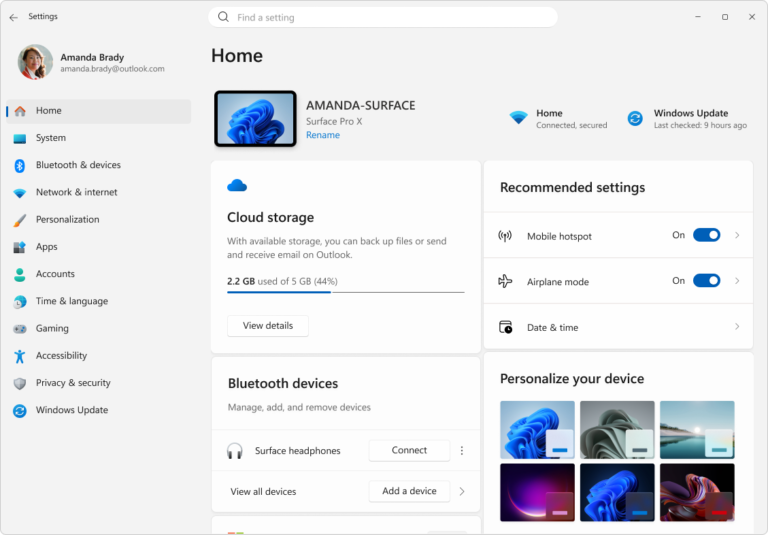
Bluetooth Disappeared in Windows 11? Check These Fixes Before Reinstalling Drivers
Read guide →: Bluetooth Disappeared in Windows 11? Check These Fixes Before Reinstalling DriversMissing Bluetooth in Windows 11? Follow safe checks for the vanished Bluetooth toggle, Device Manager, official drivers and when hardware may be at fault.
-
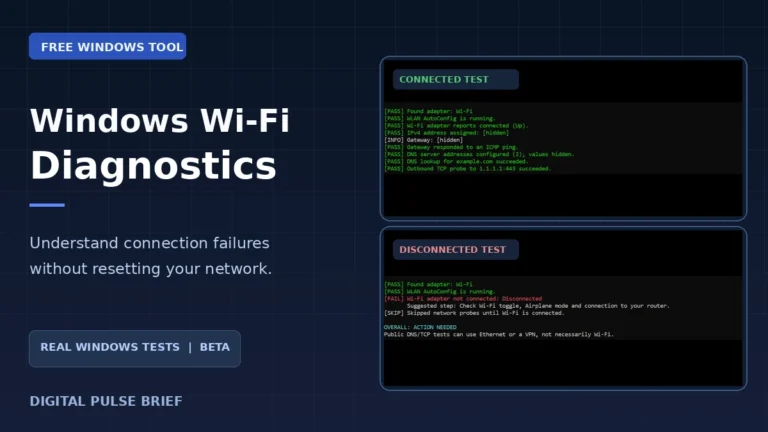
Windows 11 Wi-Fi Connected but No Internet? Run These Safe Diagnostics
Read guide →: Windows 11 Wi-Fi Connected but No Internet? Run These Safe DiagnosticsWi-Fi connected but no internet? Try safe Windows checks and a free open-source Wi-Fi diagnostic tool. See real screenshots, test results and limitations.
A safer wireless troubleshooting path
Locate the connection problem before resetting anything
A spinning connection icon does not tell you whether the problem is the router, your provider, the device or an accessory. Start by seeing which devices are affected. That one comparison often decides whether a network-wide change is sensible or unnecessary.
Only one device loses Wi-Fi
Check whether other devices work on the same network and whether the affected device can connect elsewhere. If the problem follows only one laptop or phone, investigate its software or saved connection first. If every device disconnects, inspect router status and the provider’s service information. Avoid a factory reset unless you understand how to restore your network setup.
A Bluetooth device will not pair
Check the accessory’s charge, pairing mode and the manufacturer’s pairing instructions. Many accessories reconnect to a previously paired phone or computer, preventing a new connection. Verify which device currently holds the connection before removing pairings. Remember that forgetting a device may require you to set it up again.
The connection feels slow
Compare results from more than one device under similar conditions. Distance, walls, interference, local downloads and service-provider problems can affect Wi-Fi speeds. A wired connection can help narrow the fault where available. Avoid changing DNS or disabling security features as a first response; neither is a universal solution to slow internet.
Know when to stop: For a shared office or family network, changing a router password or resetting it can disconnect everybody. If a connection issue involves a work-managed device, follow your administrator’s instructions. For platform-specific help, see Phones & Tablets, Windows 11 Help or Mac & MacBook.
Avoid factory-resetting your router or removing saved network settings as a first step; those changes can disconnect other devices. For device-specific help, browse Windows 11 or Mac & MacBook. Read our editorial policy.