iOS 27.2 Security Update: Which iPhone or iPad Version Should You Install?
Apple released iOS 27.2, iOS 26.7.2 and iOS 18.7.11 security updates on October 26, 2026. Check your exact iPhone/iPad model, security branch and update steps before installing.

Apple released iOS 27.2 and iPadOS 27.2 on October 26, 2026, alongside security releases for some devices using iOS/iPadOS 26 and iOS/iPadOS 18. The correct update depends on your exact device model and the version Apple offers in Settings → General → Software Update. Owners of an eligible iPhone 11 or later can look for iOS 27.2; older iPhone XS, XS Max and XR models are listed for iOS 18.7.11. Not every iPad can install the newest major version, and an iPad’s available update should be checked separately.
Don’t download a third-party “security patch” installer. Use the built-in Software Update screen or Apple’s supported computer update method. An update not showing for your model is a compatibility or availability question—not proof that the device is infected or broken.
Editorial verification, November 1, 2026: Digital Pulse Brief checked Apple’s dated security release list, specific security notes for iOS 27.2, 26.7.2 and 18.7.11, and its own official update instructions. No physical iPhone or iPad was updated for this article, and rollout was not independently tested.
October 26 Apple updates: check which branch is available
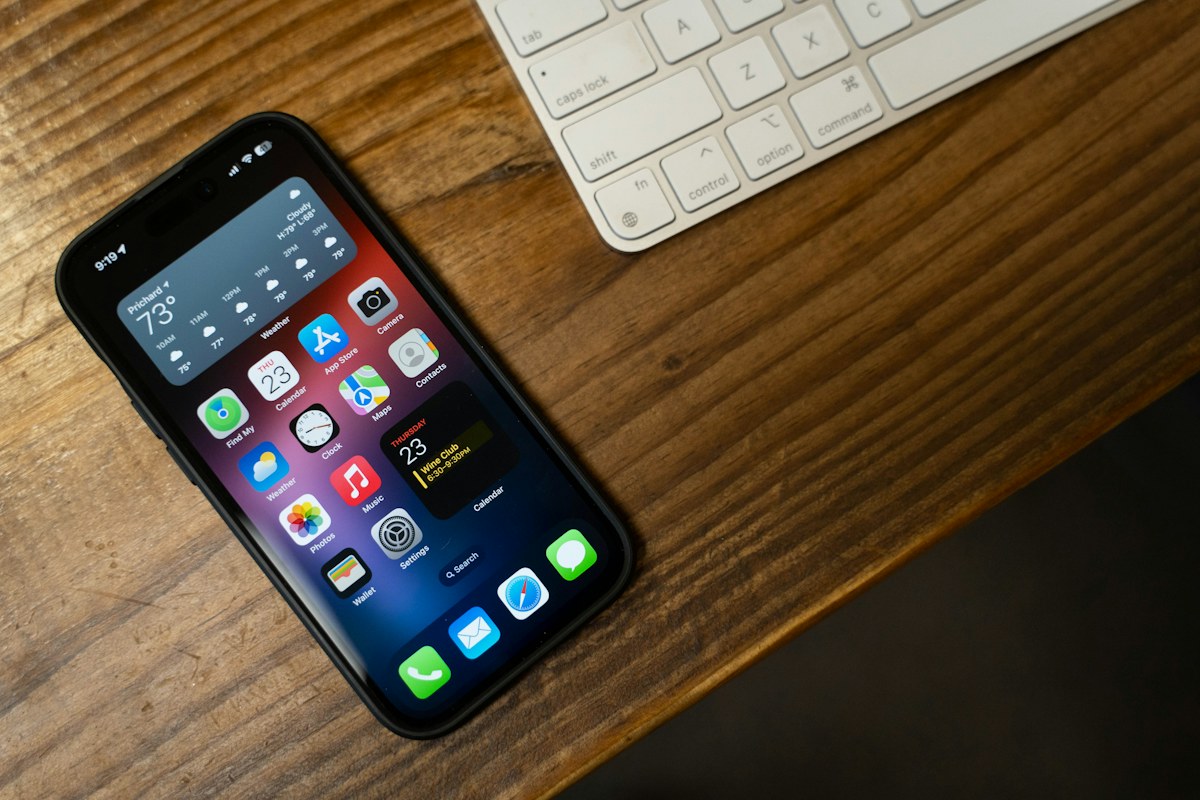
In-article image: Heath Vester; featured image: Jithuz Devan, via Unsplash. Photographs are illustrative; they do not establish that the described software behaviour or hardware performance was tested by Digital Pulse Brief.
| Security release | Devices Apple lists | What to do |
|---|---|---|
| iOS 27.2 | iPhone 11 and later | If your model is eligible, open Software Update and install the release Apple offers. |
| iPadOS 27.2 | iPad Pro 12.9-inch (4th generation and later); iPad Pro 11-inch (2nd generation and later); iPad Air (4th generation and later); iPad (9th generation and later); iPad mini (6th generation and later) | Confirm the iPad’s exact model; the iPhone eligibility rule does not identify supported iPads. |
| iOS/iPadOS 26.7.2 | Apple lists iPhone 11 and later, plus additional older eligible iPads including iPad 8th generation, iPad Air 3rd generation and iPad mini 5th generation | Check whether this update is offered on your device’s software branch. A security listing is not a promise that a particular device must show multiple branch options. |
| iOS 18.7.11 / iPadOS 18.7.11 | Apple lists iPhone XS, XS Max, XR and iPad 7th generation in its release notes, alongside other listed eligible devices | Owners of these older models should look for the security update applicable to their installed branch, not force an unsupported major upgrade. |
These entries are from Apple’s Apple security releases and individual 27.2, 26.7.2 and 18.7.11 notes. Specific iPad model eligibility matters. Do not treat every model in a security advisory as guaranteed to receive every version at the same time.
Why the 27.2 update matters: concrete security examples
Apple’s iOS/iPadOS 27.2 bulletin lists security fixes across components including Accounts, App Store, Contacts, Kernel, Security, Siri and WebKit. Three examples show why an update can matter even when a phone seems to work normally:
| Component / CVE | Apple’s described risk | Reader takeaway |
|---|---|---|
| Accounts — CVE-2026-112612 | An attacker with physical access to a trust-paired device may be able to read or write files. | Device security involves physical and trusted-device access, not only remote scams. |
| App Store — CVE-2026-112690 | A remote attacker may be able to escape a WebContent sandbox. | Security maintenance fixes underlying protections even if no visible bug appears. |
| Security — CVE-2026-112652 | A malicious application may be able to bypass certificate validation. | There is no need to disable device security to “fix” the issue; updating is the documented response. |
| WebKit — CVE-2026-112669 | Processing malicious web content may cause an unexpected Safari crash. | A crash or vulnerability description alone does not prove that a specific browser session was exploited. |
Read the original Apple security bulletin for the complete list and credit details. The examples above are deliberately selective. An Apple advisory does not mean all listed flaws were actively exploited. Treat impact language such as “may” as a risk description, not proof of an attack on your device.
Older iPhones: why iOS 18.7.11 also deserves attention
Apple published iOS 18.7.11 / iPadOS 18.7.11 for selected older supported devices on the same date. Its security entry for CoreGraphics CVE-2026-86950 includes a noteworthy qualification: Apple said it was aware of a report that the issue may have been exploited in an extremely sophisticated attack targeting specific individuals on versions of iOS before 27. This is different from saying every older iPhone is being hacked or that the issue was exploited against ordinary users indiscriminately.
Practical response: If you have an iPhone XS, XS Max or XR, use the supported Software Update path rather than looking for an unauthorized upgrade to iOS 27. The official security patch for your model and current branch is more valuable than an unverified “new OS on old phone” workaround.
How to identify the exact iPhone or iPad before installing
- Open Settings → General → About.
- Note the Model Name and the installed iOS Version or iPadOS Version. For some similar-looking iPads, the generation matters; don’t rely on screen size alone.
- Open Settings → General → Software Update. Read the offered update and the associated details.
- Match the offered release to Apple’s security notes above. If Apple offers a supported update for your model, use it rather than downloading an unsigned install file.
Apple’s wireless update instructions describe the same General → Software Update workflow. Apple may present different options depending on your installed version, hardware and device management. If a work/school phone is managed, ask the administrator before changing its software.
Install a security update safely: step by step
- Make a working backup. Back up to iCloud or a computer and confirm completion. OS updates are designed to retain data, but a backup protects against unexpected interruptions or hardware problems.
- Use stable power and Wi-Fi. Connect to reliable internet and keep the device charging or sufficiently powered for installation.
- Go to Settings → General → Software Update.
- If an eligible update is offered, tap Download and Install or the corresponding update control and follow the on-screen steps.
- Allow any required restart; do not interrupt an update during installation. Do not enter your Apple Account password into a web page that claims to be an update screen.
- After completion, return to Settings → General → About and verify the software version. Check Software Update again if additional authorized updates appear.
Apple’s official update article recommends a backup, power and Wi-Fi before installing and explains how to use a Mac or Windows PC if a wireless update is unavailable. Do not claim a particular update will fix unrelated battery drain, camera issues or storage problems unless Apple documents that result for your model.
If you do not see iOS 27.2
| Situation | Safer next step |
|---|---|
| iPhone XS, XS Max or XR | These aren’t on Apple’s iOS 27.2 support list. Check for the security release offered for that older model, such as iOS 18.7.11 where applicable. |
| iPhone 11 or later, but update isn’t visible | Confirm model and installed version, refresh Software Update on reliable Wi-Fi, and review Apple’s support page. Do not interpret absence as proof of a security fault. |
| Compatible iPad, but wrong update expected | Check exact model generation against Apple’s iPadOS support list; iPad model names overlap across generations. |
| Work or school device with restrictions | Contact IT; a managed device may have an update schedule. |
| Not enough storage / update error | Back up first, use Apple’s supported update troubleshooting or computer-based method, and avoid data-wiping shortcuts. |
Don’t confuse security and symptoms. Our existing iOS 27 battery drain troubleshooting guide focuses on battery usage after updating. This article answers a different question: which official October security release applies to your device and how to install it safely.
How to confirm the update worked
Your success test is simple: the phone or iPad restarts normally, the Settings → General → About version reflects the installed security release, and Software Update no longer shows that same update as awaiting installation. This does not establish that all vulnerabilities in all apps are gone; keep other apps updated normally too.
Official source ledger and disclosure
- Apple security releases — October 26 release dates and model lists.
- iOS 27.2 and iPadOS 27.2 security content — component-level patches.
- iOS 26.7.2 and iPadOS 26.7.2 security content — additional supported branches.
- iOS 18.7.11 and iPadOS 18.7.11 security content — older-device updates and the carefully qualified CoreGraphics vulnerability report.
- Apple — Update your iPhone or iPad — backup and installation instructions.
Checked November 1, 2026. These are Apple-published security and upgrade instructions, not hands-on DPB testing. No unsupported device upgrade or guaranteed fix is claimed.
Bottom line: Identify your model, check the actual Apple-offered security update, back up first and install through official settings. A newer major-version number is not the right target for an iPhone or iPad that Apple hasn’t listed for that release.