Google Photos Free Up Space on Android: Remove Local Copies Without Losing Your Backup
Google Photos Free up space removes backed-up photos from your Android phone, while Delete may remove them from your account. Check backup, local storage and Locked Folder safely.

Google Photos’ “Free up space on this device” removes selected backed-up photos and videos from your Android phone’s local storage; it does not mean “delete these pictures from my Google Photos account.” By contrast, using the regular Delete control inside Google Photos can remove the item from Google Photos and other synced devices. Before pressing either button, verify that your most important photos really finished backing up to the correct Google Account, and pay special attention to Locked Folder or device folders that may not be included in normal backup.
Safety first: A backed-up file visible only in Google Photos may not appear in your phone manufacturer’s Gallery app or while you’re offline after local copies are removed. If you need offline access, keep or download a local copy. Do not treat one cloud account as a replacement for every independent backup of irreplaceable photos.
Editorial method (November 1, 2026): This is a documentation-based decision guide using current Google Photos Help, Google backup and Locked Folder instructions. Digital Pulse Brief did not delete a real account’s photos or test the steps on a physical phone. Android versions and device-gallery interfaces can differ; the Google Photos controls below are the documented ones.
“Free up space,” “Delete,” and “Manage storage” are not interchangeable
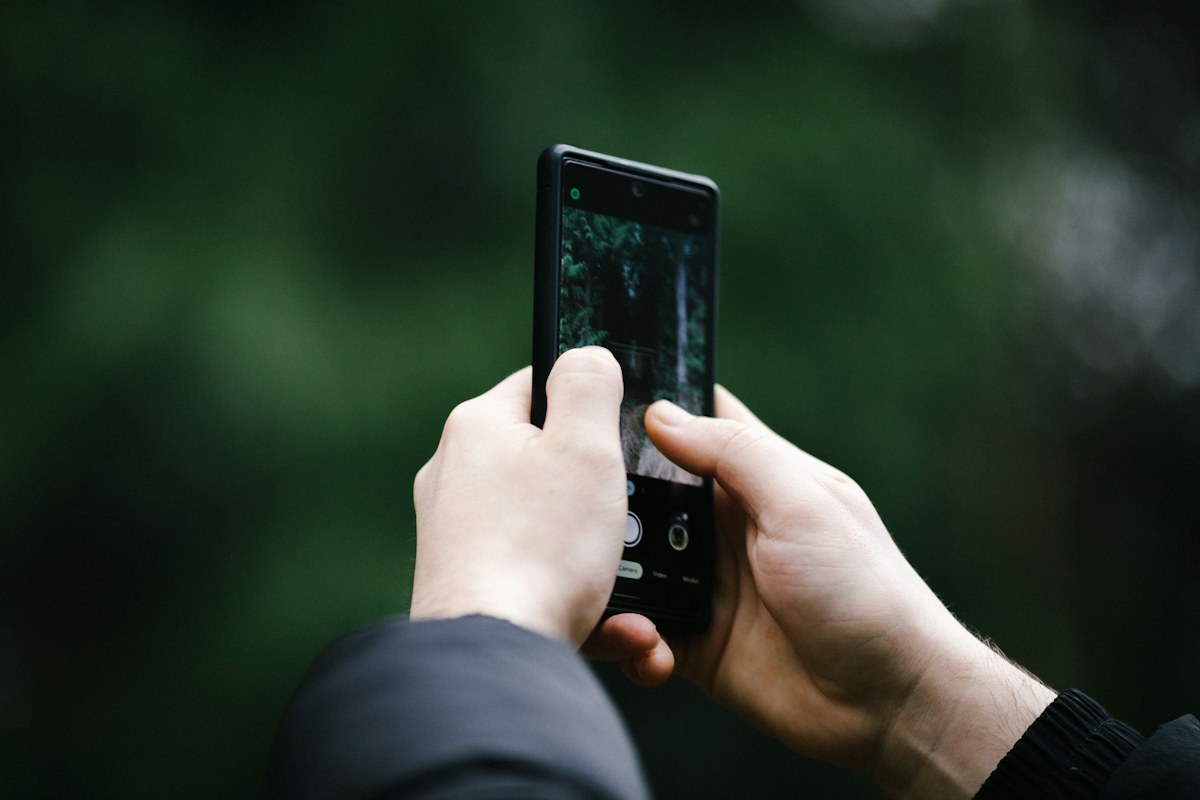
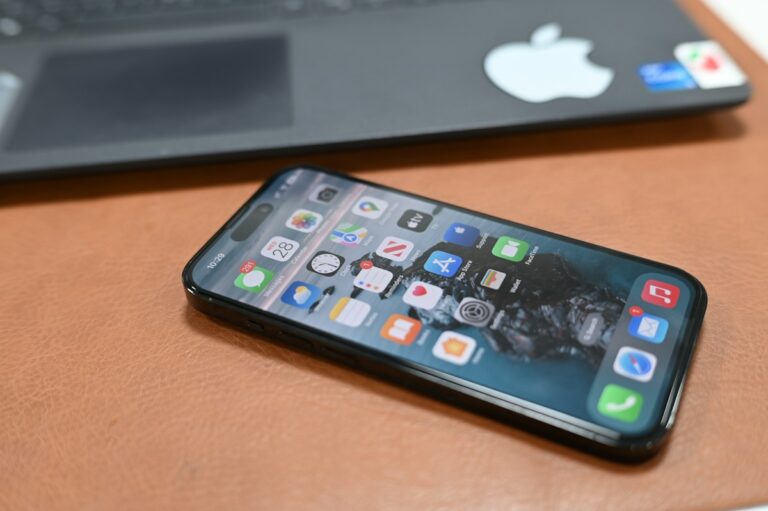
In-article photo by Jamie; featured photo by Franco Gancis, both via Unsplash. These are genuine illustrative photographs, not screenshots of the steps or claims of hands-on testing.
| Action | What it changes | What could go wrong |
|---|---|---|
| Google Photos → Free up space on this device | Removes eligible local copies already backed up, helping free Android device storage | Removed originals aren’t accessible in a standard offline Gallery or while signed out; confirm backup first |
| Google Photos → Delete / Move to Trash | Deletes selected items from your Google Photos account and, when backup is enabled, also from synced devices | Can remove wanted pictures across devices; Trash has a limited recovery period |
| Google Photos → Manage storage | Shows Google Account cloud-storage usage and cleanup candidates | Cloud deletion can affect the same media across devices; it is not the same as freeing only phone storage |
| Android Settings → Storage | Displays local usage by apps, media, downloads and other categories | Clearing an app’s data or manually deleting gallery files is not equivalent to verified Google Photos backup |
| Locked Folder backup | Separately controls whether private Locked Folder media is backed up | Unbacked Locked Folder items can be lost when deleting the Photos app, clearing app data or resetting the phone |
Google’s Free up space instructions and Delete photos instructions explicitly distinguish removing local backed-up copies from deleting items through the photo library. This is the core decision, not a hidden storage trick.
Step 1: confirm the correct Google Account and backup status
- Open Google Photos on your Android phone. Tap the profile picture or initial at the top to identify the signed-in account. If you use multiple accounts, confirm the one containing your intended backup.
- Review the backup status; Google documents statuses such as Backup complete, Backing up, Backup paused or No backup. Do not start local deletion while important items are waiting to upload.
- For individual precious files, open the photo or video, choose More → About and inspect its Details. Google says backed-up items can show their backup status and size there.
- Use a different device or browser to open photos.google.com with the same correct account. Confirm a sample of recent and important files is visible and opens. Merely seeing thumbnails in the phone app can include local-only photos.
- Check any special device folders you care about, such as downloaded photos or screenshots. Backup choices may differ by folder; do not assume “Backup complete” includes every folder on the phone unless you verify those specific files.
Google documents the exact status indicators and per-file checks in Back up photos & videos. If items show not backed up or a permanent failure, stop and fix that problem before attempting to delete device copies. Google Account storage can prevent new uploads once the quota is full; investigate that separately instead of assuming a backup exists.
Step 2: use Google’s supported Free up space control
- When the backup checks pass, return to the Google Photos app using the correct account.
- Tap the account profile photo or initial and choose Free up space on this device.
- Google Photos displays an estimate of the local space that can be freed. Read it and remember the action really removes items from the phone.
- If you accept losing offline device copies, tap the matching Free up [amount] from device confirmation. Do not tap regular Delete in the photos grid to accomplish this job.
- Return to Android Settings → Storage to see actual available local storage. Check that the pictures remain accessible at photos.google.com when signed in online.
Google says photos and videos less than 30 days old may remain locally after Free up space. That does not mean the feature failed. The exact amount recovered depends on eligible media. Check the first-party Free up space page, not an arbitrary “this always deletes everything older than X” claim.
Step 3: understand where the photos will still appear
After local copies are removed, Google says backed-up pictures remain available in Google Photos and on photos.google.com, provided you have the appropriate account and connection. They might no longer appear in the phone’s built-in Gallery app, or while offline or signed out of Google Photos. This is especially relevant to travelers, users with limited data, and people who routinely open photographs through other apps.
If you need a particular photo offline, plan to download an authorized local copy before you lose connectivity. Confirm image/video quality and available device space rather than assuming a cloud thumbnail is the same as a downloaded full-resolution file.
Stop: is Locked Folder backup enabled?
Google Photos Locked Folder protects items with a device screen lock, but those items are not necessarily included in the regular photo backup. Google’s Locked Folder help says you can turn on its own backup or manually back up selected items. If that backup is off, the contents may exist only on that device.
- Open Google Photos → Collections → Locked and unlock it using your screen lock, where the feature is available.
- Review whether Back up Locked Folder is turned on under Google Photos profile → Photos settings → Backup → Back up Locked Folder.
- If you intend these private items to survive a device loss, app removal or factory reset, follow Google’s documented backup choices, and confirm the privacy implications before enabling cloud storage.
- Never assume that clearing Google Photos app storage, uninstalling the app or factory resetting the phone is harmless to a Locked Folder that is not backed up.
Google explicitly warns that unbacked Locked Folder items can be deleted by clearing Google Photos app data, uninstalling the application or resetting the phone. The correct response to a full phone is not to erase app data and hope cloud backup covers everything.
If you accidentally used Delete instead of Free up space
Do not keep deleting or clear the Trash. In the Google Photos app, check Collections → Trash (or the Trash section your version displays), select the item and choose Restore if offered. Google says its current Trash retention rules vary by the type and backup status, and that permanently deleted media cannot be restored. Do not rely on a fixed retention window from an outdated tutorial.
Look for the item in Google Photos Trash and your manufacturer Gallery’s Trash as applicable, and consider another independent backup. If a cloud item was deleted while synchronization was on, check affected devices cautiously; it may have been removed elsewhere. Google specifically explains the sync effects in its Android deletion guide.
What if your Google Account—not your phone—is full?
Tap Google Photos profile → Photos settings → Backup → Manage storage to see Google Account usage. Google’s storage manager may highlight large videos, blurry photos or screenshots for review. Deleting unwanted items here can free cloud quota but can also delete them from the backed-up library; it is a different task from removing only local copies. Google Account storage is shared with other supported Google services, so check where the quota is used before making destructive decisions.
Google’s Manage your storage instructions explain the storage summary and its restrictions. Do not buy more cloud storage before establishing whether the problem is phone capacity or cloud quota—and whether a safer device-only cleanup is enough.
What should you do if Google Photos reports zero space to free?
| What you observe | What to check |
|---|---|
| Backup still pending or paused | Fix backup connectivity, account quota and upload status before deleting local originals. |
| Recently captured photos remain on device | Google says items younger than 30 days may remain locally; the option may not reclaim them yet. |
| Most storage used by apps/downloads, not camera media | Open Android Settings → Storage and inspect those actual categories; Google Photos cannot reclaim unrelated app data. |
| Photos visible only in a different local folder | Verify that folder’s backup and exact files before trying any removal. |
| Media hidden in an unbacked Locked Folder | Do not uninstall/reset the app; first decide whether and how to back up sensitive contents. |
| Phone has multiple Google Accounts | Confirm the account holding the actual media and the backup profile before using the tool. |
Verification checklist after freeing space
- Confirm your phone now has additional available local space through Settings → Storage.
- Sign in to photos.google.com in a browser and open a selection of valuable originals or uploaded videos.
- Confirm the Google Photos account is the intended one, and that new pictures still show a working backup status when required.
- Remember your phone’s Gallery and offline apps may no longer show removed local originals. Download selected items if offline use is essential.
- Check that your independent backup strategy covers items you cannot afford to lose. Do not rely solely on whether a picture appears in the Google Photos feed.
Bottom line: To reclaim Android storage while retaining verified Google Photos cloud copies, use Free up space on this device—not regular Delete, and never a full Google Photos data clear. Verify your backup, account and Locked Folder first.
Official references
- Google Photos Help — Free up space on Android.
- Google Photos Help — Delete photos and videos.
- Google Photos Help — Back up photos and videos.
- Google Photos Help — Locked Folder and backup risks.
- Google Photos Help — Manage your storage.
Source review: November 1, 2026. No private account, real photos or device storage were accessed or deleted by Digital Pulse Brief.