Moisture Detected in USB Port? Safe Charging Fixes for Samsung Galaxy and Pixel
Samsung Galaxy moisture detected or Pixel liquid/debris USB port warning? Unplug safely, dry without heat, check the cable, and use model-specific software checks only after fully dry.

If your Samsung Galaxy says “Moisture detected” or your Google Pixel warns “Liquid or debris in USB port,” unplug the charger and do not force wired charging. The warning protects the USB-C connection against corrosion, shorts and other damage. Turn off a wet phone, gently dry the exterior, and leave the port and cable in a ventilated area at room temperature until fully dry. A software restart or cache clear is appropriate only after the port is known to be clean and dry—never as a way to override a genuine moisture warning.
Stop conditions: if you see a burned, melted or corroded USB-C connector, an abnormally hot cable, a swollen battery, smoke or unusual odor, stop using the device and request qualified service. Do not insert a metal tool, paper towel or cotton swab into the port. Don’t apply a hair dryer, radiator, oven or high heat. Even water-resistant phones need a dry charging port before plugging in.
How this article was verified (November 1, 2026): Digital Pulse Brief checked Samsung US/UK and Google Pixel’s official charging/moisture support pages. No physical phone was exposed to water, opened or tested; the decision paths below are documentation-derived, not fabricated firsthand fixes. Exact menu labels can vary by Galaxy model, Android version and region.
Recognize the warning: Samsung and Pixel are not identical
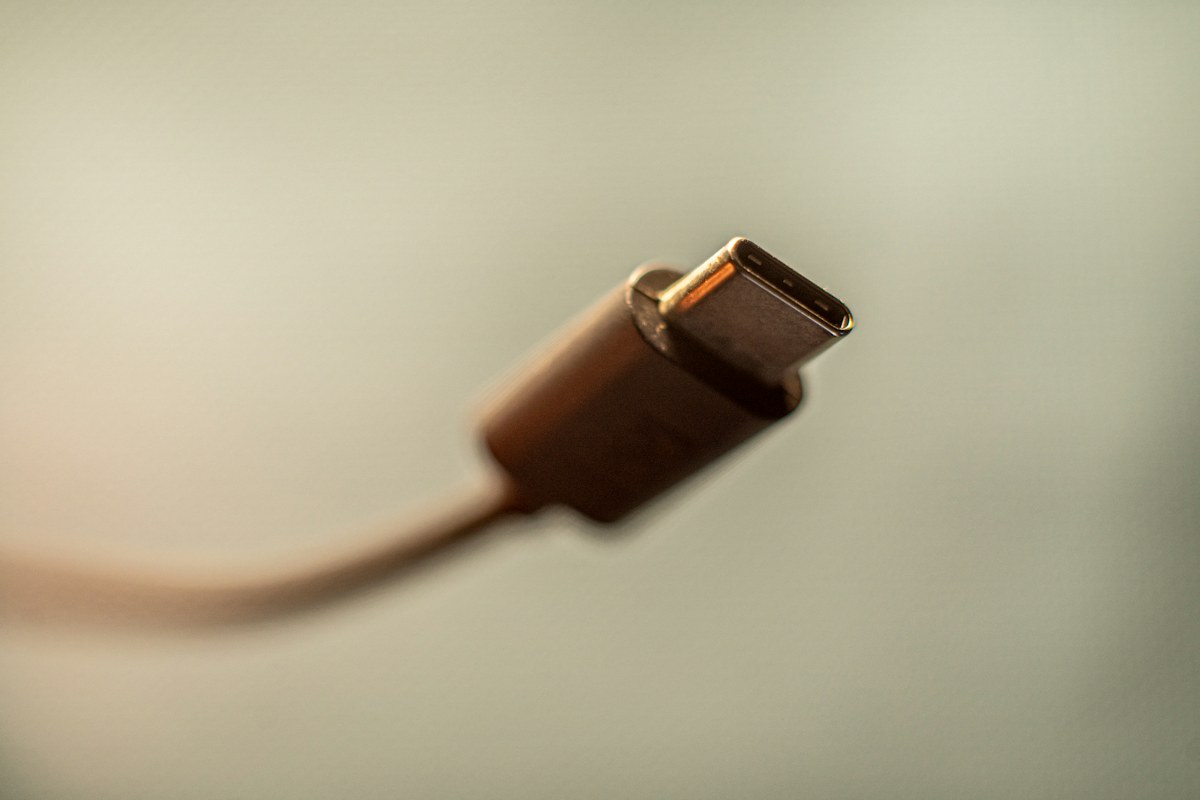
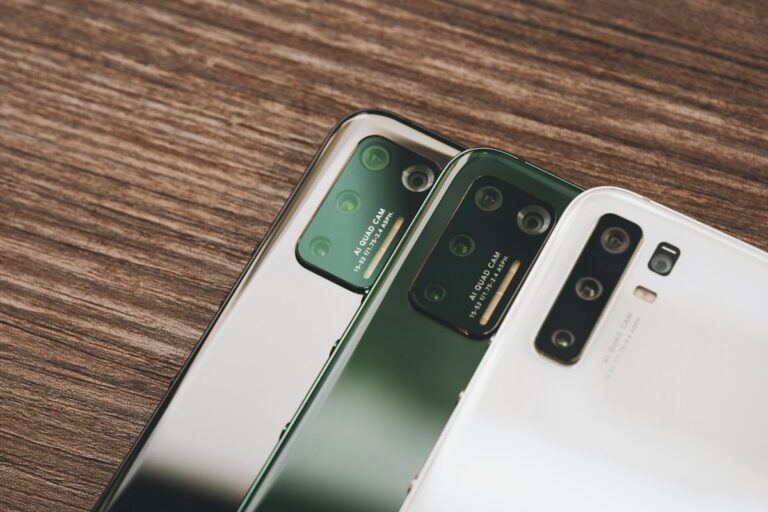
In-article photo by Marcus Urbenz; featured photo by Andreas Haslinger, both via Unsplash. These are genuine illustrative photographs, not screenshots of the steps or claims of hands-on testing.
| Phone / message | What it usually indicates | First safe action |
|---|---|---|
| Samsung Galaxy — water-drop icon or “Moisture detected” | Samsung’s port safety system has detected moisture or potentially a humid condition | Disconnect USB cable and dry the phone/port before attempting another wired charge |
| Google Pixel — “Liquid or debris in USB port” | Pixel detects liquid or debris in the USB-C connection | Unplug accessories, inspect without inserting objects, power off to dry if wet |
| Google Pixel — “Unplug charger” | Google documents potential excess heat at the cable or charging connection | Disconnect power carefully and let phone/cable cool; get help if warning recurs |
| Warning persists when completely dry | Could be lingering detection, software state, contamination or port fault—not proof of any single cause | Only then consider manufacturer-specific restart/cache guidance or professional inspection |
Samsung describes the alert as a way to prevent charging-related corrosion or internal damage in its moisture troubleshooting guide. Google details both Pixel warning texts, heat precautions and escalation in “Unplug charger” / “Liquid or debris” help.
Step 1: disconnect safely immediately
- Unplug the USB charger from the wall socket. If the cable or phone is very hot, avoid touching the hot connector directly and allow it to cool.
- Disconnect the cable or USB-C headset from the phone when safe, following the device’s warning. If the phone is wet, turn it off.
- Use a clean, soft, dry cloth for water on the exterior. Hold the charging port downward so moisture can drain; Samsung permits a gentle movement or shake, not aggressive whipping of the phone.
- Place the phone on a clean surface in a well-ventilated room and allow it to dry naturally. A fan moving cool air through the surrounding room is safer than direct high heat.
Samsung’s UK water-drop guide (updated April 2026) notes that humidity itself can trigger the icon, even without a dunk in water. Its US guide says moisture often evaporates naturally within approximately one or two hours, but the actual time varies by exposure and environment. Do not use an elapsed time alone as permission to charge; the port must be completely dry and any protective warning cleared.
Step 2: inspect the cable as well as the port
A damp cable can reintroduce moisture to a dried phone. With both devices disconnected from power, check the connector under good light for water droplets, debris, lint, bent pins, corrosion or damaged housing. Do not poke a tool into the connector. Google specifically advises not to insert anything into the USB-C port or cable. If the cable appears scorched, melted or otherwise damaged, replace it with an appropriate approved cable and stop reusing the suspect one.
For a Pixel, Google allows a gentle tap with the USB-C port facing down against your hand if debris is present; that is not an instruction to scrape the contacts. For Samsung, its latest US charging troubleshooting describes gentle drying and cool ventilation. If the port is blocked, damaged or visibly corroded, a service technician is safer than improvised cleaning.
Step 3: how to know it is safe to try wired charging again
- Check that the phone and cable feel dry at the exterior and there is no visible port moisture or debris.
- For Pixel, wait for the documented “OK to use USB port” message if its “Liquid or debris” warning appeared. Do not treat the phone’s screen unlocking as proof the port is ready.
- For Galaxy, wait until the water-drop warning is gone and the connector is dry. Samsung’s port protection may block wired charging until then.
- Only after these checks, use a known-good compatible charger/cable and monitor for repeat warnings or heat. Stop immediately if the alert reappears.
Some Samsung devices that support wireless charging may charge wirelessly without using a wet USB port. Samsung says the handset itself should still be dried thoroughly before placing it on a wireless charger. Do not assume every Galaxy A-series model or tablet supports wireless charging, or place a visibly wet device on a powered charger without checking the manufacturer guidance.
Step 4: Samsung moisture warning stays after the phone is fully dry
Only consider software troubleshooting when you are certain the port is clean and completely dry. Samsung’s UK documentation says a persistent Galaxy water-drop icon after drying can sometimes be addressed by clearing the USB system cache, but model/software menus differ. This is a software-state diagnostic, not a moisture-removal technique.
- Restart the phone normally after drying. Do not restart repeatedly while the charging port is physically wet.
- If the warning remains, open the official Samsung instructions for your specific model and software to locate the relevant USB cache control.
- Where available, go to Settings → Apps, show system apps, identify the exact Samsung USBSettings component, open Storage and consider Clear cache as the less invasive option. Do not guess a similarly named app.
- Samsung’s model-specific support may also describe clearing the component’s stored data. That is not equivalent to clearing only cache and can reset app/system settings. Do not perform a data clear unless its impact is understood and your exact vendor instructions call for it.
- If the warning continues, or charging never resumes, consult Samsung support or an authorized service center rather than bypassing port protection.
Samsung documentation varies across models/regions: some instructions use system-app storage and others discuss cache-partition recovery. These are not interchangeable universal commands. This guide intentionally avoids recommending an undocumented recovery-mode key combination or factory reset.
Step 5: Pixel “Liquid or debris” warning after drying
Google’s Pixel guidance has a distinct escalation route. Once the port is clean and dry and a normal cooling/drying interval has passed, some Pixel software builds expose Settings → Apps → See all apps → Show system apps → USB settings / Android system → Storage and cache → Clear cache. Use this only if the exact controls are present on your model and the USB connector is fully dry.
Google says to seek support if a “Liquid or debris in USB port” warning persists for two hours or longer or a repeating “Unplug charger” warning occurs. The two-hour condition is a Google Pixel support escalation guideline, not a universal drying timer for all brands. If physical damage is visible, don’t wait for the timer—stop use and request service.
Common mistakes that can turn a small problem into damage
| Avoid | Why | Safer alternative |
|---|---|---|
| Plugging a charger back in repeatedly while wet | Charging through a wet connection may accelerate corrosion or cause faults | Dry fully; wait for the alert to clear |
| Hair dryer, oven, radiator, hot air gun | High heat can damage seals and internal components | Room-temperature drying and cool ventilation |
| Metal pin, paper clip, forced connector cleaning | Can scratch or short delicate USB-C contacts | External inspection; qualified service for blockage or corrosion |
| Factory reset or clear all Android app data | Can erase settings and personal information without removing physical moisture | Manufacturer-specific diagnostic only after drying; retain backups |
| Disable protective software to “force” USB charging | May remove a real safety warning without fixing wet hardware | Let detection protect the device and use professional repair if needed |
| Assume IP water-resistance means charging while wet is fine | Water resistance is not a guarantee of a dry connector | Dry port and cable thoroughly before wired use |
What if the phone still will not charge?
If the port is definitely dry and the warning is gone, check a known-good compatible wall charger and cable. Samsung’s wired-charging troubleshooting page differentiates a moisture alert from other charging causes, including cable issues and battery settings. If you still see no charging response, constant disconnection, strong heat, visible corrosion, or a persistent wet-port alert, book service instead of repeatedly testing live power through a suspected damaged port.
Summary: A moisture warning is a protection, not a prompt to reset the whole phone. Unplug, cool and dry safely, inspect the connector without tools, then follow Samsung- or Pixel-specific instructions if the dry-port warning is stuck. Never force charging through a wet or damaged USB-C connection.
Sources and testing note
- Samsung UK — Water-drop icon and not charging (April 2026).
- Samsung US — Moisture in a water-resistant Galaxy port.
- Samsung US — Wired charging troubleshooting.
- Google Pixel Help — “Unplug charger” / “Liquid or debris” alert.
Checked November 1, 2026. This guide contains official-source instructions only; Digital Pulse Brief did not physically dry, clean or repair a phone or test its USB detection systems.