Bluetooth Headphones Connected but No Sound in Windows 11? Diagnose the Right Output
Bluetooth headphones connected but no sound on Windows 11? Check system output, app Volume mixer, audio enhancements and LE Audio microphone limitations before driver resets.

If Bluetooth headphones show “Connected” in Windows 11 but no audio plays, first verify where Windows and the affected app are sending sound. Open Settings → System → Sound → Output and select your Bluetooth headphones. If other programs work but one app is silent, check that app under Sound → Volume mixer because individual apps can have their own volume and output-device settings. Do not begin by deleting Bluetooth drivers or resetting the entire PC.
The same symptom can have different causes: system output set to speakers or HDMI, a muted app, a headset profile selected during calls, intermittent Bluetooth pairing, or an outdated driver. This guide follows a diagnostic branch based on what you actually hear so readers need not try every unrelated fix.
Source and testing note (November 1, 2026): Digital Pulse Brief researched Microsoft Support’s Windows 11 Bluetooth connected/no sound, per-app Volume Mixer, driver and Bluetooth LE Audio guidance. No specific headset, Windows build or laptop was physically tested for this report. Driver menus and LE Audio features can differ by device and vendor.
Start with the symptom: no sound, one silent app or low-quality calls?
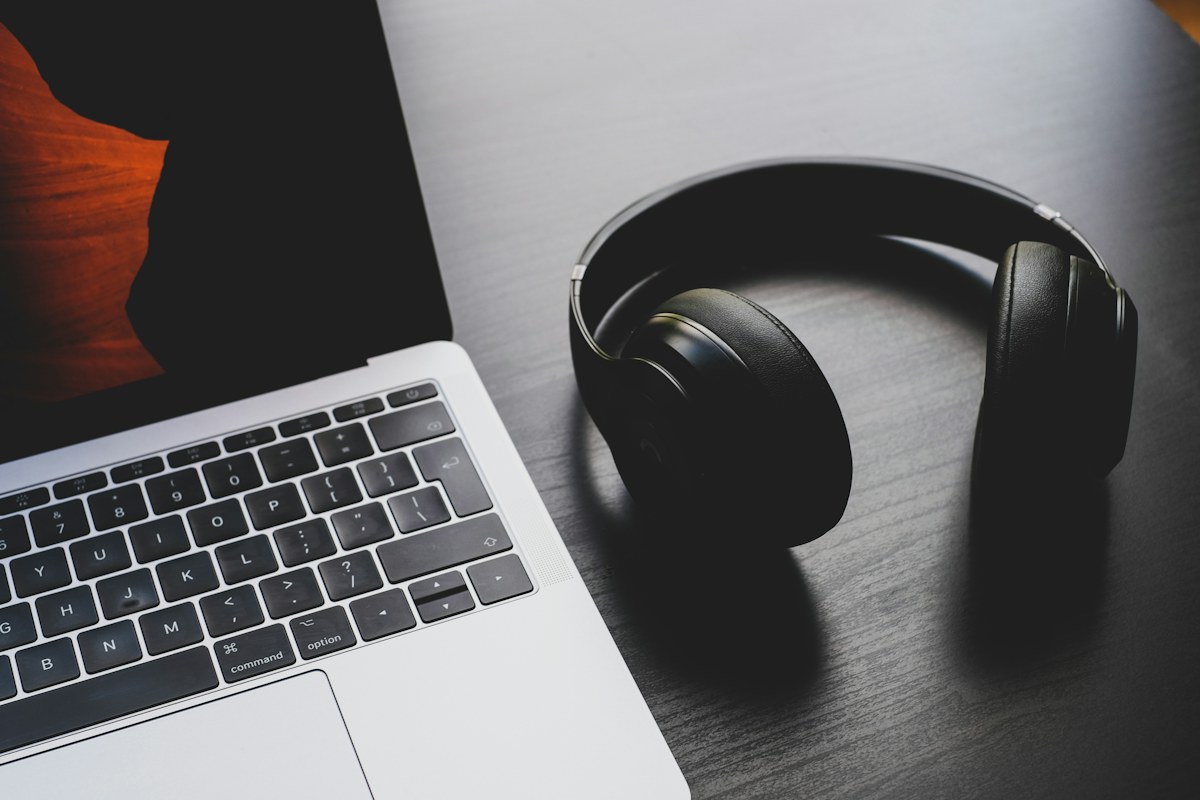
In-article photo by Dan Farrell; featured photo by Tomasz Gawłowski, both via Unsplash. These are genuine illustrative photographs, not screenshots of the steps or claims of hands-on testing.
| What you notice | First check | Why |
|---|---|---|
| Bluetooth shows connected, but all audio comes from laptop speakers | Windows Settings → System → Sound → Output | The headset may be paired but not selected for playback. |
| YouTube works, but a meeting or music app is silent | Sound → Volume mixer → affected app | Windows can remember a different output device or mute for one app. |
| Music sounds fine until microphone or call starts | Check whether your PC and earbuds support Bluetooth LE Audio stereo during microphone use | Older Bluetooth configurations can switch playback to mono/telephone-grade audio in call mode. |
| Audio cuts out or device disconnects | Bluetooth connectivity and driver troubleshooting | The underlying problem may be an unstable link, not just volume. |
| Headset isn’t listed under Output at all | Bluetooth paired state and device detection | It may not have connected as an audio device; use the relevant detection path. |
Microsoft’s dedicated connected/no-sound guide explicitly lists wrong settings, driver issues and compatibility among causes. The goal is to isolate a cause before changing working parts of Windows.
Fix 1: select the Bluetooth headphones as Windows’ output
- Turn on the headset and make sure it isn’t actively being used by another paired phone or tablet. Some headphones support multipoint, but how switching works depends on model.
- On the Windows PC, open Start → Settings → System → Sound.
- Under Output, choose the actual Bluetooth headphones, not the built-in speakers, a monitor HDMI endpoint or a stale disconnected device name.
- Check the system output volume and make sure it isn’t muted. Play a short known-safe audio sample using a local music file or a trusted app.
- If more than one similarly named headset endpoint appears, consult its manufacturer and choose the one intended for normal playback; the available options depend on Bluetooth implementation.
Microsoft’s Windows output audio guide confirms these Sound settings, and points out that connected monitors without built-in speakers can accidentally become the selected output. If selecting the headset restores sound across apps, don’t continue into unnecessary driver surgery.
Fix 2: check Volume mixer if only one app has no sound
Windows 11 permits app-level routing that can override the system output. A browser may be sending audio to the earbuds while a meeting app continues to target the laptop speakers.
- Open the affected app and start an appropriate local test so it appears as an active audio client.
- Go to Settings → System → Sound → Volume mixer.
- Under Apps, verify the app is not muted, its volume is up, and its Output device is the desired Bluetooth headset or intended system default.
- If the app has its own audio-device selector, check it too (for example, a conferencing app can independently choose speaker and microphone). A Windows setting does not always override an app’s internal choice.
- Close and reopen that app if necessary; test again before touching system drivers.
These are Microsoft’s documented settings in Fix app audio not working while system sounds work. Avoid resetting every application’s output unless you know that is required; a narrow correction is more recoverable.
Fix 3: distinguish a quiet headset from bad audio format or enhancements
If sound plays but is very low or distorted, first inspect the physical headset volume and Windows/app volume. Microsoft notes some audio enhancements can affect playback. In Settings → System → Sound → Output, select the headset and, where supported, temporarily set Audio enhancements to Off; test, then restore the previous choice if it did not help.
Some devices expose alternate formats or audio settings, but those controls are model dependent. Avoid suggesting that choosing a particular sample rate magically fixes every Bluetooth issue. Microsoft lists the generic low/quiet sound checks for appropriate cases.
Why music becomes mono or low quality when the microphone is active
This symptom is not identical to “no sound.” Traditional Bluetooth audio arrangements often use different profiles for stereo media playback and two-way voice calls. When an app activates the headset microphone, available audio quality can change. Microsoft now offers improved Bluetooth LE Audio capabilities on compatible hardware/software combinations, including stereo playback during microphone use.
Its LE Audio quality guide says that stereo playback while using the microphone requires a suitable Windows 11 build (24H2 or later and qualifying updated drivers), a PC with factory-integrated LE Audio support and a compatible Bluetooth LE Audio headset. Some systems may offer a selectable stereo/mono behavior. If these requirements aren’t met, Windows may use mono audio during microphone use. Merely updating Windows cannot turn unsupported Bluetooth hardware into a complete LE Audio system.
Practical branch: if quality changes only when a video call starts, look at headset and computer LE Audio compatibility, microphone input selection in that specific application, and manufacturer driver support. If the application lets you use the built-in laptop microphone while keeping the earbuds for playback, that can be a reversible test—but its behavior depends on your equipment and privacy requirements.
Fix 4: use Microsoft diagnostics before modifying drivers
- Run Windows 11’s Bluetooth troubleshooter through the Get Help app, as Microsoft recommends in its Bluetooth troubleshooting page.
- Run the Audio troubleshooter from the same first-party Get Help workflow when the output itself is silent.
- Use Settings → Windows Update → Check for updates for supported driver and Windows fixes. Save work and restart if required.
- If the PC maker has a Bluetooth or audio driver specifically for your exact model and Windows release, prefer the genuine manufacturer support site over a driver-download advertisement.
- Only when prior checks fail, consider removing the Bluetooth pairing and pairing again (which can discard remembered device configuration); make sure you know how to put the headset in pairing mode first.
Microsoft documents these diagnostics and driver update methods in its Bluetooth problems and audio driver guides. Don’t disable antivirus, uninstall every Bluetooth device, wipe audio driver packages or remove random registry keys as a first attempt.
If the device still does not appear under Output
Check Settings → Bluetooth & devices for whether the headphones are actually connected, not just remembered as paired. Try disconnecting other competing devices or following the headphone vendor’s documented pairing procedure. If pairing repeatedly fails, narrow the cause: does this headset work on a second known-compatible device, and can the computer connect to a different Bluetooth audio headset? Do not use these informal checks as a controlled hardware benchmark, but they may distinguish a headset issue from the PC’s radio/driver.
Some failures are connection problems rather than missing Windows Bluetooth itself. For the distinct symptom where the Bluetooth toggle entirely disappears, see Digital Pulse Brief’s separate Windows 11 missing Bluetooth toggle diagnostics. This article assumes the PC can see or connect to the audio device.
Verify the fix and decide when to escalate
- Play a familiar audio file and check that the headphones—not the laptop speakers—produce output.
- Test the previously silent app separately using its audio settings and Windows Volume mixer.
- If the issue happens only in calls, make a brief local microphone test using the app’s built-in test controls without sharing private recordings.
- Check that sound remains stable after disconnecting/reconnecting the headset and, if relevant, restarting Windows.
- When multiple trusted devices exhibit the same failure despite correct routing and vendor drivers, seek PC or headset manufacturer help with exact device models, Windows version and error messages.
Bottom line: Connected doesn’t always mean selected. Start with Windows output and the affected app’s Volume mixer; only then address enhancements, LE Audio mode, Bluetooth connection and official drivers. That sequence avoids turning a reversible routing issue into a driver problem.
Official sources and disclosure
- Microsoft — Bluetooth connected but no sound.
- Microsoft — App audio and Volume mixer.
- Microsoft — LE Audio microphone/stereo quality.
- Microsoft — Update audio drivers.
- Microsoft — No sound from speakers or headphones.
Checked November 1, 2026. Instructions are official-source based; no live PC/headset test or validated success rate is claimed by Digital Pulse Brief.