Windows 11 Wi-Fi Connected but No Internet? Run These Safe Diagnostics
Wi-Fi connected but no internet? Try safe Windows checks and a free open-source Wi-Fi diagnostic tool. See real screenshots, test results and limitations.

Wi-Fi connected but no internet on Windows 11? Start by checking whether the problem is your wireless connection, your router, DNS, or access beyond your local network. Windows includes built-in troubleshooting options, and our free Windows Wi-Fi Diagnostics PowerShell tool can gather several useful checks in one read-only run. It does not automatically fix network problems or change your settings.
Quick path: Check another website and device → check Windows Wi-Fi and Airplane mode → restart your router only if safe to do so → run the diagnostics tool to narrow down the fault → act on the specific result. If you are on a work-managed PC, follow your IT team’s rules.
What this guide covers
This guide is for Windows 11 users (and many Windows 10 users) with a missing or unreliable Wi-Fi connection. The companion utility uses Windows PowerShell 5.1 and built-in Windows networking commands. It checks whether a Wi-Fi adapter is recognized, the WLAN AutoConfig service, link state, IPv4 assignment, the default gateway, configured DNS servers, an example DNS lookup, and an outbound TCP connection.
Important distinction: Being connected to your Wi-Fi router does not prove the internet is working. A successful DNS lookup or connection test also does not prove that every website, VPN, or application is reachable. A laptop using Ethernet or a VPN can route some probes over that other connection. IPv6-only networks are not fully covered.
Before downloading anything: three quick checks
- Try two different websites. One broken site is not automatically a Wi-Fi problem. If possible, test a second device on the same network.
- Check connection status. Select the network icon in the Windows taskbar; make sure Wi-Fi is switched on, Airplane mode is off, and the expected wireless network is selected.
- Compare devices. If every device on the same network has no internet, investigate the router or ISP before changing a single laptop. If only your Windows computer is affected, its adapter, IP, DNS, VPN or firewall may be involved.
Microsoft maintains a separate Wi-Fi troubleshooting guide. Menu names can differ slightly by Windows version and device maker.
No internet available to download the tool? Use Windows’ built-in checks first. On Windows 11, open Get Help from Start and search for Network and Internet troubleshooter; follow the prompts. You can also download the GitHub files from another trusted device with internet access and transfer them to your computer using a USB drive. The diagnostics run locally, but the optional public DNS and TCP probes cannot succeed without external connectivity.
Windows 11 official option: Microsoft recommends the Network and Internet troubleshooter in Get Help for Windows 11. It can attempt repairs, unlike our read-only tool. Before accepting a change on a work computer, consult your IT administrator. See Microsoft’s current Wi-Fi troubleshooting instructions.
Download our free Windows Wi-Fi Diagnostics tool
Our Windows Wi-Fi Diagnostics v1.0.0-rc2 (Beta) is free, MIT-licensed, and open source. It requires no paid account, third-party installer, or permanent Windows configuration change. Inspect the PowerShell script before running it, especially on managed or corporate devices.
How to obtain the files: Open the GitHub tool folder and read its README. On the repository page select Code → Download ZIP to download the repository, then extract it and open the windows-wifi-diagnostics folder. This is the full repository ZIP, not a standalone Wi-Fi installer. Alternatively, obtain the files individually using GitHub’s file-view and raw download options while preserving their original filenames. GitHub has not yet been given a separate release package for this utility.
Security note: The included Run-WiFi-Diagnostics.cmd uses powershell.exe -NoProfile -ExecutionPolicy Bypass for that launched process. It does not permanently change the machine-wide PowerShell execution policy, but organizations may prohibit such execution. Read both files before using them and follow local IT policies; do not run unknown downloaded scripts.
How to run the Wi-Fi diagnostic check
- Extract the downloaded repository files, then open
windows-wifi-diagnostics. - Review
WiFi-Diagnostics.ps1andRun-WiFi-Diagnostics.cmdso you know what will execute. - With Wi-Fi connected (even if the internet is not working), double-click
Run-WiFi-Diagnostics.cmd. If Windows displays an unfamiliar publisher or security warning, stop and inspect the file instead of blindly bypassing the warning. - Read the color-coded PASS, WARN, FAIL, INFO or SKIP messages. A PASS means that particular check succeeded; it does not guarantee all internet access is healthy.
- Open the new
reportsfolder beside the script and review the.txtreport. A structured.jsonfile is also saved locally. Neither is automatically uploaded to us.
For PowerShell users: from the extracted folder, run .\WiFi-Diagnostics.ps1 -SaveReport in Windows PowerShell 5.1. Run .\WiFi-Diagnostics.ps1 -ListAdapters to list adapters if your wireless adapter has an unusual name; the README explains the optional -InterfaceAlias parameter.
Understand the results instead of resetting everything
| Diagnostic result | What it can indicate | Safe next step |
|---|---|---|
| Adapter not found / Disconnected | Windows cannot detect or connect using the selected wireless adapter. | Check Wi-Fi toggle, Airplane mode, network selection and Device Manager. |
| Only 169.254.x.x IPv4 address | Windows may have self-assigned an address because expected DHCP assignment failed. | Check whether other devices obtain addresses; inspect router DHCP or ask your network administrator. |
| Gateway missing | No IPv4 default router was discovered for that adapter. | Review current network configuration; remember some networks legitimately use IPv6. |
| Gateway ping warning | The router did not answer that ICMP test. | Do not infer router failure from ping alone—ICMP responses can be blocked. |
| DNS lookup warning | The tool could not obtain the expected answer for example.com. | Compare another website and check whether the network uses a captive portal, filtering or VPN. |
| TCP test warning | The connection to 1.1.1.1:443 failed or timed out. | Check the ISP, VPN, firewall, route and other destinations before assuming a single cause. |
| No obvious issue found | The selected basic checks succeeded. | Test the specific app or site; the fault may be intermittent or outside what this tool tests. |
What happened in our October 24, 2026 tests?
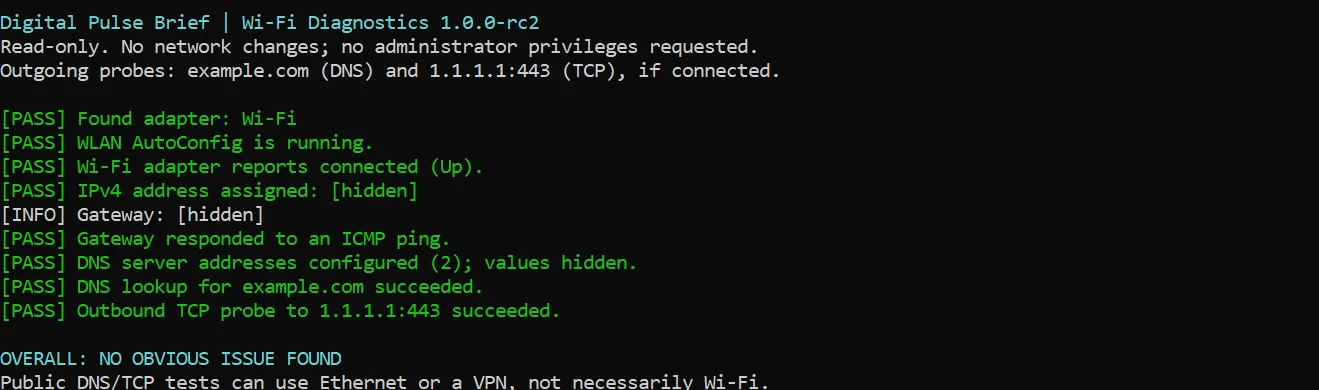
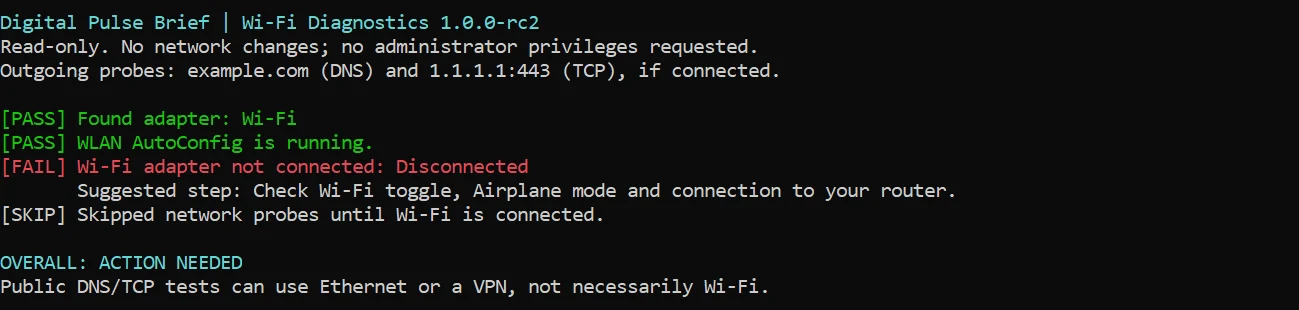
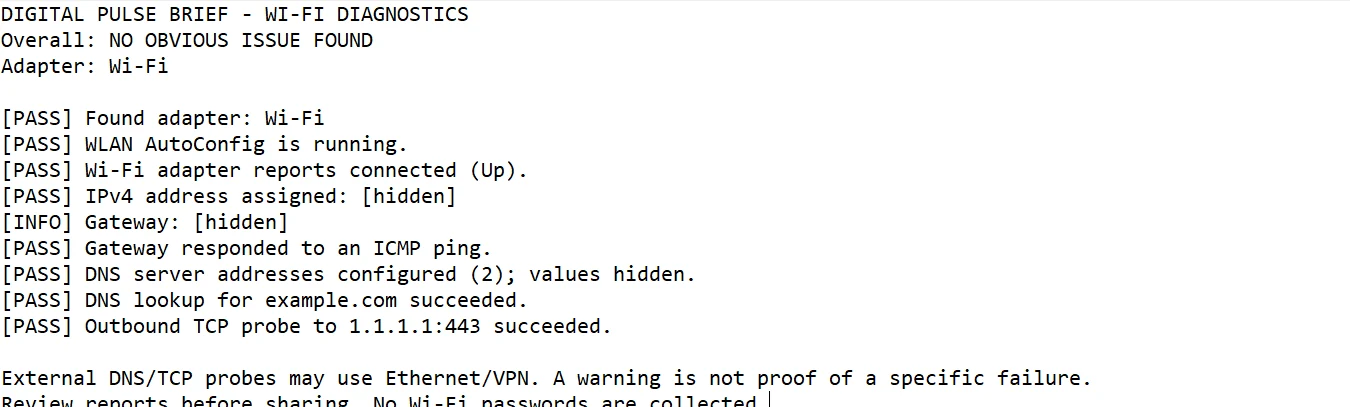
Digital Pulse Brief tested the RC2 launcher on an actual Windows computer in two conditions. These are firsthand observations from the project owner’s screenshots, not fabricated example output or a comprehensive lab certification. The exact Windows edition and build were not recorded.
Test 1: Wi-Fi connected
With Wi-Fi connected, the program identified the wireless adapter, found WLAN AutoConfig running, detected an IPv4 address and a gateway, successfully pinged the gateway, resolved example.com, and reached 1.1.1.1 over TCP port 443. Its summary was NO OBVIOUS ISSUE FOUND. This confirms those tests succeeded at that moment, not that every network scenario has been validated.
Test 2: Wi-Fi deliberately switched off
We then intentionally disconnected Wi-Fi and ran the same tool. It reported the adapter as Disconnected, marked the link check as failed, skipped the network probes and returned ACTION NEEDED. This demonstrates the tool distinguishes the tested disconnected state from the tested connected state.
Saved local report and privacy
Our connected-session TXT report included the checks and hid IPv4, gateway and configured DNS IP addresses by default. The report remains on the user’s computer unless the user chooses to share it. Adapter names and findings may still reveal information about a device, so review any report before posting it publicly.
What this beta tool cannot diagnose or fix
- It cannot repair Wi-Fi, reset Winsock, reinstall drivers, change DNS or edit Windows settings.
- It does not measure Wi-Fi signal strength, download speed, continuous packet loss, or intermittent failures over time.
- It does not fully assess IPv6-only networks or identify every captive portal, VPN or security-filtering problem.
- The public DNS and TCP tests may use a VPN or Ethernet route, rather than the selected wireless link.
- Real DHCP failures, DNS outages, router failures, non-admin execution and unusual adapter configurations remain incompletely tested. The test screenshots do not verify each scenario.
What to do if the internet still does not work
Use the result to choose the least disruptive next step. If Wi-Fi is disconnected, reconnect first. If another device also fails, investigate the router and service provider. If only one computer is affected, Windows’ own network troubleshooter or its official adapter and IP troubleshooting steps may help. Save ongoing work before restarting devices, and leave organization-managed VPN, DNS and firewall settings to IT administrators.
A connection marked healthy by this tool but failing in one browser may be a site-specific issue, captive portal, browser proxy, software firewall or another cause the utility does not isolate. Microsoft documents additional steps in its official Wi-Fi repair guidance. Start there before performing a broad network reset, which removes and reinstalls adapters and can affect VPN software or custom network configurations.
Common questions
Does “Wi-Fi connected” mean the internet is working?
No. The computer may be connected to the router while the router cannot reach the internet, DNS is failing, or a particular service is blocked.
Is this tool safe to run on a personal computer?
The source code is readable and its diagnostic operations do not intentionally change network configuration. Nevertheless, review code downloaded from GitHub before running it, download from the linked official Digital Pulse Brief repository, and observe security warnings and workplace policies.
Do I need administrator permission?
The utility does not intentionally request elevation for ordinary checks. However, our early screenshots include an Administrator console, so non-administrator behavior has not yet been confirmed in the documented hands-on test.
Does the report contain my Wi-Fi password?
No. The tool does not deliberately collect saved Wi-Fi passwords. Local IP addresses are hidden by default, although adapter names and diagnostic text should still be checked before sharing.
Sources, testing disclosure and further reading
- Digital Pulse Brief: open-source Windows Wi-Fi Diagnostics and test notes — source code, MIT license, limitations, and manual results.
- Microsoft Support: Fix Wi-Fi connection issues in Windows — official troubleshooting recommendations.
- Microsoft Learn: Get-NetAdapter — adapter inspection in PowerShell.
- Microsoft Learn: Resolve-DnsName — DNS resolution checks.
- Wi-Fi & Bluetooth Fixes and Windows 11 Help — related guides and category pages.
Research and original testing: October 24, 2026. By Digital Pulse Brief Editorial Desk. The tool is an independent beta utility, not affiliated with Microsoft or Cloudflare. The first release candidate failed on startup; the RC2 version corrected that bug and passed the two documented tests. No claim is made that the software automatically repairs internet access.