How to Screen Record on iPhone With Sound: Step-by-Step Guide
Learn how to screen record on iPhone with or without microphone audio. Add Screen Recording to Control Center, save videos to Photos and fix missing controls.

Want to screen record on your iPhone, including your voice? You can use the built-in Screen Recording control—no extra recording app is required. Open Control Center, add Screen Recording if it is missing, tap the record button and wait for the three-second countdown. To narrate your recording, press and hold that button and turn on Microphone before starting.
Quick answer: On a Face ID iPhone, swipe down from the top-right corner → tap the circle-within-a-circle Screen Recording control → wait three seconds → demonstrate what you need → stop using the red recording indicator. Find the video in Photos → Collections → Media Types → Screen Recordings. On an iPhone with a Home button, open Control Center by swiping up from the bottom instead.
What you can and cannot record
| Your goal | Use this setting | Important limitation |
|---|---|---|
| Show steps in an app or the Home Screen | Regular Screen Recording | Notification previews and private content may appear in the video |
| Explain what you are doing aloud | Screen Recording with Microphone on | Microphone records your surrounding voice and noise |
| Capture sound played by an app | Try ordinary Screen Recording | Some apps restrict recording audio or video |
| Record a protected streaming video or call | Do not rely on Screen Recording | Protected content or call audio may be blocked |
| Record while mirroring your screen | Not supported simultaneously | Apple says screen recording and screen mirroring cannot be used at the same time |
Step 1: Open Control Center on your iPhone
- Face ID iPhones (iPhone X and later): swipe down from the top-right corner of the screen. Swiping from the center can open Notification Center instead.
- iPhone SE and iPhone 8 or earlier: swipe up from the bottom edge.
- Look for a circle-within-a-circle symbol. This is the Screen Recording control. If the control is present, continue to Step 3.
Apple explains the different swipe directions in Access Control Centre on your iPhone. If your phone shows several Control Center pages, check the additional control groups before assuming the button is missing.
Step 2: Add the Screen Recording button if it is missing
- Open Control Center.
- On current iOS versions, touch and hold an empty part of Control Center or tap the Add (+) control to enter customization.
- Select Add a Control and find Screen Recording in the controls gallery.
- Tap it to add the control, then tap outside the editing area. The recording button is now ready for future use.
You generally only need to add the button once. On older versions of iOS, the path may instead be Settings → Control Center → Screen Recording. Use Apple’s current illustrated screen recording tutorial and Control Center customization guide for the interface that matches your phone.
Step 3: Start a screen recording without microphone narration
- Move to the screen or application you want to demonstrate, but do not expose passwords or private messages.
- Open Control Center and tap Screen Recording (the outlined circle icon).
- Wait for the three-second countdown.
- Dismiss Control Center and perform the taps, scrolling, gestures or app demonstration you want to capture.
- When finished, tap the red recording indicator at the top of the screen and choose Stop, or return to Control Center and tap the red recording control.
Apple’s guide confirms the three-second countdown and saving to Photos. Depending on your model, the stopping indicator can appear as a red circle or red timer near the top of the screen. The video captures on-screen activity; it is not a video from your iPhone’s rear or front camera.
Step 4: Record your iPhone screen WITH your voice
To explain a tutorial while recording the screen, switch on the microphone before starting. The microphone is for your narration and surrounding sound; it does not guarantee that protected app sound or call audio will be captured.
- Open Control Center.
- Touch and hold the Screen Recording button rather than simply tapping it.
- Tap Microphone to turn it On. Check that the on-screen setting shows the microphone is enabled.
- Tap Start Recording and wait for the countdown.
- Speak clearly while demonstrating your steps. Stop the recording when finished, then play it from Photos to check whether your voice is audible.
For a silent tutorial: turn Microphone Off before starting. Apple documents the microphone option in Take a screen recording on iPhone.
Step 5: Find the saved screen recording in Photos
- Open the Photos app.
- On recent iOS versions, open Collections, scroll to Media Types, then select Screen Recordings.
- Select the recording you just made and press Play.
- On older iOS versions, the recordings may instead appear under Albums → Media Types → Screen Recordings, or directly in your photo library.
If the clip is not where you expected, first check that you actually stopped and saved the recording. Screen recordings are video files, not screenshots, and they use local storage just like other captured videos.
Step 6: Trim the countdown or unwanted ending from your video
A short recording often includes a few extra seconds before you began showing the useful steps. You can remove those seconds without installing a video editor.
- Open the screen recording in Photos and tap Edit.
- Drag the handles at the start or end of the video timeline to select the portion you want.
- Preview the trimmed section, then tap Done.
- Choose the save option shown on your phone. Save Video as New Clip, when offered, keeps a separate version, while Save Video retains the trimmed edit.
Apple explains the exact choices in Trim video length, adjust speed, and edit audio on iPhone. Review the clip before sharing to make sure private notifications or account details are not still visible.
Step 7: Share your screen recording safely
- Open the finished video in Photos.
- Choose the Share button and select your intended app, email or transfer method.
- Before sending, play the whole clip with sound to check for notification banners, personal chats, account details or background conversations.
- If you want to hide sensitive details, use a suitable editor or record again with those details hidden. Cropping the video alone may not remove pop-up notifications.
For a cleaner recording, turn on an appropriate Focus mode or temporarily adjust notification previews before recording. Be aware that those options may hide or delay alerts; restore your usual settings afterward.
Screen recording not working? Diagnose the symptom first
| Problem | What to check first |
|---|---|
| No Screen Recording icon | Customize Control Center and add Screen Recording |
| Recording button is greyed out or unavailable | Check Screen Time restrictions or organization-managed device policies |
| Video has no narration | Enable Microphone before starting; play the file in Photos to verify |
| Video is black for one app only | The app may restrict capture of protected audio or video |
| Cannot record while screen mirroring | Stop mirroring first; Apple disallows concurrent screen recording and mirroring |
| Video did not save or stops unexpectedly | Check iPhone storage and whether the recording finished normally |
| Recording looks different from the tutorial | Check your iOS version and Control Center layout |
If Screen Time restricts recording
On some family-managed or restricted iPhones, Screen Recording may be disallowed. Apple lists the control under Settings → Screen Time → Content & Privacy Restrictions → App Store, Media, Web & Games → Game Center → Screen Recording, where an authorized parent or administrator can set Allow or Don’t Allow. The wording and exact path can vary by iOS release.
If your iPhone is managed by your employer or school, do not try to bypass management policies. Ask the responsible administrator to confirm whether recording is allowed. See Apple Support: Use parental controls.
Why screen recording sometimes has no sound
There are two kinds of sound to consider. Microphone audio comes from your voice and the room around you; switch Microphone On to record commentary. App audio comes from whatever the app is playing. Some apps permit it, but Apple warns that an app can prevent audio or video capture. Changing the microphone setting cannot override an app’s content restrictions.
If you cannot hear your own narration, first confirm the recording was made with Microphone On, then check playback volume and whether your microphone was obstructed. If the issue happens in just one protected video or calling app, do not advertise a guaranteed workaround.
Can you screen record on iPhone 13, 14, 15, 16, 17 and newer?
The built-in Screen Recording method applies across many supported iPhone generations. For the iPhone 13 through modern Face ID models, opening Control Center from the top-right is the relevant gesture. On an iPhone SE or older Home-button model, use the bottom-edge swipe instead. Newer iOS versions let you add the control directly from Control Center; older versions may use Settings.
If you cannot find the controls described here, check your installed iOS version in Settings → General → About and follow Apple’s guide for that version. The record icon itself is a circle inside another circle.
A useful recording checklist before you post a tutorial
- Show the exact settings path: Start from the Home Screen, not halfway through the process.
- Keep the important taps visible: Slow down slightly so another person can reproduce them.
- Turn on Microphone only if needed: Narration is optional; app sound is not guaranteed.
- Protect personal information: Avoid recording private messages, bank details and one-time passcodes.
- Review the result: Save, play, trim and confirm that the final video actually shows the intended steps.
Frequently asked questions
How do I screen record on iPhone without downloading an app?
Open Control Center, add Screen Recording if needed, tap the recording button and wait three seconds. Stop with the red indicator. The video is saved in Photos.
How do I screen record on iPhone with sound?
Touch and hold Screen Recording in Control Center, turn Microphone On and tap Start Recording. This is the setting for spoken narration; audio from an individual app may still be restricted.
Where are iPhone screen recordings saved?
Open Photos and navigate to Collections → Media Types → Screen Recordings on recent iOS versions. Older versions may use Albums. The recording is also part of your photo library.
Why is my iPhone screen recording black?
If only one streaming or other protected app produces a black or unavailable recording, the app may restrict capture. Apple says some apps can prevent their content being recorded. A black file alone does not prove your iPhone display is faulty.
Can I record a phone or FaceTime call with screen recording?
Do not assume it will capture the call audio. Some apps block recording, and call-recording rules vary by location. If you need to record a conversation, verify consent and the applicable law and use features that are supported for that specific app.
Why can’t I find Screen Recording on my iPhone?
The Control Center button may simply not have been added. Customize Control Center and add Screen Recording; if it is unavailable, check permitted Screen Time or device-management restrictions.
Can I record while AirPlay screen mirroring is active?
Apple states that screen recording and screen mirroring cannot run simultaneously. Stop mirroring, then start your screen recording.
How can I edit a screen recording on iPhone?
Open the saved video in Photos, tap Edit, drag the start and end handles, and choose a save option. For blur effects or captions you may need a separate video editor.
Related Digital Pulse Brief guides
Making a short how-to video is useful for demonstrating troubleshooting steps. For relevant examples, read our iPhone cache-clearing guide or iPhone camera black-screen troubleshooting guide. Those are separate problems from screen recording.
Sources, image license and testing transparency
- Apple iPhone User Guide — Take a screen recording on iPhone (iOS 27): recording, microphone, saving, capture restrictions.
- Apple Support — Access Control Centre on iPhone: Face ID and Home-button swipe directions.
- Apple iPhone User Guide — Customize Control Center: adding and managing controls.
- Apple iPhone User Guide — Trim video length: editing a saved recording.
- Apple Support — Use parental controls: Screen Recording restrictions.
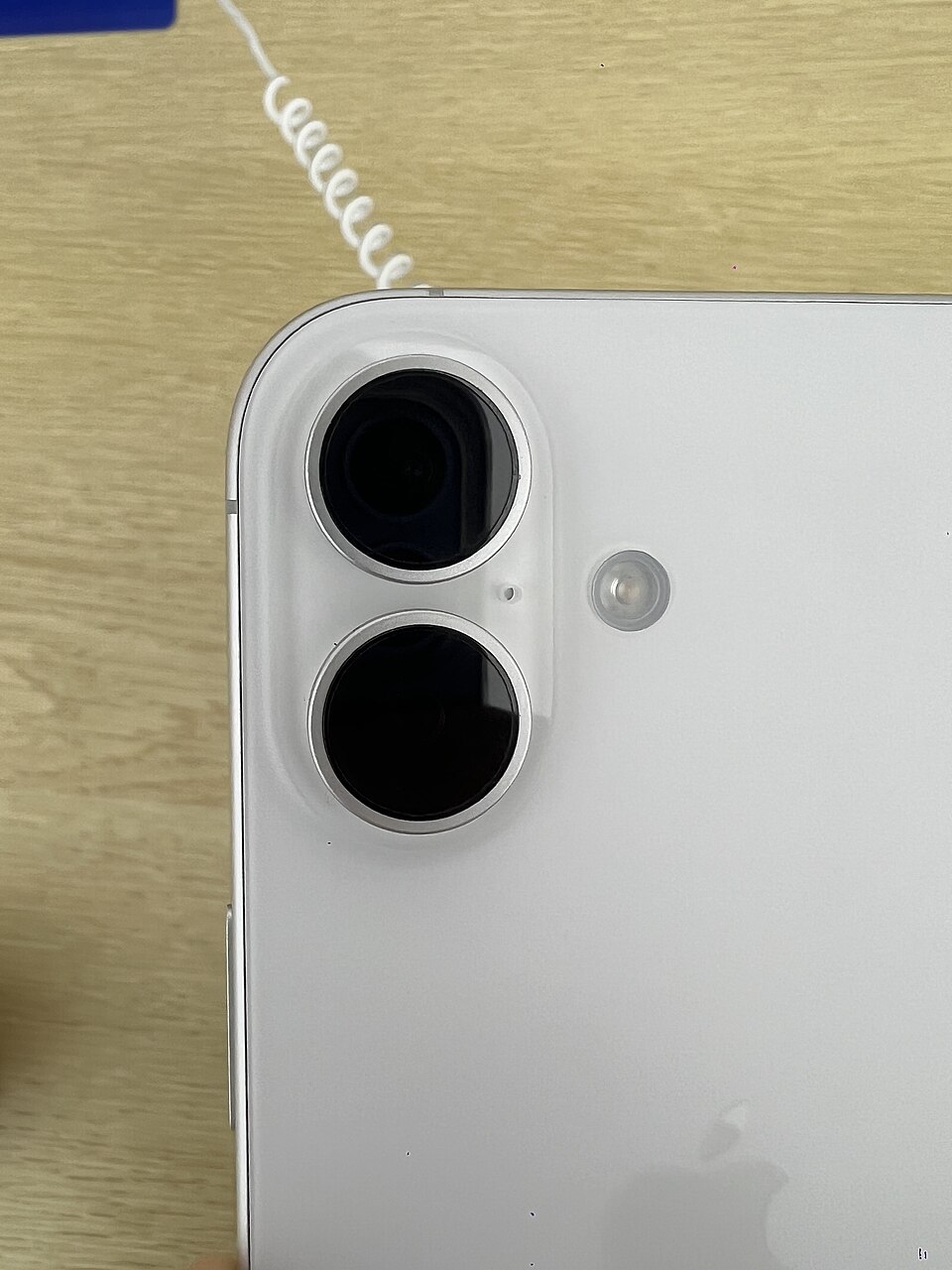
- メイド理世 — IPhone 16 (54251926561).jpg: credited real-world photo, CC BY-SA 2.0, resized.
Editorial note — October 28, 2026: This is a research-based tutorial checked against the linked Apple documentation, not a claim that Digital Pulse Brief performed and documented a hands-on iOS 27 recording test. The credited iPhone image is a real photograph, not an original screenshot of Control Center or a sample screen-recording result. Menu positions can vary by iOS version, model and account restrictions. Digital Pulse Brief is an independent publication and is not affiliated with Apple.



.jpg)