How to Clear Cache on iPhone: Safari, Chrome & Apps (Without Losing Data)
Learn how to clear cache on iPhone in Safari, Chrome and apps. Keep browsing history when needed, avoid deleting important data, and understand offloading versus deleting.

How do you clear cache on iPhone? For Safari, go to Settings → Apps → Safari → Clear History and Website Data, choose a timeframe, and confirm. If you want to keep Safari browsing history, instead open Settings → Apps → Safari → Advanced → Website Data → Remove All Website Data. For Chrome and individual apps, the steps are different—there is no universal iPhone button that empties every app’s cache.
Before you tap Delete: Cached files, website cookies, saved logins, downloaded media, and app documents are not interchangeable. Clearing the wrong category can sign you out or remove something you cannot easily recover. This guide distinguishes the options and what each one actually changes.
Quick comparison: which cache do you need to clear?
| Where the problem is | Safe starting point | Main trade-off |
|---|---|---|
| Safari loads a page incorrectly | Clear Safari website data; choose whether to clear history | Clearing cookies can sign you out of websites |
| Chrome website looks outdated | Chrome → More → Delete Browsing Data → Cached Images and Files | Pages may load more slowly on the first revisit |
| One downloaded-heavy app fills storage | Check the app’s own downloads/cache controls | May remove offline media |
| A third-party app has no clear-cache option | Check iPhone Storage; offload is not the same as clearing data | Offload saves app documents, so it may preserve the large data |
| Phone is low on storage | Settings → General → iPhone Storage | You may need to manage photos, files and app downloads, not only cache |
| “System Data” seems very large | Inspect storage and leave iOS-managed caches alone initially | No reliable one-tap setting to empty all System Data |
1. Clear Safari cache, cookies and history on iPhone
Apple supports two useful ways to clear Safari browsing data. Use the more selective one when you want to keep your history.
- Open the Settings app on your iPhone.
- Scroll to Apps, then select Safari. On older iOS releases, Safari might appear directly in the main Settings list.
- Select Clear History and Website Data.
- Choose the Clear Timeframe that covers your problem. If the interface asks about Safari profiles, choose the desired profile or All Profiles.
- Tap Clear History to confirm. Reopen Safari and visit the affected site.
What changes? Apple says this action removes Safari browsing history, cookies and cached website data. It does not remove information saved by AutoFill. It also does not clear separate histories held by websites themselves or by Chrome and other apps. Expect some websites to ask you to sign in again. Apple’s illustrated Safari clearing guide shows the current buttons.
2. Clear Safari website cache but keep browsing history
If your goal is to troubleshoot a webpage while keeping your Safari history, use Apple’s Website Data path instead. This removes cookies and cached website data; preserving the history does not mean preserving active website sessions.
- Open Settings → Apps → Safari.
- Scroll down and choose Advanced → Website Data.
- Select Remove All Website Data.
- Confirm with Remove Now, then return to Safari.
Apple states that this removes data used by sites to remember you and load pages more quickly. You may be signed out of websites even though you kept the browsing-history list. If the button is greyed out, there may be no data to remove, or Screen Time web restrictions may apply. Apple Support: Delete Safari history, cache and cookies.
3. Clear Safari history directly inside the Safari app (current iOS)
Apple’s iPhone User Guide for current iOS also provides a Safari-app route. The layout of the Tabs, Bookmarks and History buttons may vary depending on your Safari toolbar arrangement.
- Open Safari and navigate to its start page or open the relevant History controls.
- Open the History view, then choose More → Clear History.
- Choose the timeframe and Safari profile, if asked, then confirm.
This is an alternative to the Settings history-clearing path, not an extra compulsory step. The Apple iPhone User Guide includes current screenshots and explains how history clearing affects website permissions.
4. Clear cached images and files in Chrome on iPhone
Safari’s clearing buttons do not clean Chrome. Google provides separate controls inside Chrome for iOS. To minimize disruption, choose only cached images and files instead of also selecting cookies, passwords or Autofill data.
- Open Chrome on your iPhone.
- Tapping More (…), choose Delete Browsing Data.
- Set a Time Range; if you want to remove older cache too, choose a longer period such as All Time.
- Tapping Browsing Data, choose Cached Images and Files. Deselect categories you want to preserve, particularly Cookies, Site Data and Autofill Data.
- Tap Confirm, then Delete Browsing Data. Test the affected webpage again.
The exact labels can differ with Chrome updates. Google describes this sequence in Delete browsing data in Chrome for iPhone and iPad. Removing only cached images and files normally avoids intentionally clearing cookies, but any lost site state or refreshed page will depend on how that website is built.
5. How to clear cache on iPhone apps without deleting them
For third-party apps such as social, streaming, messaging or shopping apps, look inside the app itself first. Some developers offer controls such as Clear Cache, Storage, Downloads or Manage Storage. Others do not. The name and effect of a button are defined by that app, not by a single iOS-wide cache manager.
- Open the problematic app, then inspect its Settings, Storage, Downloads or Data menu.
- If it offers a cache-only control, read what will be removed before confirming.
- If storage is being used by saved videos, podcasts, maps or offline files, use that app’s download manager to delete only what you no longer need.
- If the app does not offer cache cleanup, do not assume there is a hidden iPhone setting that wipes only its cache.
A third-party “iPhone cleaner” is not required for Safari or Chrome cache. No cleaner can be assumed to remove every app’s protected data. Avoid apps demanding broad photo or account permissions just to solve one webpage problem.
6. Offload App vs Delete App: what happens to your files?
iOS has built-in Offload App and Delete App options, but neither should be advertised as a universal cache-only switch.
| Action | What Apple says happens | When it makes sense |
|---|---|---|
| Offload App | Removes the app itself, keeps its documents and data | You need to free the storage used by an unused app without deliberately removing its documents |
| Delete App | Removes the app and associated local data | Only after checking backups, account access, offline downloads and important unsent work |
| Clear cache inside app | Depends on the app developer’s implementation | When the app clearly specifies it removes temporary or downloadable files |
To find the storage options, go to Settings → General → iPhone Storage, select the app, and review the actions available. Apple notes that cached or temporary files may not all be counted in the app’s visible storage use. Apple Support: Check storage on iPhone and iPad.
Critical limitation: Offloading preserves documents and data; therefore, it is not a reliable method to remove a particular app’s accumulated data. Deleting an app and reinstalling it may clear local data, but it can also remove unsynced information, local drafts and offline files. Confirm that required material is backed up and that you can log in again before doing so.
7. If iPhone storage remains full after clearing Safari cache
Clearing browser cache is appropriate for a browser issue, but is not necessarily the most effective way to reclaim several gigabytes. First see what actually occupies the phone.
- Open Settings → General → iPhone Storage and allow the storage categories to load.
- Review large apps, downloaded media, offline video or music, Photos and Messages attachments.
- Use app-specific download managers or iOS storage recommendations to remove items that can be safely re-downloaded.
- Check your backups and cloud sync settings before deleting irreplaceable photos or documents.
- Remember that iCloud storage is separate from local iPhone storage; purchasing more cloud storage does not automatically empty the phone.
Apple explains that iOS also manages some temporary files automatically. If your phone feels slow, Apple recommends checking connectivity, free storage and unresponsive apps rather than force-closing every app continuously. See Apple: If your iPhone or iPad is running slow and Manage storage on iPhone.
8. What if the iPhone still displays a large “System Data” category?
System Data includes operating-system-managed resources, logs and caches that are not exposed as a single safe delete button. It is not accurate to promise that clearing Safari history will remove a specific amount of System Data, or that reinstalling every app will fix it.
After removing unnecessary downloads, check available storage again and let iOS finish any current update or indexing work. If storage remains unusually constrained or the device cannot update, use Apple Support rather than an unverified “secret cache cleaner” procedure. Do not erase the iPhone solely on the basis of a screenshot of the System Data bar.
What will be deleted? Quick safety reference
| Method | Browsing history | Cookies / sign-ins | App documents |
|---|---|---|---|
| Safari: Clear History and Website Data | Yes, for selected timeframe | Site cookies affected; sign-in may be required | Does not target unrelated apps |
| Safari: Remove All Website Data | History preserved | Website cookies removed; sign-ins may be affected | Does not target unrelated apps |
| Chrome: Cached Images and Files only | Preserved if not selected | Preserved if cookies are not selected | Does not target unrelated apps |
| Offload App | Not an action on browser history | App-specific sessions may vary | Intentionally preserves app documents and data |
| Delete App | App-specific | App sessions can be lost | Removes associated local app data |
When clearing cache helps—and when it doesn’t
Clearing a browser cache can help when you repeatedly see outdated page styling, broken website images or loading errors. It also may make the browser download assets again, so the first revisit can be slower. It is not a guaranteed fix for cellular outages, failed Wi-Fi, battery wear or a physically damaged charging port.
If your iPhone has a separate hardware symptom, see our iPhone not charging troubleshooting guide or iPhone camera black screen guide. Cache cleanup should not replace those specific checks.
Frequently asked questions
How do I clear cache on iPhone without deleting photos?
Use Safari website-data controls or choose only Chrome’s Cached Images and Files. Those actions target browser data rather than the Photos library. They may still sign you out of websites if you also delete cookies, so inspect the selected categories.
Is there a Clear Cache button for all iPhone apps?
No single built-in iOS button clears every third-party app cache. Some apps offer their own cleanup controls, while iOS provides storage management, Offload App and Delete App with different effects.
Does clearing Safari cache delete saved passwords?
Apple states that clearing Safari history and website data does not change AutoFill information. However, it can remove site cookies, so you may need to sign in again. Confirm your password or passkey access first if you are concerned.
Can I clear cache but keep Safari history?
Yes. Go to Settings → Apps → Safari → Advanced → Website Data → Remove All Website Data. Your Safari history remains, but cookies and website sessions may be removed.
Will offloading an app clear all its cached files?
Not reliably. Apple says offloading removes the app but preserves documents and data. The saved data can include much of what is filling storage, so inspect the app’s built-in cleanup options instead.
Why is Safari Clear History and Website Data greyed out?
Apple says there may be no history or website data left to remove, or Screen Time web-content restrictions may prevent that action. Check those conditions before trying another reset method.
How often should I clear my iPhone cache?
There is no evidence-based requirement to clear every browser and app cache on a schedule. Clear targeted data when troubleshooting a specific site, privacy concern or storage problem. Routine deletion forces browsers to download frequently used assets again.
Does clearing cache make an iPhone faster?
It can help a misbehaving website, but it is not a universal performance upgrade. If the whole phone is slow, evaluate connectivity, storage, battery condition and the app involved, using Apple’s device performance guidance.
Official sources, image credit and testing disclosure
- Apple Support — Delete Safari history, cache and cookies on iPhone: Settings paths, history and website-data differences.
- Apple iPhone User Guide — Clear cache and cookies: current in-Safari history controls.
- Google Chrome Help — Delete browsing data on iPhone and iPad: cache-only selection.
- Apple Support — Check storage on iPhone and iPad: offloading and deleting apps.
- Apple Support — If your iPhone or iPad is running slow: performance and storage guidance.
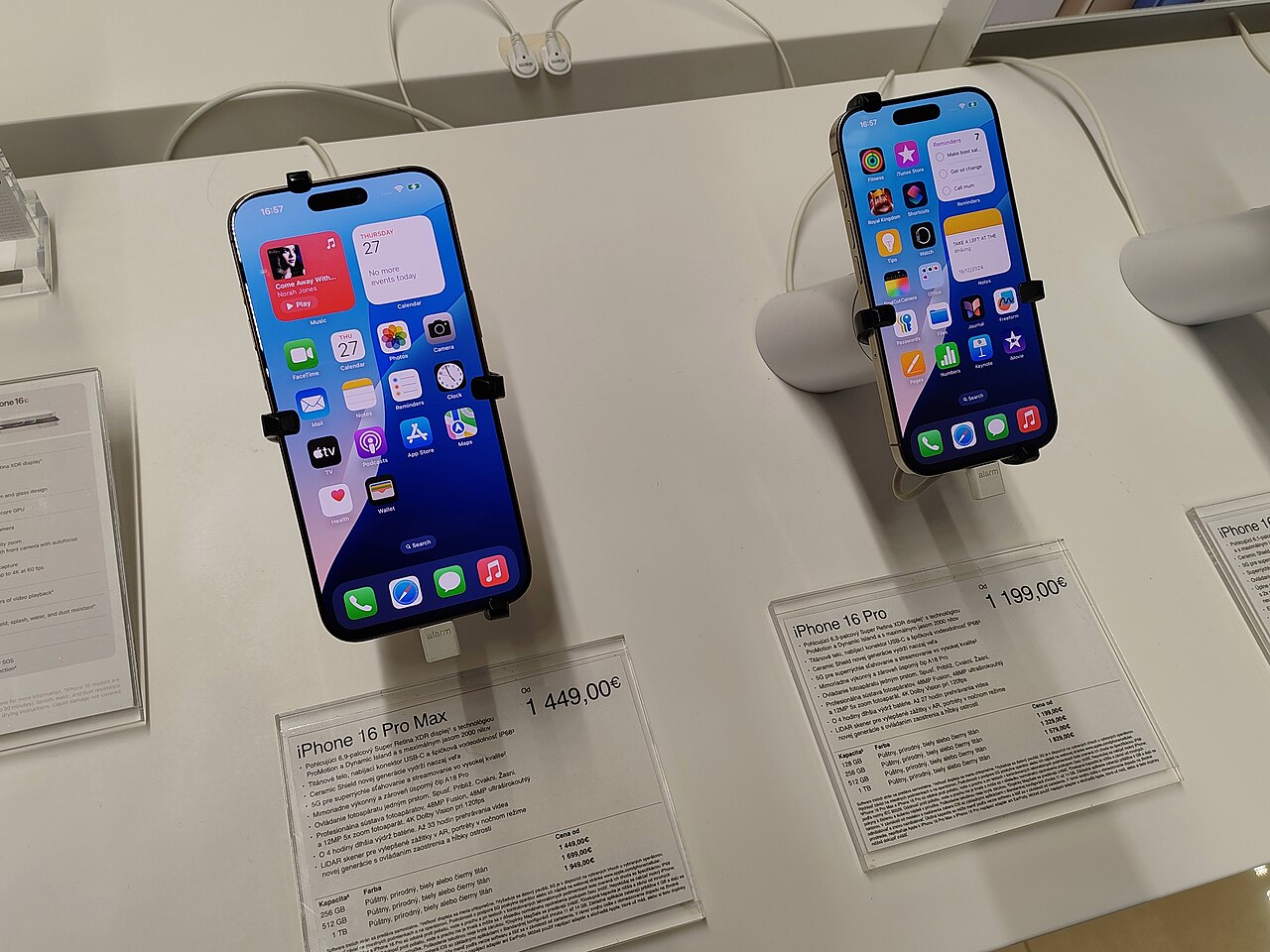
- Jakub CA — real photograph of iPhone 16 Pro and Pro Max, licensed CC BY 4.0, downscaled for the article.
Editorial and testing disclosure — October 28, 2026: This research-based guide is based on the official Apple and Google instructions linked above. Digital Pulse Brief did not conduct and document an independent hands-on cache-clearing test on an iPhone for this article. The featured photo is a real, credited device image, not a screenshot of the Safari, Chrome or iOS Storage menus, and it does not demonstrate a before/after performance result. Menu labels may differ on older versions of iOS and Chrome. Digital Pulse Brief is independent of Apple and Google.