Bluetooth Disappeared in Windows 11? Check These Fixes Before Reinstalling Drivers
Missing Bluetooth in Windows 11? Follow safe checks for the vanished Bluetooth toggle, Device Manager, official drivers and when hardware may be at fault.

Bluetooth missing in Windows 11? If the Bluetooth switch disappeared from Settings, or the Bluetooth button is missing or greyed out in Quick Settings, Windows might not be detecting the wireless adapter. Start with a proper shutdown and basic hardware checks—not a random driver-download website or a full Windows reset.
Quick answer: Turn off Airplane mode, shut the PC down while holding Shift, wait one minute, restart, and then check Settings and Device Manager. If Windows still cannot detect Bluetooth, use the troubleshooter and your PC manufacturer’s official driver support. The exact cause depends on your hardware and Windows installation.
Before troubleshooting: is Bluetooth actually missing?
- Missing switch: Open Settings → Bluetooth & devices. The Bluetooth on/off switch is absent or unavailable.
- Adapter missing: Open Device Manager and no Bluetooth category or adapter is visible.
- Bluetooth is present but will not pair: That is a different problem. Confirm the accessory is charged and in pairing mode before troubleshooting a missing adapter.
Some desktops and older laptops do not include Bluetooth hardware. On a new-to-you computer, check its specifications first. A USB Bluetooth adapter may be needed if the computer never had built-in Bluetooth.
Step 1: Check Airplane mode and any hardware wireless switch
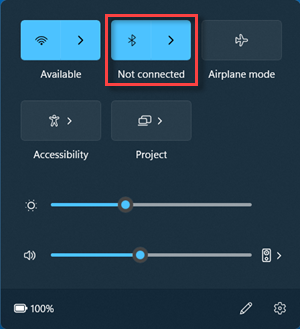
- Press Windows + A to open Quick Settings. If Airplane mode is enabled, turn it off.
- If your laptop has a wireless or Bluetooth function key or physical switch, check that it has not been disabled.
- Reopen Settings → Bluetooth & devices and see whether the Bluetooth switch returns.
If Bluetooth is missing rather than merely turned off, do not spend time repeatedly trying to pair headphones: Windows first needs to recognize its Bluetooth hardware.
Step 2: Perform a full shutdown rather than another ordinary restart
Microsoft recommends this power-off procedure for Bluetooth that has disappeared:
- Save work and disconnect from any tasks that must remain running.
- Hold down Shift while choosing Start → Power → Shut down.
- After the PC turns off, wait approximately one minute.
- Turn it on and check Bluetooth again.
A proper power-off can clear some temporary hardware states; it does not guarantee a fix for failed hardware or an incompatible driver.
Step 3: Use the Windows 11 Bluetooth troubleshooter
- Open Start and search for Get Help.
- In Get Help, search for Bluetooth troubleshooter or describe the missing Bluetooth switch.
- Follow the automated checks and read any recommended actions before agreeing to changes.
Microsoft currently directs Windows 11 users to the automated Bluetooth troubleshooter in Get Help. Instructions vary across Windows versions, and some older guides reference a different Settings location.
Step 4: Check Device Manager for the Bluetooth adapter
- Right-click Start and open Device Manager.
- Look for the Bluetooth section. Expand it if present, and look for your Bluetooth radio or adapter.
- If the Bluetooth category is absent, check View → Show hidden devices and look in Other devices for any unidentified hardware. A hidden entry does not establish that the adapter is functioning.
- If you see a warning icon, open the device’s Properties and note the Device status message or error code before changing drivers.
Important: If the Bluetooth hardware does not appear even after a full shutdown, do not assume that installing any Bluetooth package will solve it. The manufacturer’s support tools, BIOS/UEFI settings and physical hardware may need checking.
Step 5: Update only the driver made for your PC or adapter
- Open Settings → Windows Update and check for updates. Review relevant driver updates offered for your system.
- If the Bluetooth adapter is visible in Device Manager, right-click it and choose Update driver → Search automatically for drivers.
- If Windows finds nothing, go directly to your laptop, motherboard or Bluetooth adapter manufacturer’s official support site. Search by the exact model and select the supported Windows 11 Bluetooth driver.
- Follow the manufacturer’s installation instructions, restart if required, and check whether the Bluetooth switch has returned.
Avoid third-party “universal driver updater” tools. A driver designed for the wrong Bluetooth chip or PC model may fail to install or create additional problems.
If Bluetooth is still missing: check optional firmware updates carefully
Microsoft identifies firmware as another possible cause when a Bluetooth adapter stops responding. In Settings → Windows Update → Advanced options → Optional updates, review any manufacturer-supplied updates specifically intended for your PC model. Not every optional update is relevant; installing BIOS/UEFI firmware carries greater risk than a routine driver update. Follow your manufacturer’s instructions, keep a laptop plugged into reliable power, and do not install an unfamiliar firmware package simply to chase a missing Bluetooth toggle. On an organization-managed PC, ask IT first.
Step 6: Consider a driver rollback or reinstall only when appropriate
If Bluetooth disappeared immediately after a driver update and the adapter is still visible, open Device Manager → Bluetooth adapter → Properties → Driver. If Roll Back Driver is available, consider using it to restore the previous version. The option may be disabled when Windows does not have a previous driver to restore.
A driver uninstall is a later step, not the first. On a personal PC with the correct replacement driver available, Microsoft documents uninstalling the detected Bluetooth adapter in Device Manager, shutting down, and starting Windows again so the driver can be reinstalled. If Windows does not reinstall it automatically, use Device Manager → Action → Scan for hardware changes. On work-managed devices, contact IT before removing device drivers.
What your result suggests
| What you see | What to check next |
|---|---|
| Bluetooth switch returned after shutdown | Test one previously paired accessory; note if the issue recurs. |
| Bluetooth adapter visible with warning icon | Record its Device status/error; compare official model-specific driver guidance. |
| No Bluetooth hardware detected | Confirm the computer has Bluetooth, check the manufacturer’s diagnostics, then consider a hardware issue. |
| Bluetooth works but headphones will not connect | Check pairing mode, range, battery and existing pairings—not missing-adapter fixes. |
What not to do
- Do not download drivers from pop-up advertisements or unknown mirrors.
- Do not perform a full Windows reset merely because the Bluetooth toggle is missing.
- Do not modify BIOS/UEFI settings without model-specific guidance or a recovery plan.
- Do not treat “driver successfully installed” as proof that a physically failing adapter is repaired.
Frequently asked questions
Why is there no Bluetooth on/off button in Windows 11?
Windows may not be detecting an enabled, working Bluetooth adapter. Causes can include a temporary hardware state, missing or incompatible drivers, firmware issues, disabled hardware or a PC without built-in Bluetooth. The missing button alone does not identify which one.
Can a Windows update make Bluetooth disappear?
An update or driver change can be associated with a new compatibility problem. If the timing matches a recent driver update and a rollback is available, check that option before making wider changes.
Should I reinstall Windows to get Bluetooth back?
Usually not as an initial step. Check hardware support, power state, Windows diagnostics and the correct manufacturer driver first. A reinstall cannot repair a faulty Bluetooth radio.
Does this guide also apply to Windows 10?
Some checks overlap, but menu locations differ. Microsoft ended standard Windows 10 support on October 14, 2025; use guidance appropriate to your device and current support situation.
Related Digital Pulse Brief guide
If your wireless connection is present but websites cannot load, read our Windows 11 Wi-Fi connected but no internet diagnostics. That problem involves Wi-Fi and internet connectivity, not a missing Bluetooth adapter.
Official sources and testing disclosure
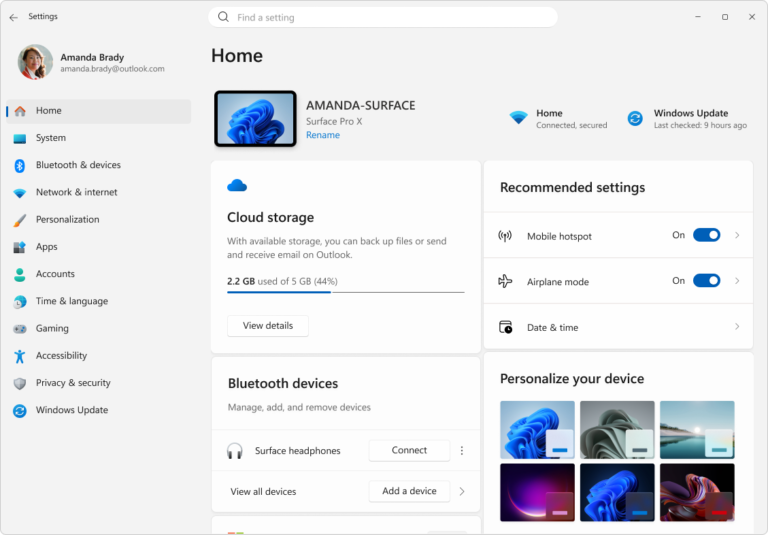
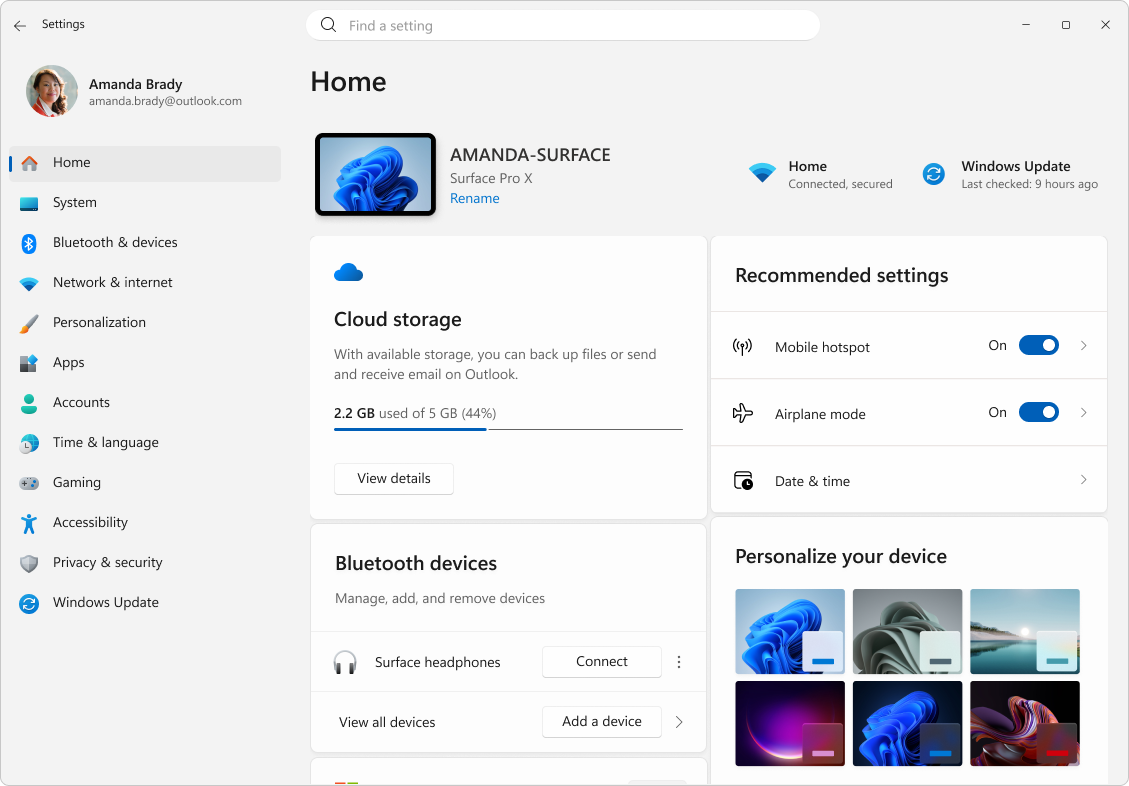
Both screenshots below/above come from official Microsoft Support articles. They illustrate where Windows controls are located, not proof that any specific fix worked. See Microsoft’s screenshot usage guidelines.
- Microsoft Support — Fix Bluetooth disappeared in Windows.
- Microsoft Support — Fix Bluetooth problems in Windows.
- Microsoft Support — Update Bluetooth drivers in Windows.
Editorial disclosure: This is a research-based troubleshooting guide using Microsoft’s published instructions, checked October 28, 2026. Screenshots used here are genuine Microsoft Support interface examples, not captures of a fault or recovery independently tested by Digital Pulse Brief. We have not verified a successful repair on our own Windows 11 test machine. The screenshots remain unaltered; they may differ from your Windows build. Microsoft product screenshots: Used with permission from Microsoft. Digital Pulse Brief is independent and not affiliated with Microsoft.