Windows 11 Microphone Not Working? 7 Checks for Apps & Input
Windows 11 microphone not working? Check your input device, built-in mic recording test, Windows privacy permissions and app settings before reinstalling drivers.

Windows 11 microphone not working? Before uninstalling drivers, find out whether Windows can hear you at all. If the built-in microphone test records your voice but Zoom, Microsoft Teams, a browser, or another app stays silent, permissions or the app’s selected input are better places to start than replacing hardware. If Windows cannot detect any microphone, follow the device checks instead.
Quick fix checklist: Check the physical mute switch → select the right Input device → use Windows’ Start test recording → review Privacy & security → Microphone → check the app or website’s microphone permission. Only investigate drivers if the simpler checks do not explain the fault.
First, identify which microphone problem you have
| What you observe | Most useful next check |
|---|---|
| Windows records your voice, but one app cannot | Microphone permissions and that app’s input selection (Steps 4–5). |
| Windows lists a mic, but its test recording is silent | Hardware mute, connections, device selection, and input level (Steps 1–3). |
| No input microphone appears in Windows settings | Connections, Bluetooth pairing if applicable, and Windows/device drivers (Steps 1, 6–7). |
| The mic works but sounds very quiet | Input volume and microphone position (Step 3). |
That distinction avoids the common mistake of changing sound drivers when only one website has been denied microphone access. The paths below apply to Windows 11; exact labels can differ slightly by device and update.
Step 1: Check physical mute, headset connection, and the right port
- Check the mute button on your headset or microphone, any laptop microphone-mute key, and the mute control inside your calling app. Some keyboards have a microphone LED that indicates mute.
- For a USB microphone, reconnect it directly to a different computer USB port if available; avoid an unpowered hub during diagnosis.
- For a 3.5 mm headset, verify that the plug and socket match. A four-pole headset plug may need an adapter on computers with separate headphone and microphone jacks.
- If using a Bluetooth headset, confirm it is paired and connected in Windows. If Bluetooth itself has disappeared, follow our Windows 11 missing Bluetooth troubleshooting guide first.
If an external microphone works on another computer but not on yours, that suggests a PC-side settings, connection, or compatibility problem; it does not prove a particular driver is at fault.
Step 2: Choose the microphone Windows is actually using
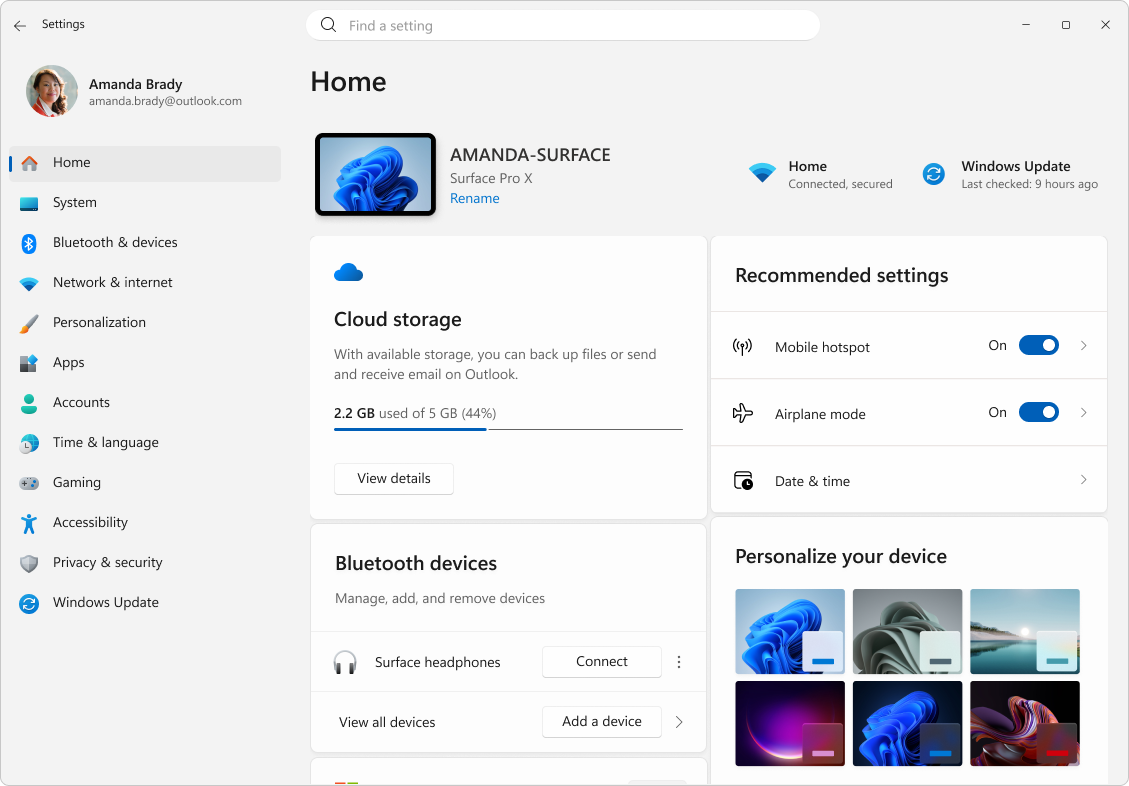
- Press Windows + I and open System → Sound.
- Under Input, select the intended device in Choose a device for speaking or recording. A headset microphone, built-in microphone array, and webcam microphone are different inputs.
- Speak normally and check the selected device’s properties. If you have multiple devices, test each one deliberately rather than guessing which microphone is active.
If the Windows input is correct but the meeting app uses another device, you must also select the proper input inside that app. A system selection does not guarantee every program will follow it.
Step 3: Run the built-in microphone recording test
- While still in Settings → System → Sound, select the microphone under Input and open its properties using the arrow.
- Under Input settings, choose Start test, then speak at your usual distance from the microphone.
- Choose Stop test and Play to hear the recorded sample (and verify that speakers or headphones are working so you can hear playback).
- If the recording is too quiet, increase Input volume gradually and repeat the test.
How to interpret it: If Windows records your voice clearly, the microphone and its Windows input path worked for this test. That does not confirm Zoom, Teams, Chrome, or any particular website has permission. If the recording is silent, continue checking mute, connection, input selection, and hardware recognition. Microsoft describes this exact built-in test in its microphone testing guide.
Step 4: Allow microphone access in Windows 11 privacy settings
- Open Settings → Privacy & security → Microphone.
- Turn on Microphone access if it is off. Then enable Let apps access your microphone.
- For Microsoft Store applications, expand the app list and turn on access for the app you actually want to use.
- For desktop software, check Let desktop apps access your microphone. Traditional desktop apps do not get the same individually controlled switches as Microsoft Store apps.
- Close and reopen the affected app, then retry a short microphone test.
See the real microphone-permissions interface: Dell Support’s Windows 11 microphone guide includes an original screenshot of the microphone privacy panel. We link to the source rather than reproducing Dell’s copyrighted images here. The exact app list depends on your device.
The privacy controls are not identical for every type of app. Microsoft notes that traditional desktop apps might not appear in the individual access list. A microphone icon on the taskbar can also indicate that some app is using the microphone, but the icon alone does not identify whether the intended call is recording correctly. Read Microsoft’s Windows 11 microphone permission instructions for the original wording.
Step 5: If it works in Windows but not in Teams, Zoom, Chrome, or a website
Use the exact app or site in which the failure occurs. Changing a Windows-wide permission is not always enough.
- Microsoft Teams, Zoom, Discord, and other desktop apps: Open the app’s own audio/device settings. Select the microphone that passed the Windows test, and check whether you are muted in the meeting or call. App menu names change with updates.
- Google Chrome: Go to Settings → Privacy and security → Site settings → Microphone. Review the affected website’s permission and the selected default microphone. If you denied access previously, change that site’s permission to Allow and reload it.
- Microsoft Edge: Open the meeting website and accept its microphone request if appropriate. You can review the site’s microphone permission in Edge’s site-permission controls. Browser permissions are distinct from Windows permissions.
- Work or school computers: A policy may lock these permissions. Ask your administrator rather than trying to bypass device management.
Google explains Chrome’s site-specific permissions in Use your camera and microphone in Chrome. Microsoft separately explains Windows and Edge microphone permissions.
Step 6: Try Microsoft’s built-in audio troubleshooter
If settings appear correct but Windows still cannot capture audio, open Settings → System → Sound. Under Advanced, look for Troubleshoot common sound problems and run the Input devices troubleshooter if offered. Follow its displayed prompts and review suggested changes before applying them. Menu options may vary by Windows build.
The troubleshooter can inspect common Windows-side causes, but it may not be able to repair failed hardware, an organization’s device policy, or a microphone problem isolated to a particular website.
Step 7: Investigate official drivers only if Windows cannot detect or record from the mic
- Open Device Manager by right-clicking the Start button. Look under Audio inputs and outputs and Sound, video and game controllers for your device or audio controller.
- If the relevant device displays a warning icon, read its Properties → Device status message before making changes.
- Check Windows Update and the PC or microphone manufacturer’s official support site for a driver that specifically matches your hardware and Windows 11 version.
- If the microphone stopped working immediately after a driver change, inspect Properties → Driver → Roll Back Driver if that option exists. It may be unavailable if Windows has no previous driver to restore.
- Only consider uninstalling/reinstalling a detected audio device after following your device manufacturer’s instructions and knowing how to obtain the correct driver. A work-managed computer should be handled by IT.
Do not download random “audio repair” tools, disable Windows security protections, or reset the entire computer just to resolve a missing mic. Microsoft’s official microphone troubleshooting guide explains the driver-reinstall path as a later option when Windows is not detecting the hardware.
Why the result matters: a quick diagnosis table
| Result | Likely area to investigate next |
|---|---|
| Mic is detected and Windows test plays your voice | Per-app input, mute controls, browser/site permissions. |
| Mic appears but test records silence | Mute switch, wrong input, low level, physical connection or malfunction. |
| Mic does not appear anywhere | Hardware capability, connections, pairing, manufacturer driver and device recognition. |
| Mic works in one app but not another | The affected app’s selected microphone and its permissions. |
| Microphone privacy controls are locked | Organization-managed policy or administrator restriction. |
Common questions
Why is my Windows 11 microphone working in Settings but not in an app?
The Windows microphone test and app microphone access are separate. Review Windows microphone privacy, select the tested device inside the app, and—for browsers—check the specific website’s permission.
Why does my microphone not appear in the Windows 11 Input list?
Windows may not be detecting it, or it may be disconnected, unpaired, disabled, unsupported, or affected by a hardware or driver problem. First confirm the device works and is connected; then investigate Device Manager and official manufacturer support.
Should I reinstall Realtek or another audio driver right away?
Not if the Windows recording test already works and only one program is silent. Check that program’s input choice and privacy access first. Drivers are a later check when Windows itself cannot detect or use the microphone.
Can Windows 11 microphone permission be set separately for desktop apps?
Not in the same way as apps from Microsoft Store. Microsoft describes a shared Let desktop apps access your microphone control, rather than a separate Windows privacy toggle for every traditional desktop application.
Does a Bluetooth headphone connection guarantee its microphone is selected?
No. Your PC can have multiple audio inputs. Check the Input section in Windows and the audio-device selector in the calling app. If the Bluetooth adapter itself is missing, see our Bluetooth troubleshooting guide.
Sources, screenshots, and editorial disclosure
- Microsoft Support: Fix microphone problems — detection, permissions, input selection, troubleshooter, driver steps.
- Microsoft Support: How to set up and test microphones — Windows recording test.
- Microsoft Support: Turn on app permissions for your microphone — Windows 11 privacy controls.
- Google Chrome Help: Use your camera and microphone in Chrome — site access.
- Dell Support: Microphone not working — third-party Windows 11 interface screenshot source.
- Microsoft: Use of Microsoft copyrighted content — Windows screenshot permission conditions.
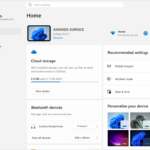
Research and content review: October 28, 2026. This is a research-based how-to; Digital Pulse Brief did not run or document an independent Windows 11 microphone-failure recovery test for this article. The Windows 11 Settings image is an official Microsoft Support interface screenshot illustrating navigation, not an original microphone fault or repair test. An original microphone screen reference is available via an outbound link to Dell Support, whose images are not reproduced here. Microsoft product screenshot: Used with permission from Microsoft. Digital Pulse Brief is independent and is not affiliated with Microsoft or Dell.