Windows 11 Camera Not Working? Fix Webcam Detection & App Access
Windows 11 camera not working? Test the Camera app, fix webcam privacy permissions, check device detection and use safe driver steps before resetting your PC.

Windows 11 camera not working? First find out whether the built-in Windows Camera app can display video. If it can, the webcam is working for at least one application, so check the permissions and selected camera in Teams, Zoom or your browser. If Windows cannot find any camera, check its privacy shutter, device status and drivers instead of immediately reinstalling Windows.
Fast path: Open the physical camera shutter → restart Windows → test the Camera app → review Settings → Privacy & security → Camera → check Bluetooth & devices → Cameras → investigate the specific calling app or driver error.
Check the symptom before changing anything
| Symptom | Best next check |
|---|---|
| The Camera app works, but Teams or Zoom shows black | Check that app’s selected webcam, camera permission, and another app using it |
| The Camera app is black or says no camera found | Check shutter/keyboard switch, external USB connection, camera enablement, and Device Manager |
| Privacy setting is greyed out | Work/school device policy or administrator access |
| Camera vanished after a Windows update | Check an official driver update or available driver rollback |
| Error 0xA00F4244 | Windows does not detect the camera; start with hardware and Device Manager |
Step 1: Check the physical webcam shutter and camera key
- Look closely above your laptop screen for a sliding privacy shutter. Open it fully. Some shutters block the image even while Windows still detects the camera.
- Check for a camera key or dedicated privacy button on your keyboard. Depending on the model, it may require holding the Fn key. Do not confuse a camera-mute key with microphone mute.
- If you use a USB webcam, unplug and reconnect it firmly. Try a different USB port directly on the computer rather than a hub, if possible.
- If the camera has a separate power switch, turn it on. On a company laptop, avoid changing BIOS or device-management controls without IT approval.
A black picture from an obstructed lens is different from a camera not detected error. Make that distinction before downloading any driver.
Step 2: Restart Windows and test the Camera app
- Save your work and choose Start → Power → Restart. Waking the computer from sleep is not the same as a restart.
- Open Start, search for Camera, then launch the built-in Windows Camera app.
- Allow camera access if Windows asks. Look for a live preview. If more than one camera exists, use the Camera app’s Change camera control to check the other device.
- If the preview works, return to your failing video-call or browser app. If it does not, note the exact error message and continue below.
This is a diagnostic split, not proof that everything is fixed. A webcam can work in the Camera app while another application is blocked by a permission or an incompatible camera format. Microsoft describes the Camera app and its device switcher in its official guide.
Step 3: Turn on the right Windows 11 camera permissions
- Press Windows + I to open Settings.
- Go to Privacy & security → Camera.
- Make sure Camera access is on. Then enable Let apps access your camera.
- For Microsoft Store apps, review the individual app toggles where listed.
- For conventional desktop applications and browsers, also check Let desktop apps access your camera. Desktop applications do not have the same per-app Windows privacy switches as Store apps.
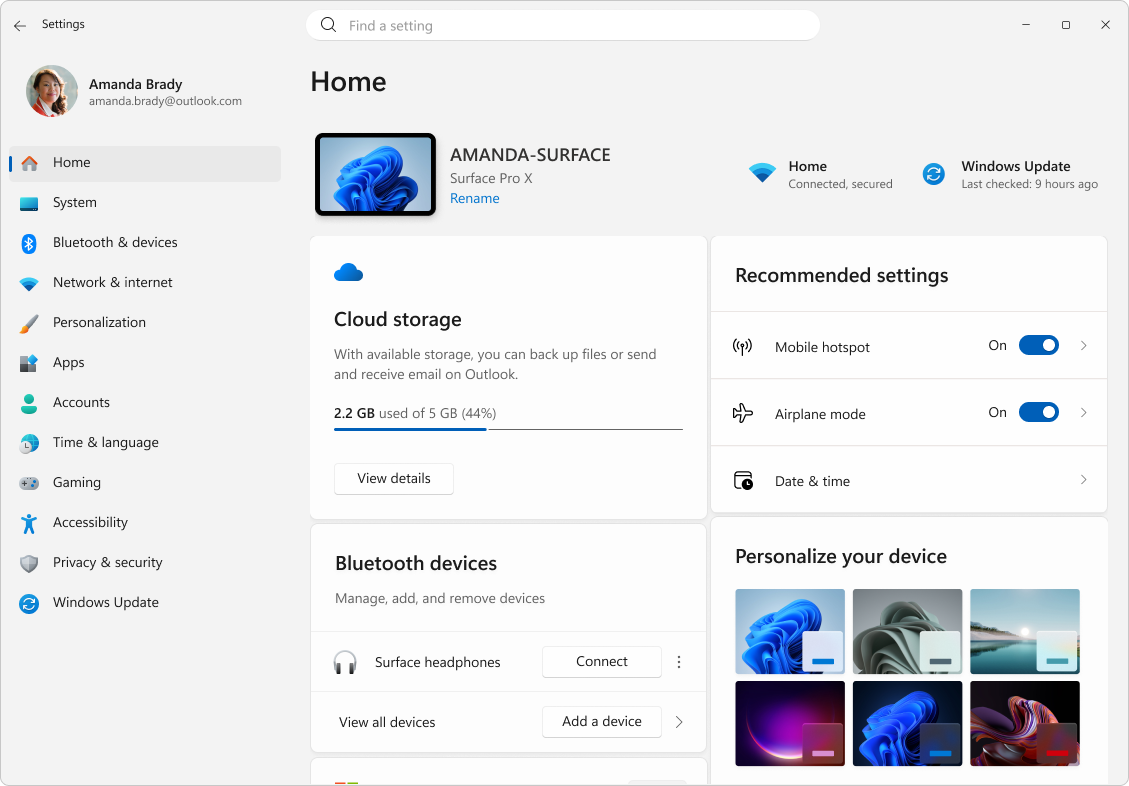
If Camera access is greyed out, your organization or administrator may control the option. Microsoft confirms that Windows Hello face sign-in can behave differently from ordinary application camera permissions. See Manage app permissions for a camera in Windows.
Step 4: Check whether Windows detects or has disabled the webcam
- Open Settings → Bluetooth & devices → Cameras.
- Look under Connected cameras. If the desired device is listed, select it to open its camera settings or preview.
- If a Disabled cameras section appears, you may be able to choose the camera and select Enable; this can require administrator rights.
- If the webcam is absent, open Device Manager (right-click Start) and inspect Cameras and Imaging devices, if present. Hardware can appear under a different category depending on its driver.
- If Device Manager shows the device as disabled, use Enable device. Note any Device status error code before making wider changes.
Not every specialized or infrared Windows Hello camera appears in the regular camera settings list. So an absent listing by itself does not establish that the computer has defective hardware. Microsoft documents that distinction in Windows 11 Camera settings.
Step 5: Fix a webcam that works in Windows but not in Teams, Zoom, or a browser
- In Teams or Zoom: Open the app’s own video or device settings and explicitly choose the correct camera. If it is disabled or unavailable, close other video applications and reopen the affected program.
- In a browser: Check the meeting site’s camera permission using the site-information icon near the address bar, then reload. Review the browser’s camera input choice if several cameras exist.
- In Windows privacy settings: Make sure the desktop-app camera access control is on. A browser may need this even when its website permission is set to Allow.
- On a managed computer: If organization policy blocks video or virtual cameras, ask IT rather than changing security controls.
If the Camera app shows a picture but a particular website does not, the next troubleshooting step should be that website or browser—not uninstalling the webcam. For the audio half of a video call, see our Windows 11 microphone not working guide.
Step 6: Run the built-in Windows 11 camera troubleshooter
Open the Get Help app, search for camera troubleshooter or describe the specific camera error, and follow the guided diagnostics. Microsoft recommends Get Help for Windows 11 camera faults. Some devices also show a Troubleshoot option beside a camera preview in Settings → Bluetooth & devices → Cameras. Examine proposed changes before applying them.
Step 7: Try Windows Update and the correct camera driver
- Open Settings → Windows Update, check for updates, and review any relevant driver updates under Advanced options → Optional updates.
- In Device Manager, right-click the detected camera and choose Update driver → Search automatically for drivers if available.
- If Windows reports no compatible driver, use the computer or camera manufacturer’s official support site, entering the exact model. Avoid third-party driver-updater utilities.
- Restart if the installer directs you to. Test in the Camera app again.
If the camera stopped working immediately after a driver update, Device Manager → Camera → Properties → Driver → Roll Back Driver may restore the previous driver, but only if Windows has retained one. Driver uninstall/reinstall is a later step and can leave the camera unavailable until an appropriate driver is restored; use manufacturer guidance, especially on business devices.
Step 8: On Windows 11 24H2 or later, consider Basic camera mode
When the webcam is detected but the video stream refuses to start, Basic camera mode can sometimes help. Microsoft says the mode disables hardware acceleration and some camera manufacturer plug-ins where supported.
- Go to Settings → Bluetooth & devices → Cameras and select your connected camera.
- If the device and your Windows build support it, look for Advanced camera options → Edit.
- Try Turn on basic camera, apply the change, and retest the Camera app or affected call.
- Record the original setting so you can revert it if the result is worse.
Limitations: This setting is not available on every Windows 11 system. It turns off Windows Studio Effects and can enable multi-app camera mode; Windows Hello face recognition may use a separate camera path. It should be tried only after the simple steps. See Microsoft’s camera settings documentation for supported builds and side effects.
Windows 11 camera error codes: quick interpretation
| Code / message | What it usually points toward | Next action |
|---|---|---|
| 0xA00F4244 — No cameras found | Windows cannot find the requested camera | Check USB/shutter, device enablement and Device Manager |
| 0xA00F4243 / 0xA00F4289 | Possible camera conflict or access issue | Close other video apps and review permissions |
| 0x80070005 — Access denied | Application is blocked from using the camera | Check Windows privacy and app/site permission |
| 0xA00F4292 — Policy restricted | Device policy may block access | Contact administrator on managed PCs |
| 0xA00F4294 — Video start failed | Possible incompatible driver or camera stream problem | Driver checks and supported Basic camera mode |
| 0xC00D7167 — Restart required | A camera component is waiting for a reboot | Save work, restart, and retest |
These code descriptions are diagnostic clues, not guaranteed diagnoses. Microsoft’s Windows camera repair article documents these categories and recommends verifying the current symptom.
What not to do
- Do not download a random camera driver or registry cleaner from advertisements.
- Do not permanently disable antivirus software just to test a webcam. Use the software vendor’s documented camera-permission controls.
- Do not reset Windows or reinstall the operating system before checking permissions, shutter state and device detection.
- Do not assume a failed webcam means the microphone also failed; Windows manages camera and microphone permissions separately.
Frequently asked questions
Why does my Windows 11 camera show a black screen?
The lens may be physically covered, the app may use the wrong webcam, or Windows may have a camera access or driver problem. Open the Camera app first, then inspect the shutter, privacy permissions and device status.
What if the webcam works in the Camera app but not Zoom or Microsoft Teams?
Check the camera selected inside that app, Windows desktop-app camera permission and whether another app is accessing the webcam. If only a browser meeting fails, also check the website’s camera permission.
Where is the camera privacy switch in Windows 11?
Open Settings → Privacy & security → Camera. The main Camera access and app access controls are separate from website permissions in your browser.
Is there a safe way to fix error 0xA00F4244?
Start by ensuring the webcam is connected, enabled and visible in Device Manager. Update using official manufacturer support if Windows cannot identify the device. The error does not prove that a driver reinstall will solve a hardware failure.
Does Windows 11 Basic camera mode work on every PC?
No. Microsoft documents Advanced camera options for Windows 11 24H2 and later, subject to camera and device capabilities. Basic camera mode is a troubleshooting option, not a required setting.
Sources, screenshots and testing disclosure
- Microsoft Support: Camera doesn’t work in Windows — primary diagnosis and error code guidance.
- Microsoft Support: Manage camera app permissions — Windows 11 privacy paths.
- Microsoft Support: Manage cameras with Camera settings — connected cameras, troubleshooting, advanced modes.
- Microsoft Support: Use the Windows Camera app — preview and device switching.
- Microsoft Legal: Screenshot use conditions — permitted Windows screenshot use.
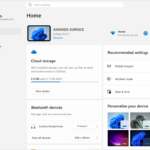
Editorial disclosure (October 28, 2026): This is a research-based troubleshooting guide checked against Microsoft’s current Windows documentation. Digital Pulse Brief has not conducted or recorded an independent hands-on webcam-failure-and-repair test for this publication. The Windows 11 Settings image is an unaltered Microsoft reference screenshot, not a capture of a successful camera repair. Interface labels and device controls may vary across Windows builds and webcam manufacturers. Screenshot used with permission from Microsoft. Digital Pulse Brief is not affiliated with Microsoft.