iPhone Camera Black Screen? 8 Safe Checks Before Repair
iPhone camera showing a black screen? Test the front and rear cameras, remove accessories, restart, update iOS, and use Apple Diagnostics on supported models.

iPhone Camera showing a black screen? If the Camera app opens but its preview stays black, first check whether the front camera, rear camera, or both are affected. Remove anything that may cover the lens, restart the iPhone, and test again. A black viewfinder is not the same as the entire iPhone display going black, and it does not automatically mean the camera hardware is broken.
Quick answer: Remove magnetic camera accessories and obstructing cases → switch between the front and rear cameras → restart → check for an iOS update → if the viewfinder is still black, use Apple’s built-in camera diagnostics on a supported iPhone or contact Apple Support. Avoid reset tools and factory erases as first steps.
Is it the camera preview or the entire iPhone screen?
| What you see | What to investigate |
|---|---|
| Camera buttons are visible, but the image area is black | Camera app or camera hardware; follow this guide |
| Entire iPhone display is black, including status bar and Home screen | A screen/power issue; use Apple’s restart and charging instructions |
| Camera works in Apple’s Camera app but not in WhatsApp, Instagram or another app | Third-party app’s camera permission or app-specific behavior |
| Only selfie camera or only rear camera is black | Test the other camera and note which one fails before service |
| Preview works but photos look blurry or streaked | Check dirt, damage, lens covers, magnetic mounts, and lighting instead |
Making this distinction first prevents unnecessary software resets. A successful front-camera test does not prove the rear module works, or vice versa.
Step 1: Remove the case, magnetic mount and anything covering the lens
- Inspect the front camera area and each rear lens without touching the glass with sharp objects.
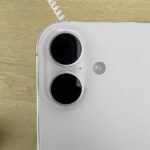
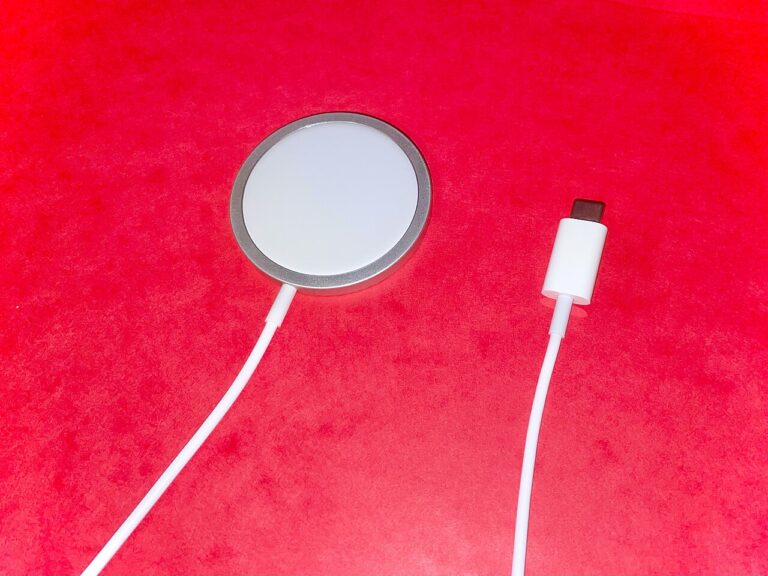
- Temporarily remove cases, camera protectors, magnetic mounts, lens filters or add-on lenses that might obstruct the camera or interfere with it.
- If the image appears but is cloudy or streaked, gently wipe the lenses with a clean microfiber cloth.
- Open the Camera app again. Do not press hard on a cracked lens or keep operating a device with obvious liquid damage.
Apple specifically recommends removing possible obstructions and magnetic accessories before changing software settings. These checks take seconds and do not risk losing data. Apple Support: camera or flash not working.
Step 2: Switch between the front and rear cameras
- Open the built-in Camera app rather than a social app.
- Tap the switch camera button (the rotating camera arrows) to change between front and rear cameras.
- Look at the preview each time. If available, try taking one photo with each camera.
- Make a note: front works / rear black, rear works / front black, or both black. This is useful information for further troubleshooting or repair.
If a single camera continues to fail but the other captures photos, avoid assuming the entire iPhone’s Camera app is broken. That pattern can narrow the area to investigate, but it does not by itself distinguish a software error from an internal hardware fault.
Step 3: Restart the iPhone and retest
- Save anything you are working on. Turn the iPhone off using the shutdown controls appropriate to its model.
- Power it back on normally.
- Open Camera, switch front/rear, and test once more.
A restart can clear some temporary software states. If the iPhone is unresponsive and cannot be turned off normally, Apple documents a force restart with model-specific button combinations; the exact steps differ on older iPhones. A force restart is not a factory reset and does not intentionally erase photos.
Step 4: Install a compatible iOS update
- Connect to reliable Wi-Fi and have enough battery or connect power.
- Open Settings → General → Software Update.
- If Apple offers an update for your model, read its information and install it when convenient. It is wise to confirm your backup is current before updating.
- After installation, repeat the front/rear camera check.
An update can fix some software bugs, but there is no guarantee a hardware defect will respond to software changes. Use Apple’s iPhone Support for current device-specific update instructions.
Step 5: If only a third-party app has a black camera, check its permission
There is a crucial distinction: the built-in Apple Camera app does not require you to enable a third-party “Camera permission” toggle for itself. Permission troubleshooting applies when apps such as WhatsApp, Instagram or a video-call app cannot access the camera even though the built-in Camera app works.
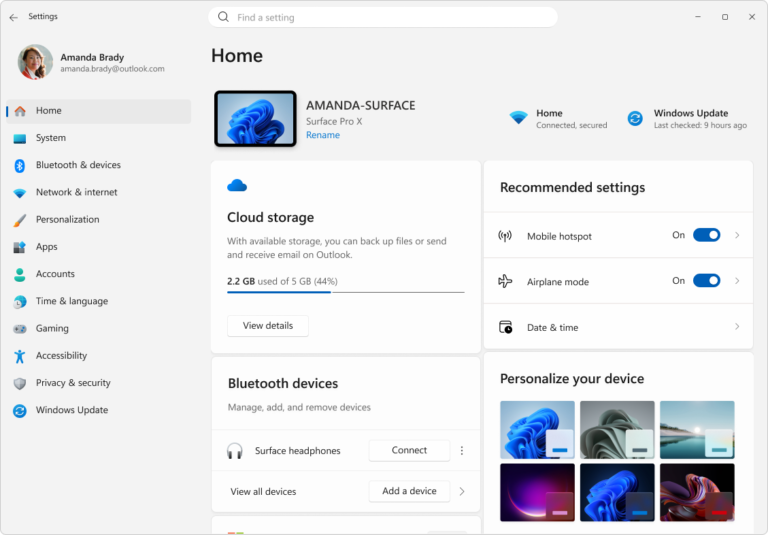
- Open Settings → Privacy & Security → Camera.
- Find the affected third-party app in the list of apps that requested access.
- If you want that app to use the camera, turn its access on. If the app is not listed, launch it and look for its access request.
- Return to the app and try its camera again. Follow that app’s own help instructions if its camera remains unavailable.
Apple explains that apps must request access to hardware features including the camera; the privacy list shows apps that have requested permission. Apple iPhone User Guide: Control hardware access.
Step 6: Check the flashlight separately (if your iPhone has one)
- Open Control Center and tap the flashlight/torch button.
- Check whether the rear LED turns on and off. Then return to Camera and compare the rear and front previews.
- If you use automatic flash in the Camera app, remember that Flash Auto may decide not to illuminate in bright conditions.
A flash issue and a camera preview issue are not the same test. If the rear flashlight and rear camera both fail, mention both symptoms when contacting service, but do not infer a single definitive cause from them alone. Apple includes the Control Center torch test in its official camera guidance.
Step 7: On supported models, run Apple’s iOS Diagnostics
Important compatibility check: Apple’s Recovery Assistant diagnostics mode is supported on iPhone 14 models and later and requires access to a Wi-Fi network. This is not a feature to promise on every older iPhone. The current Apple camera-support page specifically recommends diagnostics when the camera screen stays black.
- Read Apple’s Diagnostics Mode instructions for your exact iPhone model before starting.
- Power off the iPhone. Follow Apple’s Recovery Assistant startup instructions (hold the side button as it starts), and enter Diagnostics Mode if available.
- Follow the on-screen setup. Apple’s current camera support guidance identifies Mobile Resource Inspector for the black-screen symptom; select it if offered in the available diagnostics list.
- Run the offered camera diagnostic and read the result. Do not guess an outcome or force an unsupported mode.
- If the diagnostic identifies a problem, arrange service through Apple or an authorized service provider.
Apple also documents a camera image-quality test on supported devices. These diagnostics are troubleshooting tools, not proof that all faults are repairable at home. See When and how to use diagnostics mode.
Step 8: If the iPhone was repaired before, check Parts and Service History
A black camera preview after a repair deserves a different investigation than a random one-time freeze. On supported iPhone models, go to Settings → General → About and check Parts and Service History if it appears. Apple uses this section to show information about certain replaced components, which varies by model.
A label such as Unknown, Genuine or Finish Repair needs to be interpreted using Apple’s current model-specific explanation. It does not automatically mean the camera is disabled or that a third-party part caused the issue. Read Apple’s Parts and Service History reference before acting.
What your test results suggest
| Test result | Reasonable next action |
|---|---|
| Front camera works; rear camera stays black | Note the rear-only failure, remove accessories, update iOS, run supported diagnostics, then ask service if persistent |
| Both cameras remain black in Apple Camera | Restart, check updates, use supported iOS Diagnostics, or seek service |
| Apple Camera works; third-party app stays black | Check Settings → Privacy & Security → Camera for that app |
| Camera preview normal but photos are blurry | Clean lenses carefully and rule out obstructing accessories |
| Entire phone display is black | Follow Apple’s black-screen/power troubleshooting instead of camera-only steps |
| Camera and flash remain faulty after safe checks | Document both symptoms and contact Apple Support |
Do not use these as first-line fixes
- Factory reset: This erases personal data and is disproportionate before checking the camera, restarting, updating and diagnosing.
- “One-click iPhone camera repair” apps: A paid utility cannot be assumed to repair a faulty camera module or a loose internal connection.
- DIY disassembly: Opening an iPhone can damage seals, delicate connectors and parts; use qualified repair guidance.
- Random camera-permission toggles: The privacy list is for third-party apps and does not magically enable a failed built-in camera module.
Frequently asked questions
Why is my iPhone camera black but the phone still works?
The display and iOS interface can remain functional while the camera preview fails. Possible explanations include a temporary Camera app issue, an obstruction, a camera-specific hardware problem or another software fault. The front/rear comparison and Apple diagnostics help identify the appropriate next check.
Can an iOS update fix a black camera?
Sometimes an update can fix a software-related camera issue. It cannot reliably fix physical camera damage, and Apple recommends other checks and diagnostics as well.
Why does my selfie camera work but the back camera stay black?
Front and rear cameras are separate hardware systems. Test both in Apple’s built-in Camera app, remove rear camera accessories, restart, update, and arrange diagnostics if the rear-only issue persists.
Does a black camera mean my photos have been deleted?
Not necessarily. A black live preview does not establish that stored photos have been deleted. Open Photos and confirm your existing library separately. Avoid factory reset or erasing the phone without understanding the consequences.
Can older iPhones use Recovery Assistant diagnostics mode?
Not all. Apple currently lists iPhone 14 models and later as compatible with Recovery Assistant diagnostics mode, with Wi-Fi required. Older models may need standard troubleshooting and service support.
Is it safe to try Reset All Settings?
That is not one of Apple’s initial camera troubleshooting steps in its current guide. It also changes system preferences, so do not treat it as a harmless or guaranteed fix. Check the low-risk steps first.
Related reading
If you are troubleshooting a computer webcam rather than an iPhone, see our separate Windows 11 Camera Not Working guide. The settings and diagnostics differ between platforms.
Sources, image licensing and testing disclosure
- Apple Support — If the camera or flash on your iPhone or iPad isn’t working. Updated October 23, 2026; primary troubleshooting basis.
- Apple Support — When and how to use diagnostics mode. Device and Wi-Fi requirements.
- Apple iPhone User Guide — Force restart. Model-specific steps.
- Apple iPhone User Guide — Camera permissions for other apps.
- Apple Support — Parts and Service History.
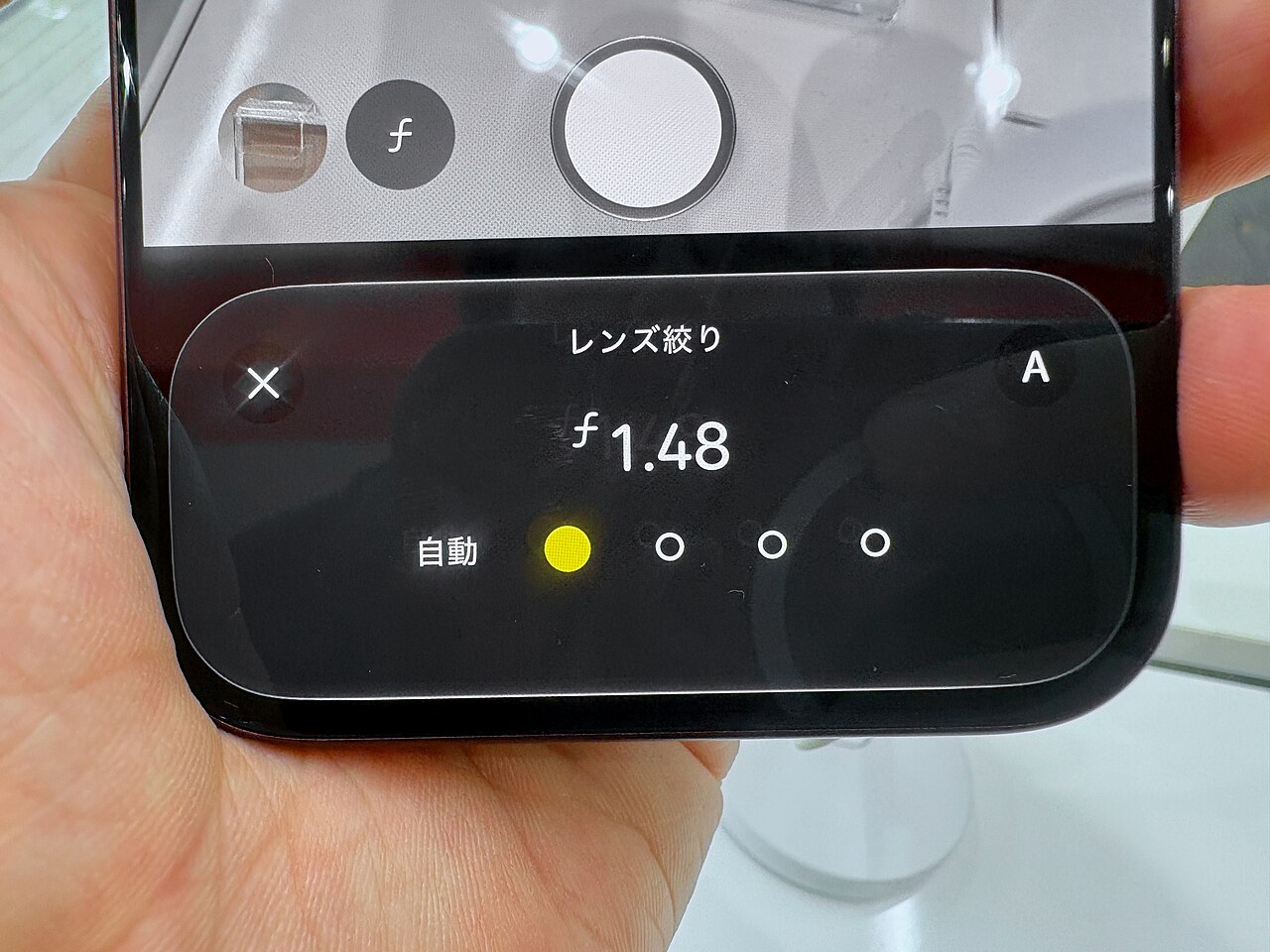
- Kyu3a, “IPhone 18 Pro Max Camera App – 2.jpg,” Wikimedia Commons. Real photo by the uploader, CC BY-SA 4.0; downscaled only.
Editorial disclosure: This research-based guide was prepared on October 28, 2026 using the linked official Apple documentation. Digital Pulse Brief has not performed and documented a hands-on repair or confirmed a successful fix on an iPhone with this particular fault. The credited photo shows a functioning Camera app on a real iPhone; it does not demonstrate the fault or its resolution. iPhone and Apple are trademarks of Apple Inc.; this independent publication is not sponsored, authorized or endorsed by Apple Inc.