iPhone Not Charging? 9 Safe Fixes for Cable, Port & Wireless Charging
iPhone not charging when plugged in? Follow 9 safe checks for cable and adapter faults, charging port, liquid alerts, dead batteries, MagSafe and 80% charge limits.

iPhone not charging when plugged in? Before buying a new battery or paying for a repair, narrow the problem to the power source, cable, charging port, a safety alert, or the phone itself. A completely dead iPhone may need time on a working charger before it shows anything on screen. An iPhone paused at 80% is a different issue entirely.
Quick answer: Test a known-working outlet and compatible charger → inspect the cable and connector for damage → check the charging port without sticking anything sharp inside → leave the phone connected for 30 minutes → force restart if it remains unresponsive. If you see Liquid Detected, stop wired charging and follow the separate drying instructions instead.
First: identify your exact charging symptom
| What happens | What it usually means to check first |
|---|---|
| No charging symbol and the iPhone is still on | Outlet, adapter, cable fit, charging port and warning messages |
| Black screen / fully dead battery | Working power source, 30-minute wait and model-appropriate force restart |
| Charging works only when the cable is held at an angle | Loose or damaged connector or debris; stop stressing the port |
| “Liquid Detected” or “Charging Not Available” warning | Disconnect the cable; allow the connector and accessory to dry |
| “Accessory Not Supported” warning | Charger/cable compatibility, damage or a dirty connector |
| Battery percentage stops near 80% | Battery temperature, Optimized Battery Charging or a user-set Charge Limit |
| Wireless charging fails but wired charging works | Wireless power source, alignment, case or accessory interference |
These are possible explanations, not a diagnosis of hardware failure. A cable that works with one device is not proof that it delivers sufficient power for every iPhone.
Step 1: Check for heat, moisture or obvious damage before plugging in
- Look for a Liquid Detected warning, a visibly damaged charging port, a frayed cable, swollen casing or an unusually hot device.
- If the iPhone or charger is severely hot, smells unusual or shows signs of battery swelling, stop charging and arrange professional evaluation. Do not force a connector into a distorted port.
- If liquid may be present, disconnect the cable and skip to Step 5. Do not repeatedly override the liquid warning just to see whether charging resumes.
- Otherwise, proceed with a charger and cable that are undamaged and intended for your iPhone.
This order is deliberate: a suspected wet port or failing battery should not be treated as an ordinary slow-charging problem.
Step 2: Test the wall outlet, adapter and compatible cable
- Use a working wall outlet rather than a questionable extension socket, hub or computer USB port for the first comparison.
- Check that the cable is firmly attached at both ends and that the power adapter fits securely.
- Inspect the cable and adapter for fraying, bent contacts, broken insulation or damaged prongs. Do not use a damaged charging accessory.
- If possible, try a different known-good compatible cable and adapter, changing one part at a time so the outcome is useful.
- Keep the iPhone connected long enough to see whether the charging indicator appears.
iPhone 15 models and later generally use USB-C; iPhone 14 models and earlier generally use Lightning. The exact cable and adapter must suit the iPhone and power source. Apple recommends checking a working wall outlet, firm connections and accessories in its official iPhone charging troubleshooting guide.
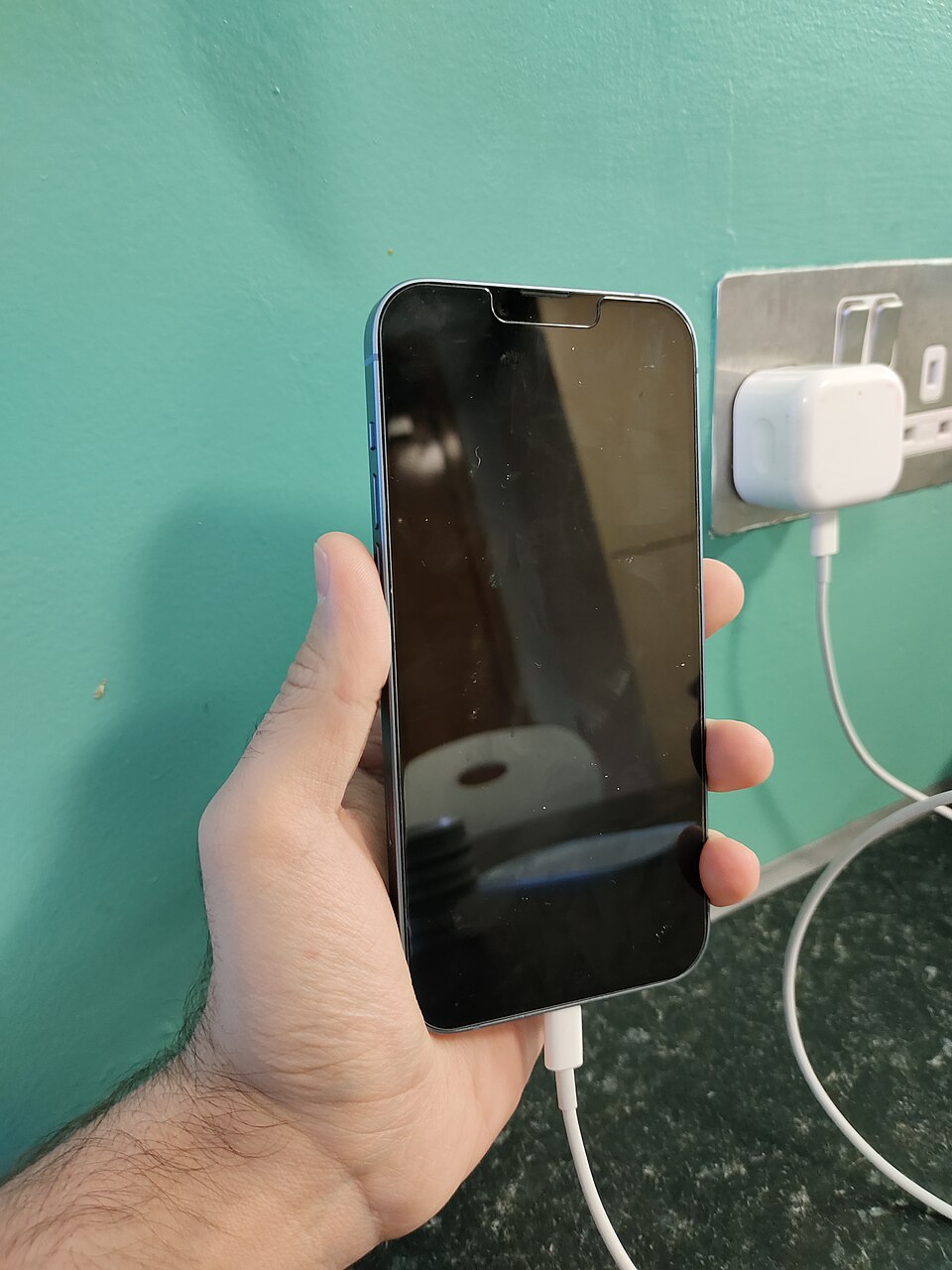
Step 3: Inspect the charging port without damaging it
- Disconnect the charger and use a light to look at the iPhone port. Check for visible lint, dirt, bent contacts or signs of corrosion.
- If you see obvious damage, liquid residue or bent pins, do not probe the connector; have it inspected professionally.
- Apple advises removing debris from the port. However, avoid metal picks, needles, wet cleaning agents, cotton swabs, paper towels or forceful scraping inside the connector.
- When there is no visible damage or moisture, reconnect the undamaged cable gently. It should seat without being forced.
If charging works only at one cable angle, do not continue wiggling the plug. That may further damage contacts. A professional inspection is safer than improvised cleaning when debris is deeply lodged.
Step 4: Give a fully discharged iPhone 30 minutes, then force restart if needed
- Connect the iPhone to a verified working power source and leave it charging for 30 minutes.
- If it still will not power on or only shows a depleted battery icon, use the force-restart method for its model.
- iPhone 8 or later / iPhone SE (2nd generation and later): quickly press Volume Up, quickly press Volume Down, then hold the Side button until the Apple logo appears.
- iPhone 7 / 7 Plus: hold the Side button and Volume Down together until the Apple logo appears. iPhone 6s or earlier / iPhone SE (1st generation): hold the Home button and Side/Top button together until the Apple logo appears.
- Leave the device connected to power for another 30 minutes if it still appears depleted. If it does not respond, contact Apple or an authorized service provider.
A force restart should not erase photos or messages. The button sequence does vary for older models; Apple publishes the model-based steps and charging wait times at If your iPhone won’t charge.
Step 5: If you see “Liquid Detected,” stop wired charging
An iPhone with a detected wet USB-C or Lightning connector may block charging to protect itself. That warning is different from a bad cable, and trying to make wired charging work immediately can cause corrosion.
- Unplug the cable from the iPhone. Disconnect the other end from the accessory or charger, too.
- Gently tap the iPhone against your hand with the connector facing downward, then leave it in a dry, ventilated place.
- Apple says you can try a cable again after at least 30 minutes. If the warning returns, allow additional drying; it can take up to 24 hours.
- Do not use a hair dryer, external heat, compressed air, paper towel, cotton swab, or a bag of rice.
- If your iPhone supports wireless charging, its back must be dry before using a suitable Qi-compatible charger as a temporary alternative.
An emergency override option may appear, but Apple recommends avoiding charging while the connector is wet because of damage risk. Follow Apple Support: If you see a liquid-detection alert instead of generic online “drying tricks.”
Step 6: Deal with “Accessory Not Supported or Certified” alerts
- Remove unnecessary adapters, splitters or hubs and connect the compatible cable directly.
- Try an undamaged cable and power adapter that you know work with your iPhone model.
- Check the port for visible damage or debris without forcefully cleaning inside it.
- Restart the iPhone and install an available iOS update only after the phone has enough battery and is otherwise functioning.
Apple identifies several causes for this warning, including a dirty or damaged port, a faulty charging accessory or incompatible charging hardware. Buying a more expensive charger is not a guaranteed fix. See Apple’s accessory-alert checks.
Step 7: If MagSafe or wireless charging is not working
- Confirm your particular iPhone supports wireless charging and use a compatible MagSafe, Qi or Qi2 charger with an appropriate power adapter.
- Connect the charging pad or puck firmly to power before placing the phone on it.
- Remove thick or incompatible cases, metal plates, wallet accessories or objects between the phone and charger, following the charger maker’s instructions.
- Position the phone centrally on a flat wireless pad or allow MagSafe magnets to align on supported models. Check for the charging indication.
- If wireless charging still fails but a known-good wired connection works, test the wireless pad and its adapter separately before attributing the fault to the phone.
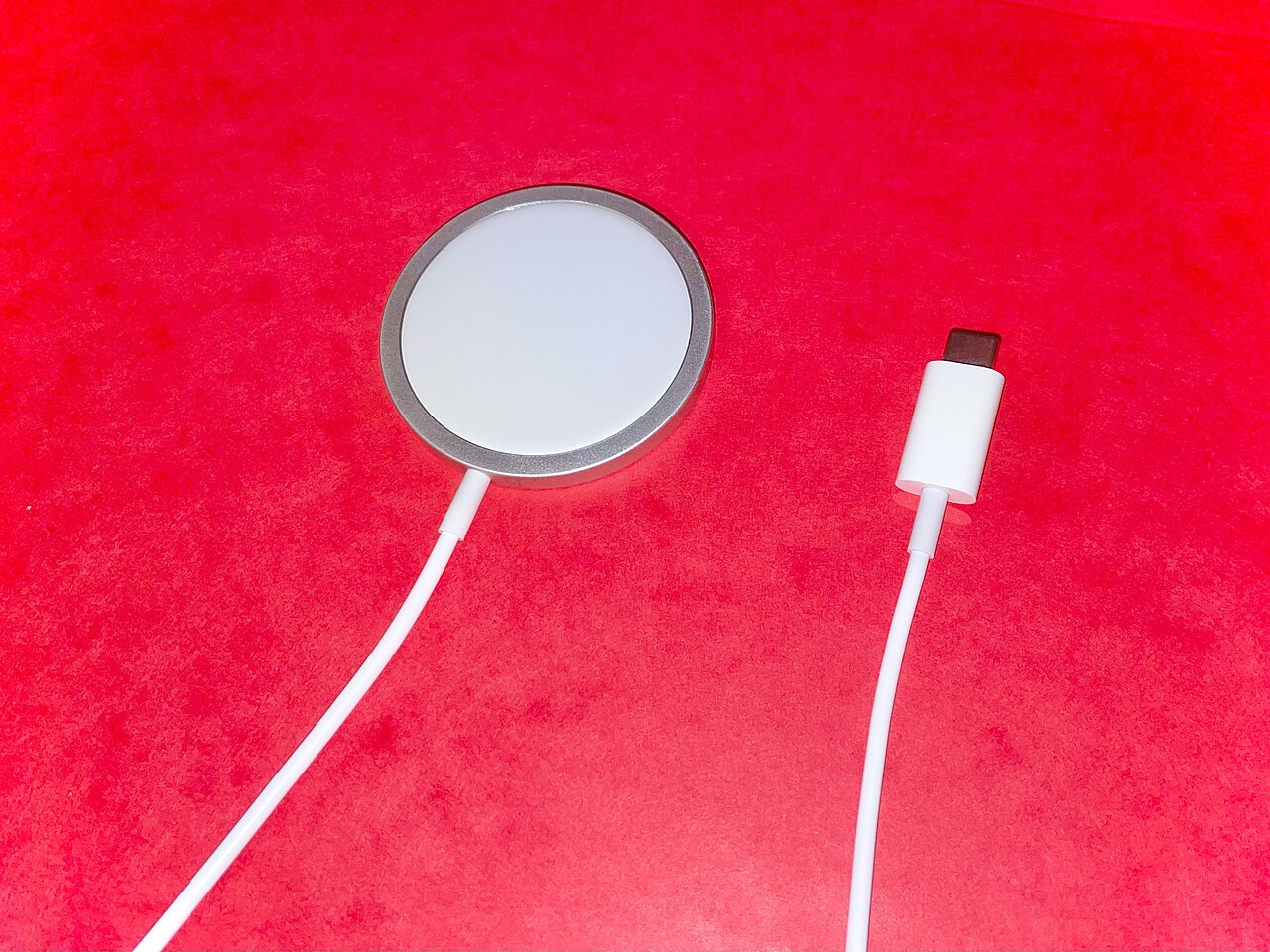
Apple explains that a MagSafe charger aligns magnetically on supported models and that compatible accessories are needed. See Apple’s MagSafe charging guidance. Wireless charging is not automatically supported on every older iPhone model.
Step 8: If charging stops at 80%, check temperature and battery settings
A charging pause near 80% often has nothing to do with a broken port. Apple describes three distinct causes:
- Optimized Battery Charging: iPhone may delay the last part of charging based on your usual charging routine.
- Charge Limit: On iPhone 15 models and later, a chosen limit (for example 80% or 90%) can intentionally stop charging at that percentage. Check Settings → Battery → Charging.
- Temperature protection: iPhone may temporarily pause charging above 80% when it is too warm. Move the phone and charger to a cooler environment and let them return to a normal temperature without external cooling tricks.
On iPhone 14 models and earlier, Apple places Optimized Battery Charging settings under Battery → Battery Health & Charging. Turning off charging optimizations permanently may increase battery wear. If you only need a full charge today, use a supported temporary override where Apple offers one. Apple: Charge Limit and Optimized Battery Charging.
Step 9: If it still will not charge, document the results before service
- Write down whether wired charging, wireless charging or both fail.
- Record the exact on-screen alert if one appears, and which known-good chargers you tried.
- Note whether the port feels loose, the phone was exposed to liquid, or there is visible impact damage.
- If the phone powers on, make a current backup before sending it for service if possible.
- Contact Apple Support or an authorized service provider if the device remains unresponsive or charging is unreliable after the safe checks.
A battery replacement is not the only potential repair. Cable, port, adapter, charging circuit and battery faults can produce overlapping symptoms; a qualified inspection is the appropriate next step when basic tests cannot separate them.
What each test result tells you
| Result | Possible interpretation | Best next step |
|---|---|---|
| Different wall outlet or adapter solves it | Original outlet or charging hardware was part of the problem | Replace only the confirmed faulty item |
| Another cable charges normally | First cable may be damaged or incompatible | Stop using the faulty cable |
| Wired charging fails, wireless charging works | Wired cable/port path deserves attention | Check connector and seek inspection if needed |
| Wired works, MagSafe fails | Wireless pad, adapter, alignment or case may be involved | Test compatible accessories without the case |
| 30–60 minutes of charging and restart do not help | Battery or phone hardware may need service | Stop repeated experiments and seek diagnosis |
| Charging pauses at 80% but phone otherwise works | May be an intentional battery-protection feature | Check charge limit, optimized charging and temperature |
| Liquid warning appears | Possible moisture in connector or cable | Disconnect and follow Apple’s drying instructions |
Before you buy a new charger
Try to identify the failure rather than guessing at wattage. For modern USB-C iPhones, Apple recommends a compatible USB-C Power Delivery power adapter for faster wired charging. A higher-wattage adapter alone will not repair a faulty cable or port. iPhone 14 and earlier use a Lightning connector for wired charging. A USB-C cable is not interchangeable with Lightning simply because both can be attached to USB-C power adapters.
For an iPhone that is charging slowly rather than not at all, compare adapter output, whether a hub shares power, device temperature and the battery level. Apple documents charging-speed estimates for supported iOS versions in About iPhone charge speeds.
Frequently asked questions
Why is my iPhone not charging even though it is plugged in?
The charger may not be delivering power, the cable or connector may be damaged, the port may be obstructed, or the phone may have a charging-related hardware fault. Begin with a working outlet and different compatible cable, then give a depleted battery time to recover.
How long should I charge a completely dead iPhone before deciding it is broken?
Apple recommends leaving it connected to a working charger for 30 minutes, using the appropriate force restart if it remains unresponsive, and allowing a further 30 minutes. If it still will not respond, service may be needed.
Should I clean the iPhone charging port with a needle or toothpick?
No. Inserting sharp or unsuitable objects can damage contacts or pack debris deeper. Inspect visually, avoid force, and seek appropriate professional cleaning or repair if debris is inaccessible. Never put anything into a port showing a liquid alert.
Why does my iPhone only charge to 80 percent?
It may be following Optimized Battery Charging, a selected Charge Limit on iPhone 15 and newer, or temperature-related protection. Identify which one is active before considering it a hardware problem.
Is it safe to put my iPhone in rice if it got wet?
Apple specifically advises against rice because particles can damage the device. Disconnect the cable, allow airflow, and follow the official liquid-detection steps.
Can I charge my iPhone wirelessly if the USB-C or Lightning port is wet?
On a model that supports wireless charging, Apple says wireless charging may be possible after the back of the iPhone is dry. Do not continue wired charging through a wet port.
Do I need a new battery if my iPhone only charges at one cable angle?
Not necessarily. That symptom can involve cable fit, debris or connector damage. Repeatedly forcing the plug can worsen the situation. Have the connector assessed before paying for a battery replacement.
Can a charging problem cause the iPhone camera to stop working?
A fully depleted phone can prevent all apps from running, but a camera-only failure is a separate issue. If your iPhone is powered on and the Camera app preview remains black, see our iPhone Camera Black Screen troubleshooting guide.
Sources, images, and testing disclosure
- Apple Support — If your iPhone or iPod touch won’t charge (charging, cable, port, dead-battery steps).
- Apple Support — If you see a liquid-detection alert on your iPhone (drying and safety).
- Apple Support — About Charge Limit and Optimized Battery Charging (80% charge behavior).
- Apple iPhone User Guide — MagSafe chargers and battery packs (wireless setup).
- Apple Support — About iPhone charge speeds (cables, wattage, charging behavior).
- Kskhh — real photo of an iPhone 14 Plus connected to a charger (CC BY-SA 4.0, resized).
- James Tamim — real MagSafe and USB-C charger photograph (CC BY-SA 4.0, resized).
Editorial note: Reviewed against official Apple troubleshooting documentation on October 28, 2026. This is a research-based practical guide; Digital Pulse Brief has not independently tested a failed charging port, diagnosed a damaged battery, or documented a successful repair for this article. Both photographs are real user-created reference photos with licenses and photographer credits. They do not show an independently verified charging fault or repair result. Digital Pulse Brief is independent and is not affiliated with or endorsed by Apple Inc.