ChatGPT Image Generator: How to Create and Edit Photos in 2026
How to use the ChatGPT image generator in 2026: create AI pictures, edit photos, remove backgrounds, select areas, choose aspect ratios, save images and fix common issues.

Want to use the ChatGPT image generator to create a picture, edit an existing photo, or change one detail without rebuilding everything? You can do all three inside ChatGPT. The important part is choosing the right workflow: describe a new image in a chat, upload a photo for editing, or open the image editor to select a particular area. This guide explains those differences using the current ChatGPT Images features and real, clearly credited examples.
Quick start: Open ChatGPT → describe the image you need, including the subject, setting, style and aspect ratio → generate → review the result → ask for one specific change at a time → open the image and choose Save to download it. For an existing photo, upload the image first and tell ChatGPT exactly what to preserve.
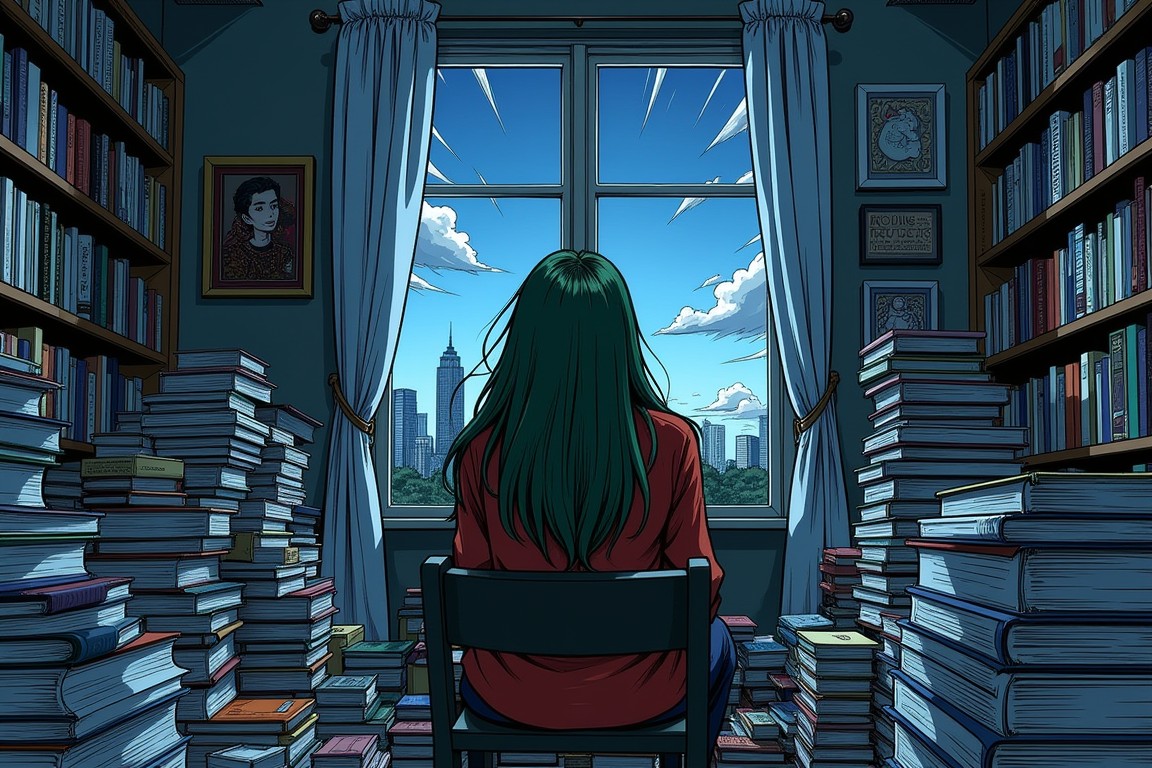
Can ChatGPT generate images for free in 2026?
Yes. OpenAI states that ChatGPT Images is available across Free and paid plans on the web, iPhone and Android. Image creation has separate usage limits that vary by plan and can change. Free does not mean unlimited generations, and a subscription does not guarantee that every edit will be perfect. Do not rely on websites advertising a fixed number of free images per day without checking the current official information.
In September 2026, OpenAI introduced ChatGPT Images 2.5, describing more precise editing, improved image detail and new creation workflows such as templates and mobile sketches. Availability of specific controls can depend on the interface, rollout and mode; for example, templates were not available in ChatGPT Work at launch. Official release announcement and Images in ChatGPT help guide.
Which method should you use?
| Your goal | Start here | What to specify |
|---|---|---|
| Create a picture from scratch | New ChatGPT chat or Images | Subject, composition, style, lighting and aspect ratio |
| Edit your own photograph | Upload the original photo in ChatGPT | Exactly what may change and what must stay |
| Change only a small object | Open image editor and select the area | Target object plus preserve instructions |
| Make a transparent background | Upload the product or generate an image | Ask for transparent background and check exported alpha |
| Design a flyer or social graphic | Images template or a direct prompt | Exact wording, size, hierarchy and layout |
| Convert a rough drawing into a picture | Sketch on supported mobile interface | Sketch + a description of intended output |
Step 1: Create a new image with a specific prompt
- Open ChatGPT on the web or in the mobile app and start a conversation. You can simply type an image request, or select Images if that entry is offered in your interface.
- Describe what you want to see, rather than a vague request like “make a nice image.” Name the subject, environment, camera angle, lighting and visual style.
- Specify how the result will be used: a square Instagram post, a 16:9 website image, a vertical story or a transparent product graphic.
- Submit the prompt and examine the result. Check for text errors, strange geometry, inaccurate logos and missing objects before using the image publicly.
Copyable example: “Create a realistic editorial photo of a compact home office desk with a closed silver laptop, black headphones and a warm desk lamp. Natural morning window light from the left, neutral colors, uncluttered background, eye-level camera, no logos and no text. Landscape 16:9 composition with space on the right for a headline.”
Why this works better: It defines the subject, object count, light, framing, exclusions and empty space. These are prompt-design recommendations, not the results of a controlled test with the wording above.
Step 2: Edit an existing photo without asking for a full redesign
- Use the image attachment control to upload a photo you have the rights to edit.
- Write a small, precise editing request. For example, “Replace the messy background with a clean light-gray studio wall, but keep the subject’s pose, hairstyle, clothing and facial proportions unchanged.”
- Review the edited image side by side with the source. Check edges, face, hands, logos and colors. Image editing can still alter details outside your requested region.
- If one detail is wrong, request a single correction instead of generating an entirely new image from a broad prompt.
Copyable example: “Edit the uploaded product photo. Remove the cluttered table and replace it with a seamless warm-white studio background. Preserve the product’s shape, labels, color, reflections and perspective. Do not add accessories, logos or text. Keep the product centered.”
OpenAI documents both image uploads and direct natural-language edits. However, it warns that highlighted editor selections may not be perfectly precise. Treat facial identity, product packaging and branded text as verification tasks, not guaranteed preservation. Official image editor instructions.
Step 3: Change just one area with the selection editor
- Open a generated image or an uploaded image in the ChatGPT image editor, where available.
- Choose Select and mark the area you intend to change—for example, an object on the desk or the color of a chair.
- Describe the edit in plain language. State what the model must not change, especially nearby objects, shadows and the person’s appearance.
- Compare the result with the source. If unwanted elements changed, undo or revise the selection and ask for a more limited edit.
You can also skip the selection tool and describe the target area in the chat. OpenAI says selection highlights can extend beyond what you mark, so a strict selection is not a pixel-accurate editing mask.
Step 4: Remove the background and request transparency
- Upload the image or open an existing ChatGPT-generated image.
- Ask to remove the background and make it genuinely transparent, not white or a checkerboard pattern painted into the image.
- Save the result to your device. Open it in an image editor or place it above a colored layer to verify whether the background is actually transparent.
- Inspect hair, glass, shadows and fine edges at 100% zoom. For a product listing, compare the product geometry and printed labels against the original.
Copyable example: “Remove the background behind the uploaded object. Output an image with a true transparent background. Preserve the object’s exact colors, contour, labels and proportions. Keep natural soft edge detail but do not invent new objects. Do not paint a checkerboard or white background.”
OpenAI’s Images documentation says transparent backgrounds are supported, but the result must still be checked for actual transparency after export. File format and the available save controls may vary by client.
Step 5: Choose an aspect ratio and compose for the destination
You can specify an aspect ratio within the prompt or use the image editor’s aspect-ratio control. The ratio determines shape, not guaranteed resolution, and a crop or regeneration may change composition.
| Use case | Suggested aspect ratio | Practical reason |
|---|---|---|
| Website or article hero | 16:9 | Fits common wide cards and headers |
| Instagram square image | 1:1 | Square social feed presentation |
| Instagram Story or Reel cover | 9:16 | Vertical phone-first frame |
| Portrait illustration | 3:4 | More space for a person or object |
| Landscape presentation | 16:9 | Wide slide-friendly framing |
If you need a precise pixel dimension for printing or a website, verify the image’s actual file properties after download. Aspect ratio alone is not a promise of an exact width and height.
Step 6: Create a graphic from a template or a mobile sketch
The Images 2.5 update introduced Templates to start from formats such as posters and other common designs. Where available, open Images → Templates, select a category, customize the details, and send your request. Templates were not offered in Work mode at launch, so do not assume the menu is identical everywhere.
On supported mobile versions, you can type @ in the composer and select Sketch, draw a rough shape, then describe the final artwork. Sketch is a starting guide, not a guarantee that the final output exactly matches every line you drew. ChatGPT release notes.
What does a real ChatGPT image-generation screen look like?
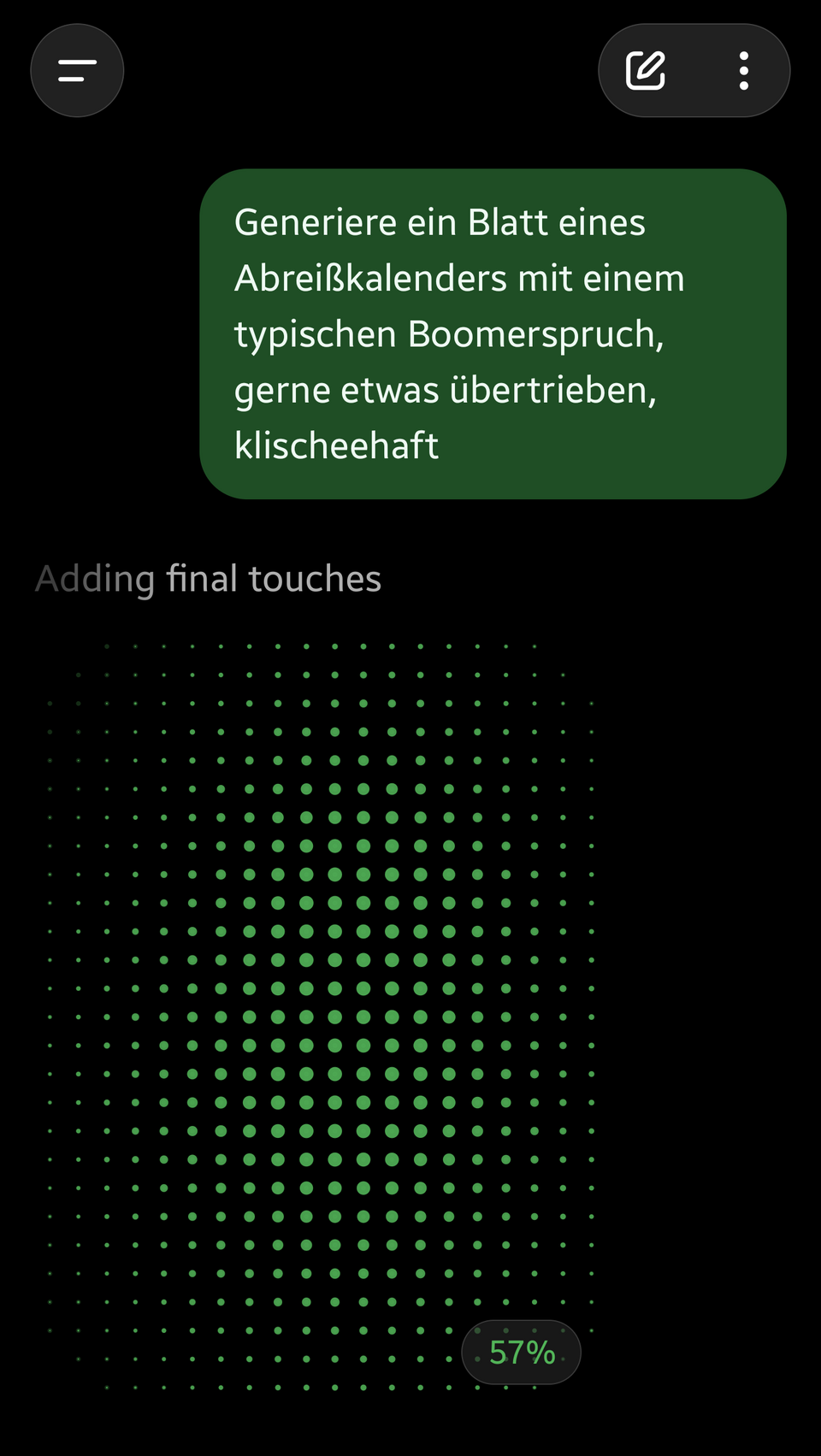
The above picture is a genuine Android screenshot uploaded by a Wikimedia Commons contributor on September 24, 2026. It documents that contributor’s image-generation screen, not the current interface on every account and not a test conducted by Digital Pulse Brief. For the current controls, prioritize OpenAI’s linked Help Center instructions.
Step 7: Save, reuse or share a finished image
- Open a generated image in ChatGPT or in the Images section.
- Select Save to download it, Copy to place it on the clipboard, or Share where available.
- Check the saved image in your device’s Photos, Downloads or file manager. Do not assume an image is publication-ready solely because it looks good in the chat preview.
- For public use, verify text legibility, output dimensions, transparency and image rights. Keep a copy of any source photo separately.
According to OpenAI, created images are also stored under Images for later browsing. The official documentation explains that deleting the conversation associated with a generated image is one way to remove it from the Images collection; review your account’s current storage controls before deleting material you may need.
Example of artwork made using ChatGPT
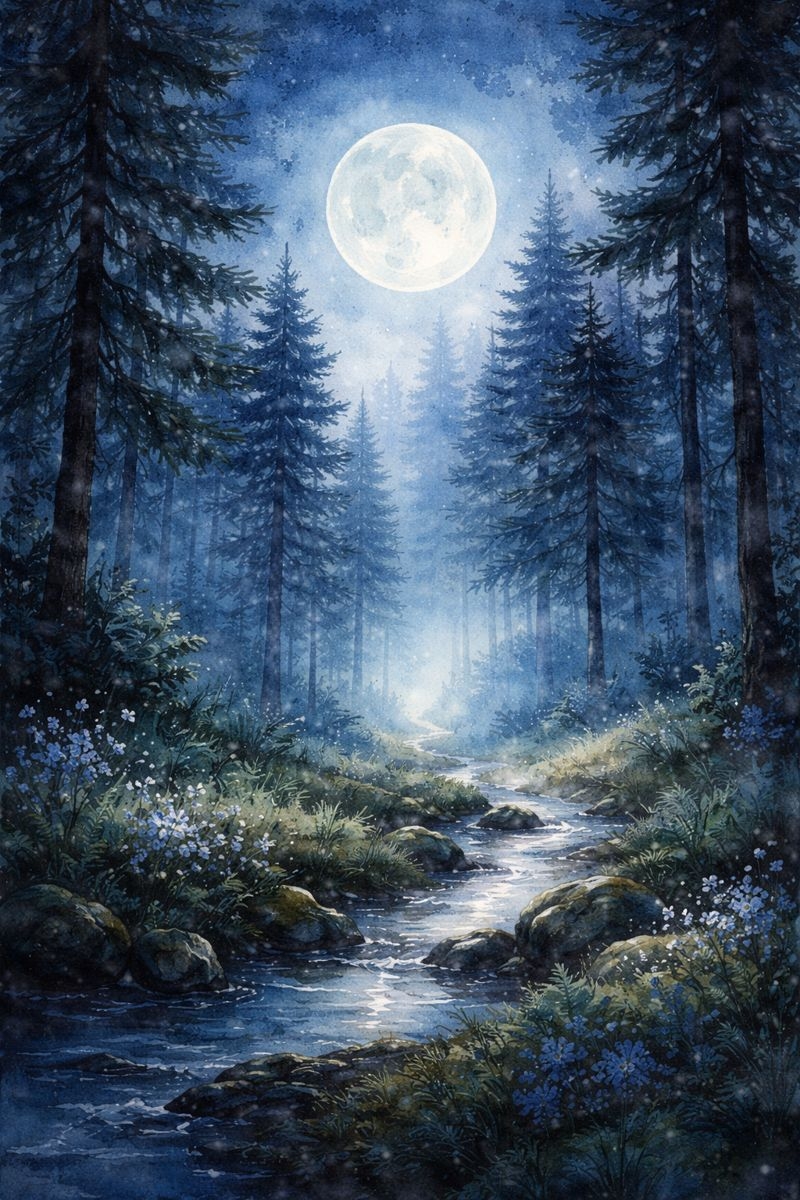
The forest image is a separately published community example, generated with a watercolor-style prompt and released under CC0. It illustrates the type of image ChatGPT has been used to create; it is not evidence that the exact prompt or outcome was retested in the latest Images 2.5 release.
When an image looks wrong: a designer’s inspection checklist
- Subject distortion: Check hands, fingers, eyes and object edges at full size rather than judging the thumbnail.
- Text errors: Compare every word, number and punctuation mark to the original brief. Treat small text and product packaging as high-risk.
- Unexpected objects: Count products, cables, buttons and accessories before approving the image.
- Background removal: Place the export on a saturated test-color background to reveal leftover halos.
- Identity preservation: For a portrait, examine facial proportions, skin texture, hairline and expression against the input.
- Brand fidelity: Never rely on an AI image as a technically exact recreation of a trademark, medical product label or device user interface.
These are quality-control practices, not claims of original hands-on benchmark results in this article. For client and commercial work, final checks in a conventional photo editor remain useful.
Troubleshooting: ChatGPT image generator not working
| Symptom | First sensible check | Avoid |
|---|---|---|
| Images option missing | Try a normal chat request; compare with OpenAI’s current Help page | Assuming every account has the same menu |
| Usage limit notice | Read the in-product reset or plan message | Trusting unofficial daily quotas |
| Image takes longer than expected | Allow the generation to finish; check service health if several attempts fail | Claiming a worldwide outage without checking |
| Uploaded image edit changes the face | State preservation requirements and review against source | Promising 100% identity retention |
| Output has a fake transparency grid | Check the exported file on a colored background | Assuming a checkerboard equals alpha |
| Aspect ratio is wrong | Use the ratio picker or specify the destination ratio clearly | Assuming ratio specifies pixel dimensions |
If the service itself seems unavailable, check OpenAI’s official status page before blaming your device. If a browser or app is malfunctioning, retry in an updated supported client, but avoid deleting useful conversations or clearing app data without a backup.
Related photo and camera troubleshooting
If you are trying to edit a picture that you have not been able to capture, fix the original camera problem first. See our iPhone Camera Black Screen guide for iPhone capture problems or the Windows 11 Camera Not Working guide for laptop and webcam problems. An AI photo editor cannot recover an original photograph that was never saved.
Frequently asked questions
Is ChatGPT Image Generator free?
ChatGPT Images is offered on Free and paid tiers. Free users can have separate image-generation limits and may see a reset notice. OpenAI does not promise an unlimited free image allowance.
Can I edit an existing photo instead of creating a new one?
Yes. Upload the photo and describe the requested changes, or use the selection editor to target a particular area. Check the result for unrequested changes.
Can ChatGPT remove a photo background?
Yes, the Images feature supports transparent backgrounds. Download and verify the resulting file’s actual transparency and edges before using it in a professional design.
Can ChatGPT put readable text inside an image?
It supports text requests inside images, but you should proofread all words and numbers. For critical documents or brand assets, set important text in a conventional design tool if the output has errors.
Do I need a paid plan for Images 2.5?
OpenAI describes ChatGPT Images as available across tiers, but access, thinking-enhanced generation and usage limits can depend on your plan. Always use the current in-product allowance rather than an old fixed limit published by a third party.
Are ChatGPT image examples automatically safe for commercial publishing?
Not automatically. Check whether the prompt involved third-party copyrighted material, logos, real people, or an input photo you do not own. Follow applicable laws, rights and platform terms, and verify a client’s permissions before publishing an edited image.
Does the image generator reproduce uploaded faces or products exactly?
No absolute guarantee. OpenAI describes improved preservation and editing, but also notes that changes can extend outside selected areas. Verify identity, labels and proportions in the final file.
Official sources and image attribution
- OpenAI Help Center — Images in ChatGPT: creation, editing, selection, backgrounds, saving, templates and availability.
- OpenAI — Introducing ChatGPT Images 2.5 (September 8, 2026): official release details and examples.
- OpenAI — ChatGPT release notes: sketches, templates and availability limitations.
- OpenAI — ChatGPT Free Tier FAQ: image creation limits and notifications.
- OpenAI Status: service incidents.
- PantheraLeo1359531 — Historical ChatGPT Android screenshot (public domain designation on Commons).
- Wikimedia Commons — Alone AI-generated image (listed as public domain; downscaled).
- Wikimedia Commons — Moonlit forest ChatGPT image (CC0).
Editorial transparency (October 28, 2026): Digital Pulse Brief researched this article against current OpenAI documentation and independently reviewed publicly licensed sample image sources. The shown artwork was created by other contributors; the displayed interface screenshot is historical. The article does not claim to have run or validated the example prompts in a live ChatGPT Images 2.5 session. Illustrations and examples must not be mistaken for original before-and-after testing. ChatGPT, OpenAI and related marks belong to their respective owners. Digital Pulse Brief is independent and is not affiliated with OpenAI.