USB-C to HDMI 4K 60Hz: Check Compatibility Before Buying an Adapter
A 4K 60Hz USB-C to HDMI label isn't a compatibility guarantee. Check DP Alt Mode, the exact laptop port, hub bandwidth, HDMI cable and monitor before buying.

A USB-C to HDMI adapter labeled “4K 60Hz” does not guarantee that your laptop, tablet or phone will output 3840 × 2160 at 60Hz. Before buying, verify four things: your device’s USB-C port carries video, its specifications support the required display mode, the specific adapter is rated for 4K at 60Hz with that device, and your monitor/HDMI input accepts that signal. USB-C is a connector shape—not proof of video output.
This buying checklist is most useful if you’re connecting an existing Windows laptop, Mac, compatible tablet or phone to a 4K monitor or television. It is not a recommendation to buy any particular product without checking its model-specific compatibility.
Research and testing note (November 1, 2026): Digital Pulse Brief compared published technical guidance from VESA, Dell and Microsoft. No specific adapter or laptop was purchased or benchmarked for this article. The diagrams below are original editorial explanations, not photographs of tested hardware or screenshots of real settings.
Quick answer: four links in the 4K 60Hz chain
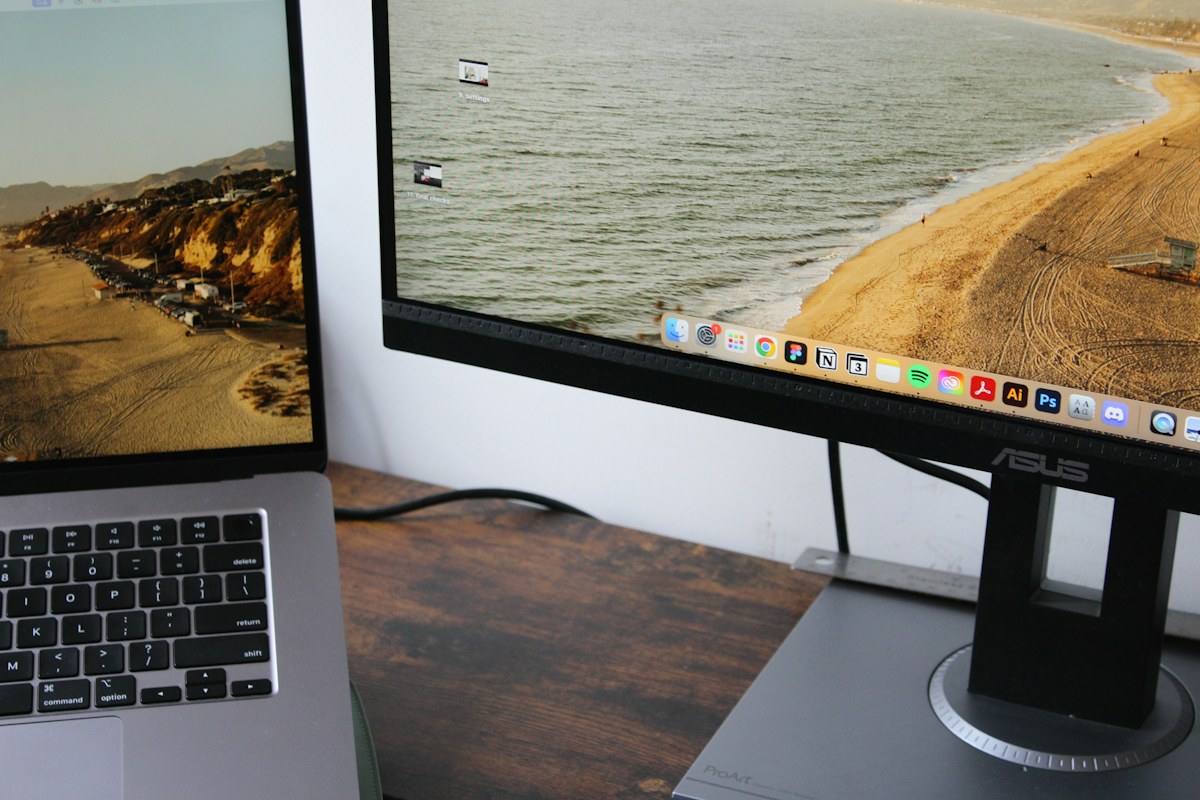
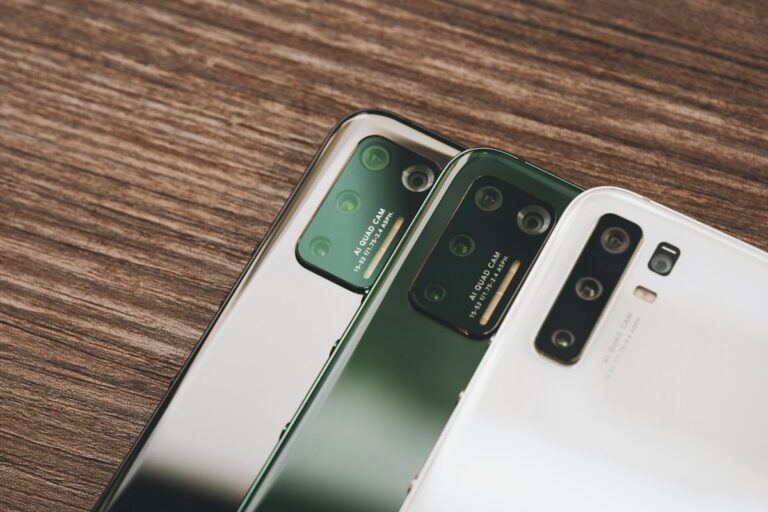
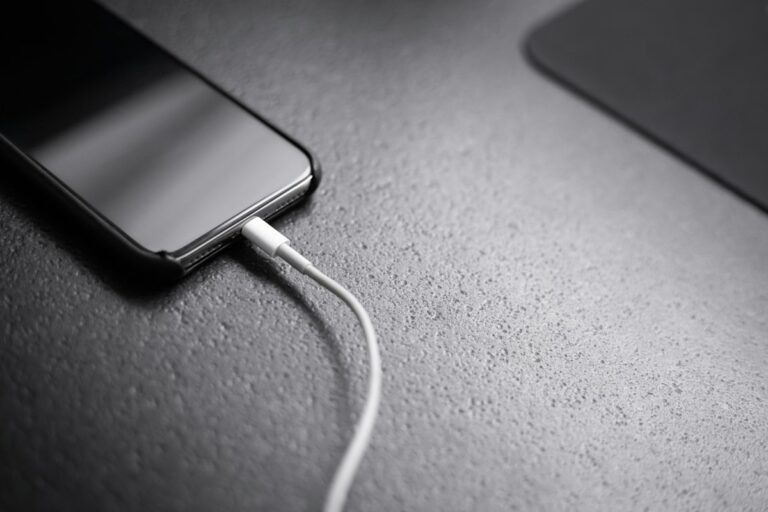
In-article image: Serena Tyrrell; featured image: Maxence Pira, via Unsplash. Photographs are illustrative; they do not establish that the described software behaviour or hardware performance was tested by Digital Pulse Brief.
| Part of the connection | What to look for | Why it matters |
|---|---|---|
| Laptop, phone or tablet USB-C port | Explicit video output support, typically DisplayPort Alternate Mode, Thunderbolt or another documented video-capable USB-C implementation | A charging/data-only USB-C connector cannot produce a native HDMI display signal through a standard DP Alt Mode adapter. |
| Source device graphics and USB-C link | Manufacturer-stated maximum resolution and refresh rate for that exact model, port and mode | A source that only outputs 4K 30Hz cannot be upgraded to 4K 60Hz by a dongle label. |
| USB-C to HDMI adapter or hub | Verified 3840 × 2160 at 60Hz support and any limitations when USB ports or multiple monitors are also used | Video bandwidth may be shared in multiport hubs; specifications for one adapter do not apply to all. |
| HDMI cable and monitor/TV input | Cable with capacity for the selected format and an input advertised to accept 4K at 60Hz | The display connection is limited by the weakest compatible element. |
The DisplayPort standards body’s FAQ says device documentation should identify support for DisplayPort Alt Mode. VESA also explains that a USB-C to HDMI protocol adapter is an established way to connect video-capable USB-C sources to HDMI displays. It does not say all USB-C sockets can do it.
Step 1: identify what your USB-C port actually supports
- Find the exact model number. On a Windows PC, open Settings → System → About for device information, then check the manufacturer’s model page or service documentation. Laptop families can contain several configurations with different ports.
- Read the port specifications. Search the manufacturer’s manual for “DisplayPort over USB-C,” “DisplayPort Alt Mode,” “Thunderbolt,” “USB4” and the supported external-display specifications. Treat documented video output as stronger evidence than a generic USB-C photo.
- Look for, but do not rely solely on, symbols. Some devices place a DisplayPort “DP” or Thunderbolt symbol near a video-capable USB-C socket. A missing symbol is not always decisive, and a lightning-style charging mark alone does not certify video output. Check the exact manual.
- If video output is not documented, pause the purchase. Ask the manufacturer or adapter seller for compatibility with your exact model and product SKU before spending money.
For example, a laptop may have USB-C ports of different capabilities. Confirm which physical port the support documentation refers to rather than assuming both sides of the machine are interchangeable. VESA’s DisplayPort over USB-C technical explanation is useful background, but the laptop or tablet manufacturer’s specification remains the final source for its actual implementation.
Step 2: check the adapter’s real 4K 60Hz limits
An adapter can genuinely support 4K 60Hz yet deliver only 4K 30Hz with one combination of laptop and USB data connections. Don’t use the word “4K” on the front of a package as the complete specification.
| Listing claim | What it tells you | What to verify before buying |
|---|---|---|
| “4K supported” | Resolution only | Is 60Hz supported, or only 30Hz? Which devices and ports? |
| “4K 60Hz USB-C to HDMI” | The adapter has a stated maximum mode | Will your exact source, HDMI cable and display support it? |
| “4K 60Hz hub with USB-A and charging” | A multi-function adapter claims 60Hz output | Does simultaneous USB 3 data use reduce video bandwidth? Do any ports have mode restrictions? |
| “8K adapter” | A high maximum display claim | Does documentation explicitly list your desired 4K 60Hz mode and host requirements? |
| “USB-C 100W pass-through” | Possible power-delivery capability, not video capability | Does it carry video? How much power actually reaches the laptop after hub overhead? |
Real-world manufacturer example: Dell’s DA20 adapter technical note explains that with this particular multiport adapter, an HBR2-capable host can be limited to 4K at 30Hz because bandwidth is shared with USB data. Dell describes 4K 60Hz operation under a compatible HBR3/HDMI 2.0 configuration, and lists separate single-purpose dongles with different behavior. This is a model-specific demonstration of why host bandwidth and hub design matter; it is not a universal limit for every HBR2 USB-C to HDMI adapter.
One more practical check: a basic USB-C-to-HDMI dongle using DisplayPort Alt Mode is not the same thing as a USB data-to-display graphics adapter that requires specialized drivers. Prefer a plainly documented, compatible video path unless you specifically need the latter.
Step 3: check the display, HDMI input and cable
- Find your monitor or TV’s exact model and specifications. Confirm the input you intend to use accepts 3840 × 2160 at 60Hz.
- Inspect whether different HDMI input ports have different stated capabilities, particularly on older TVs or displays.
- Use a suitable HDMI cable. Avoid assuming that a cable merely marked “HDMI cable” is certified for every resolution and refresh combination; look for the manufacturer’s supported formats and relevant cable certification.
- For a TV, verify any input-mode configuration required by its manual. Do not change random advanced color settings unless the manufacturer documents the reason.
A 4K TV might display 3840 × 2160 at 30Hz when a connection is bandwidth-limited, while 1920 × 1080 at 60Hz works. That pattern is a diagnostic clue, not proof that the adapter itself is defective. Dell’s HDMI port support guide also distinguishes adapter types and notes that video capabilities depend on the actual connection.
Step 4: confirm the refresh rate after connecting in Windows 11
- Connect the laptop’s confirmed video-capable USB-C port to the adapter, then connect the HDMI cable to the intended monitor or TV input.
- Open Settings → System → Display. Select the external display if more than one is shown.
- Choose a suitable Display resolution, ideally 3840 × 2160 for a native 4K panel if offered.
- Open Advanced display; make sure you are examining the external screen rather than the laptop’s built-in panel.
- Use Choose a refresh rate to check whether 60 Hz is offered for the current resolution. Verify the display information afterwards. Do not assume “60Hz” observed at a lower resolution proves 4K 60Hz.
Microsoft’s official refresh-rate instructions explain that Windows lists rates supported by the detected display and connection. An asterisk beside a rate can indicate that choosing it changes the current resolution. Make sure your target resolution remains 3840 × 2160 after any switch.
Why can 4K at 30Hz work when 4K at 60Hz does not?
Refreshing a 4K image 60 times per second requires more transmission capacity than refreshing it 30 times per second. USB-C links can differ in DisplayPort mode, lanes and speed, and some hubs allocate bandwidth to high-speed USB data as well as video. Adapter conversion and the HDMI side must also support the complete mode. That is why an apparently identical USB-C-shaped connection can have very different results on two computers.
Try these reversible checks in order:
- Verify the source device’s port capabilities in its official manual and move to the documented video-capable port if necessary.
- Use the direct USB-C-to-HDMI adapter without extra intermediate converters or extenders for an initial test.
- Use a known suitable HDMI cable and confirmed 4K 60Hz display input.
- If using a multiport hub, temporarily disconnect optional USB devices to check whether its documented shared-bandwidth mode changes the available resolution. This may not help on hubs whose fixed design limits output.
- Check the adapter maker’s compatibility information for your exact device and firmware/driver requirements. Don’t install third-party “HDMI booster” programs or disable security protections.
If 4K 60Hz is still unavailable, compare your exact laptop, adapter, cable and display model numbers with their manuals or contact the vendor. Without those details, replacing accessories blindly is a gamble.
A pre-purchase checklist you can send the seller
Before ordering, send the seller a concise message: “My device is [exact model and configuration]. Does its specific USB-C port support 3840 × 2160 at 60Hz via this exact adapter model to my [monitor/TV model]? If I use the adapter’s USB-A port at the same time, is 4K 60Hz still supported?” Ask for a manufacturer compatibility page or datasheet, not just a blanket “yes, it’s 4K.” Keep return-policy details in case a documented compatibility claim proves wrong.
Bottom line: Buy only after matching the source port, device capability, adapter mode, HDMI cable and display input. 4K 60Hz is an end-to-end compatibility requirement, not a promise made by the adapter label alone. If your purchase question is instead about USB-C charging power, read our separate 65W vs 100W USB-C charger buying guide.
Official sources and editorial disclosure
- VESA — DisplayPort FAQ: USB-C Alt Mode identification and HDMI adapters.
- VESA — DisplayPort over USB-C technical overview.
- Dell — DA20 4K 60Hz conditions and host HBR2/HBR3 limitations.
- Dell — HDMI port guide and USB-to-HDMI adapter distinctions.
- Microsoft — Change the refresh rate on your monitor in Windows.
Sources checked November 1, 2026. Information is documentation-derived; no DPB firsthand compatibility test, benchmark, retail product comparison or affiliate relationship is claimed. Interface details and adapter specifications should be checked again when a product changes.