USB-C Cable for an External SSD: Check 5Gbps, 10Gbps and 40Gbps Before Buying
A USB-C cable labeled 240W may still be slow for an external SSD. Match the laptop port, SSD enclosure and cable's real 5/10/20/40Gbps data capabilities before buying.

A USB-C connector does not tell you how fast an external SSD will transfer files. To choose a cable, match the computer’s port, the external SSD/enclosure, and the cable’s documented data capability. A USB 2.0-only USB-C charging cable can make a fast SSD connect at USB 2.0 speeds, while a 40Gbps cable will not turn a 10Gbps SSD into a 40Gbps one. Start with the exact devices, not a cable advertised as “premium,” “fast charging,” or simply “USB-C.”
Testing and sourcing (November 1, 2026): Digital Pulse Brief has not benchmarked a particular SSD or cable for this guide. The recommendations synthesize USB-IF cable and naming guidance, Intel’s Thunderbolt compatibility explanations, Microsoft’s USB4 settings documentation, and Apple’s System Information instructions. Transfer figures quoted below are link signaling rates, not measured file copy speeds.
Find the bottleneck before spending money

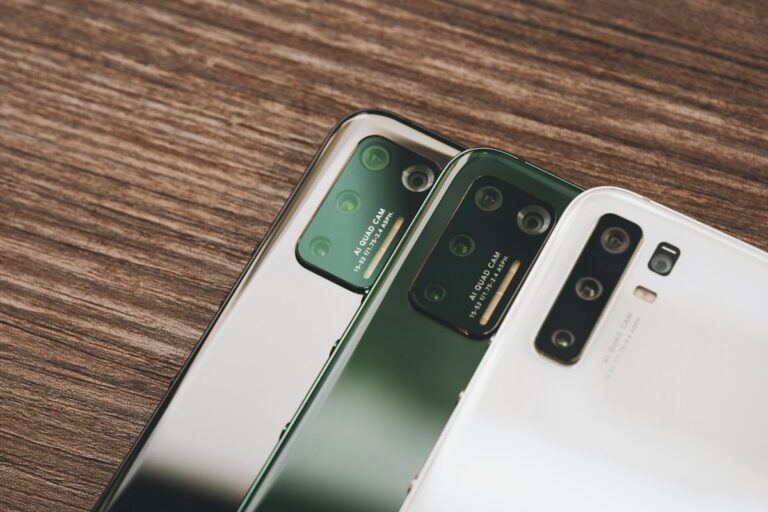
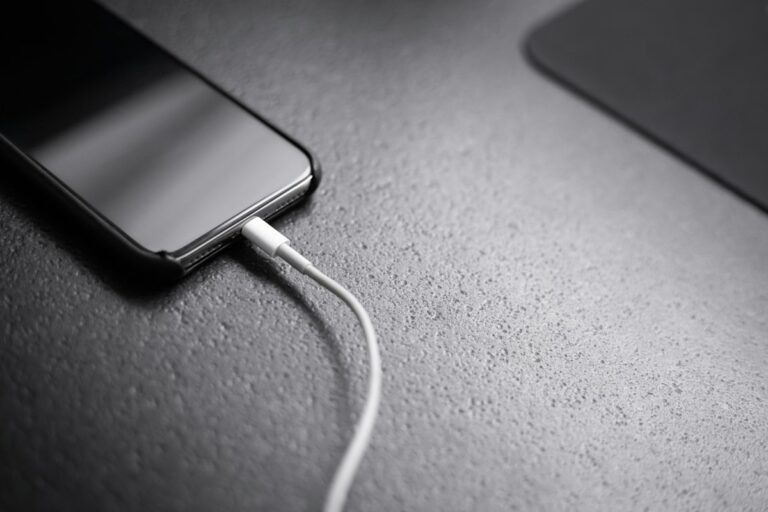
In-article image: Immo Wegmann; featured image: Siyuan Hu, via Unsplash. Photographs are illustrative; they do not establish that the described software behaviour or hardware performance was tested by Digital Pulse Brief.
An external drive’s connection is a chain: host port → cable → SSD enclosure/controller → storage drive. Any slower component can limit the result. For example, a 10Gbps enclosure plugged into a 40Gbps laptop port with a correctly specified 40Gbps cable still has a maximum 10Gbps-class USB connection for that enclosure. Intel explains that mixed-capability connections negotiate according to common supported capabilities, and USB-IF stresses that a cable certification does not raise the performance of the devices it connects.
USB cable labels: what the numbers actually mean
| Cable/device wording | Advertised link rate | Buying significance |
|---|---|---|
| USB 2.0 / Hi-Speed | 480 Mb/s (0.48 Gb/s) | Fine for charging and ordinary low-bandwidth peripherals; a poor choice for using a fast external SSD at its potential speed. |
| USB 5Gbps | 5 Gb/s | A reasonable match only if the drive, computer and cable use this speed class; do not expect a 10Gbps SSD’s best transfer rate. |
| USB 10Gbps | 10 Gb/s | A useful target for an SSD/enclosure explicitly rated at 10Gbps and a compatible host. |
| USB 20Gbps | 20 Gb/s | Only worthwhile for speed when both ends support a compatible 20Gbps mode; identical headline rates do not automatically guarantee every USB4/USB 3.2 implementation works identically. |
| USB 40Gbps or Thunderbolt 4 | Up to 40 Gb/s link capability | Appropriate only when the entire storage path can actually use that capability; certification and host compatibility matter. |
| USB 80Gbps / Thunderbolt 5 | Up to 80 Gb/s link capability (Thunderbolt 5 has additional display-focused bandwidth behavior) | Usually unnecessary for a basic 5Gbps or 10Gbps SSD; check both end-device specifications before paying extra. |
The USB-IF USB4 overview and its cable certification guidance distinguish different capabilities within the same physical connector family. Intel’s Thunderbolt 4 explanation says Thunderbolt 4 certification has defined minimum capabilities, unlike a generic USB-C label. Do not equate a 10Gbps signaling rate with a guaranteed 1,250 MB/s file-copy result; that division omits overhead and device behavior.
Step 1: identify the SSD’s actual connection
- Find the SSD/enclosure model and revision. An internal NVMe SSD installed in an external enclosure is limited by that enclosure’s USB or Thunderbolt controller. The internal drive’s advertised sequential benchmark is not a promise for USB connection speed.
- Read its manual or manufacturer specifications. Look for an explicit USB 5Gbps, USB 10Gbps, USB 20Gbps, USB4 or Thunderbolt data interface. For a prebuilt portable drive, check the exact SKU rather than a similarly named product.
- Check the cable that came with it. The supplied cable may be an intended compatible choice. Replace it only if its specification, length, condition or observed behavior gives a reason.
- Do not infer data speed from power. A “240W” cable marking describes a power-capability category. USB-IF explicitly distinguishes power labeling from supported data-rate labeling for compliant cable products.
USB-IF’s official cable guidance says certified USB-C-to-USB-C cables use 60W or 240W power markings, and high-speed categories (other than USB 2.0 cables) must also identify supported data rate in compliance labeling. A seller describing only “100W,” “240W” or “fast charging” has not established the SSD transfer capability you need.
Step 2: verify the computer’s specific port
Windows laptops: Find the exact laptop model or motherboard specification and read which physical USB ports support 5, 10, 20, 40 or other speeds. Do not assume two USB-C ports on the same computer have identical capabilities. On USB4-capable Windows 11 devices, Microsoft documents a page at Settings → Bluetooth & devices → USB → USB4 Hubs and Devices that lists connected USB4 devices and capabilities. It is not available on every Windows 11 PC and it does not replace the specification for an ordinary USB 3.x-only port. Microsoft’s USB4 settings documentation explains when the page appears.
Mac laptops and desktops: Choose Apple menu → System Settings → General → About → System Report. Apple’s System Information guide describes viewing connected hardware. Inspect USB or Thunderbolt/USB4 information where available, but don’t treat a displayed number as a universal real-world file transfer benchmark. Verify your exact Mac’s port support on its Apple technical specifications page too.
Hubs and docks: A USB-C hub adds another component with its own data limits; a hub’s HDMI, charging and USB-A ports may operate under different bandwidth arrangements. A device connected through a dock may negotiate differently from a direct connection. For diagnosis, connecting the SSD directly to the computer’s documented high-speed port is a useful baseline.
Step 3: choose the cable using a simple decision chart
| Your verified setup | Practical cable selection | Do not overpay for |
|---|---|---|
| External SSD and host both support USB 5Gbps | A correctly specified USB 5Gbps or faster compatible cable | 40Gbps as a supposed speed upgrade |
| External SSD and host both support USB 10Gbps | USB 10Gbps or faster cable verified compatible with both | Charging-only USB-C cable, even if rated 240W |
| 20Gbps SSD and matching host mode documented | A compatible cable meeting the required 20Gbps mode | An unverified “20Gbps” listing with no model or compliance detail |
| Thunderbolt storage + Thunderbolt-capable host | A correctly specified/certified Thunderbolt cable that meets the product requirements | A generic “USB-C charging” cable |
| You cannot verify the SSD/host speed | Confirm model-specific manuals before purchasing | Any costly “future-proof” cable based on guessing |
Useful seller question: “My external SSD is [exact model] and my laptop is [exact model/port]. Can you provide a datasheet confirming this cable supports the SSD’s [5/10/20/40Gbps] data mode, not only charging wattage? What is the tested cable length and return policy?” A proper specification is more useful than a screenshot of an unverified benchmark.
If a retailer uses official USB-IF certification artwork, know that USB-IF requires licensed certified usage of its logos. Do not interpret an unofficial look-alike graphic or an unqualified “USB-C” description as proof the product passed testing.
If the external SSD is unusually slow, diagnose before replacing anything
- Establish the symptom. Is the issue one giant file being slow, many tiny files being slow, or every copy being slow? Thousands of tiny files can take longer even with the same total size.
- Record the full chain. Write down the computer model/port, cable model/length, any hub/dock, SSD enclosure model, and the target drive.
- Remove unnecessary intermediaries. If allowed by the manufacturer, connect directly to the computer with a known good data-rated cable. Avoid unplugging while active transfers run.
- Compare like with like. Transfer a similar non-sensitive file using two documented compatible cables or ports and compare behavior. Do not report a scientific benchmark unless conditions and repetitions support it.
- Check the destination too. A slow internal disk, nearly full drive, encrypted storage, background antivirus scan or thermal throttling can affect actual copies without changing the USB link rate.
- Check for errors. If the drive disconnects, data appears corrupted, or the connector feels loose, stop relying on that configuration; make verified backups and consult the manufacturer.
Do not disable encryption, antivirus or write protections to chase a bigger speed number. Do not reformat a drive as a “fix” before checking the backup and understanding the consequences; changing file systems can erase files.
What this article is—and is not—about
This checklist focuses on storage data transfer, not USB-C charging or external display output. If you are selecting a laptop charger, see our 65W vs 100W USB-C charger guide. If you are buying a video dongle, use our separate USB-C to HDMI 4K 60Hz compatibility checklist.
Bottom line: Buy for the storage speed all three components document: computer port, external SSD and cable. A better-specified cable can remove a bottleneck, but no cable creates a faster port or enclosure.
Official references and editorial limits
- USB-IF — Cables and Connectors, cable capability labeling, certification and limits.
- USB-IF — USB4, bandwidth and common-capability principles.
- Intel — Thunderbolt 4 vs USB-C, certification and interoperability.
- Microsoft — Windows 11 USB4 settings, when the USB4 devices page is available.
- Apple — System Information on Mac, identifying connected hardware.
Documentation checked November 1, 2026. No purchased accessory, physical speed benchmark, affiliate arrangement or firsthand device result is claimed.