Gmail Storage Full? Why Emails Stop Arriving and How to Fix It
If your Google Account runs out of storage, Gmail may stop receiving mail and senders can get bounce messages. Learn what counts against the limit, how to free space carefully, and when to ask for a resend.

When a personal Google Account reaches its storage limit, Gmail can stop sending and receiving messages. Incoming emails may be returned to their senders rather than held until you clear space. The safest recovery is to check your overall Google storage, remove only files you no longer need, empty the relevant trash folders, and ask important senders to resend messages that bounced.
The confusing part: deleting a few emails may not solve the problem. Gmail shares storage with Google Drive, Google Photos and, for some accounts, backups. A full Drive or photo library can interrupt email even when your inbox looks relatively small. This guide explains the difference and the safest order to troubleshoot it.
Featured illustration by Digital Pulse Brief. The 99% warning is a design mockup, not a genuine Gmail interface screenshot. Gmail and Google Drive are Google LLC products.
Quick recovery path: Check Google storage → review which service is using space → save anything important → delete unneeded large items → empty the correct trash folders → allow the quota to refresh → test Gmail and request resends for any bounced messages.
Quick fix: what to do first when Gmail stops receiving mail
- Open Google’s account storage page. If storage is at its limit, pause repeated test emails until you free some space.
- Review Gmail Trash (called Bin in some regions) and Spam, plus Drive and Photos trash. Permanently empty only items you have already checked and can afford to lose.
- If storage remains full, find one or two genuinely unneeded large messages or files using the steps below. Save irreplaceable originals first.
- Recheck storage and send a new test email from another address. If a message bounced while your inbox was full, ask its sender to resend it.
Timing: Some changes show up quickly. Google advises further targeted cleanup if storage still looks full after 30 minutes, while large batches of deletions can take 48–72 hours to register completely. Do not delete more files at random simply because the meter has not moved yet. Read Google’s storage guidance.
What happens when Gmail storage is full?
Google states that, once an account is at its storage limit, Gmail may be unable to send or receive messages. Senders can receive a delivery failure because Google returns messages that cannot be accepted. This is different from an email sitting in your Spam folder: a bounced message is not waiting in Gmail for you to recover.
| Service | What the storage limit can interrupt |
|---|---|
| Gmail | Sending and receiving email; undeliverable incoming mail may return to the sender. |
| Google Drive | Uploading, creating or syncing new files; some editing or copying actions may be restricted. |
| Google Photos | Backing up new photos and videos. |
| Some backups | Stored backups can contribute to the same shared storage allowance. |
Google offers up to 15 GB of free storage with a standard personal account, although actual available space depends on the account and any subscription or promotion. Work and school accounts may have different quotas and administrative rules.
First: confirm that storage is actually the problem
Google’s official Google One storage manager demonstration (updated July 2026) shows how Gmail, Drive and Photos share storage. The live manager may look different on your account; rely on the figures shown while signed in, not a screenshot from somebody else’s account.
- Open the official Google storage overview while signed in to the same Google Account that is missing emails.
- Compare the amount used with the total allowed. Inspect the breakdown for Gmail, Drive, Photos and any other storage category shown.
- If usage is at or above the limit, follow the cleanup sequence below. If there is available space, storage may not explain the missing messages; investigate filters, Spam, forwarding, sender errors and service status instead.
- Before deleting data, confirm which account is open if you regularly switch between personal, work and family Google Accounts.
Important distinction: The Gmail app’s storage on your phone and your Google Account’s cloud storage are not the same thing. Clearing a phone’s app cache is not a substitute for clearing a full Google cloud quota.
Safest way to free space without deleting important mail
1. Check the biggest storage category first

Google Drive Home view from an official Workspace product announcement, not the storage cleanup screen. Credit: Google Workspace Updates. Product names and interfaces © Google LLC.
Sign in to Google’s storage manager and check the breakdown by service. Start with whichever service is using the most space; an inbox with few messages can still stop receiving mail if Photos, Drive or certain backups fill the shared quota.
- Confirm the account avatar belongs to the Gmail address you want to fix.
- Compare the usage for Gmail, Drive, Photos and any other or backup data. If Google shows a cleanup target, use it as a guide rather than deleting items at random.
- Review the suggested large items, and preserve anything you cannot easily replace: family photos, records, contracts and phone backups.
- For Drive, open Drive Storage and sort by Storage used to inspect the largest files first. Computer disk space is different from Google cloud storage.
Before deleting a backup: Phone and WhatsApp backups may be essential when changing devices. Deleting the only backup can leave you unable to restore old chats or settings. See Google’s official backup and quota instructions.
2. Find oversized email attachments
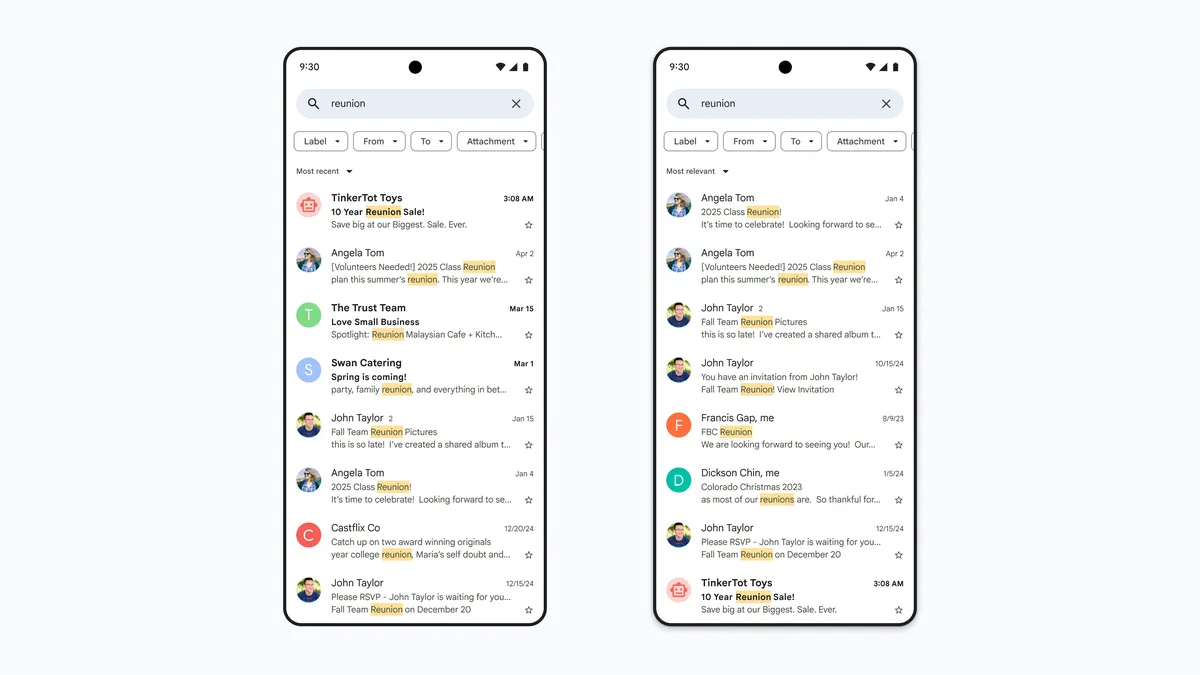
Actual Gmail mobile search interface. Example search shown is not a large-attachment query. Credit: Google Gmail Blog. Product names and interfaces © Google LLC.
On a computer, open Gmail. Paste one of the search queries below into the search bar and press Enter. Open and check the matches, save anything important elsewhere, then select only the messages you are comfortable deleting. Moving them to Trash alone may not free the quota immediately.
has:attachment larger:10M— messages with attachments over 10 MB.filename:.pdf larger:5M— messages matching a PDF filename filter and a size greater than 5 MB.older_than:2y has:attachment— older messages containing attachments, useful for review rather than bulk deletion.
Open results before deleting. Some older messages contain invoices, tax records, client work or account-recovery details that are harder to replace than the space they occupy. Save needed attachments in a secure location first, and verify those copies actually open.
3. Review large files in Drive and Photos
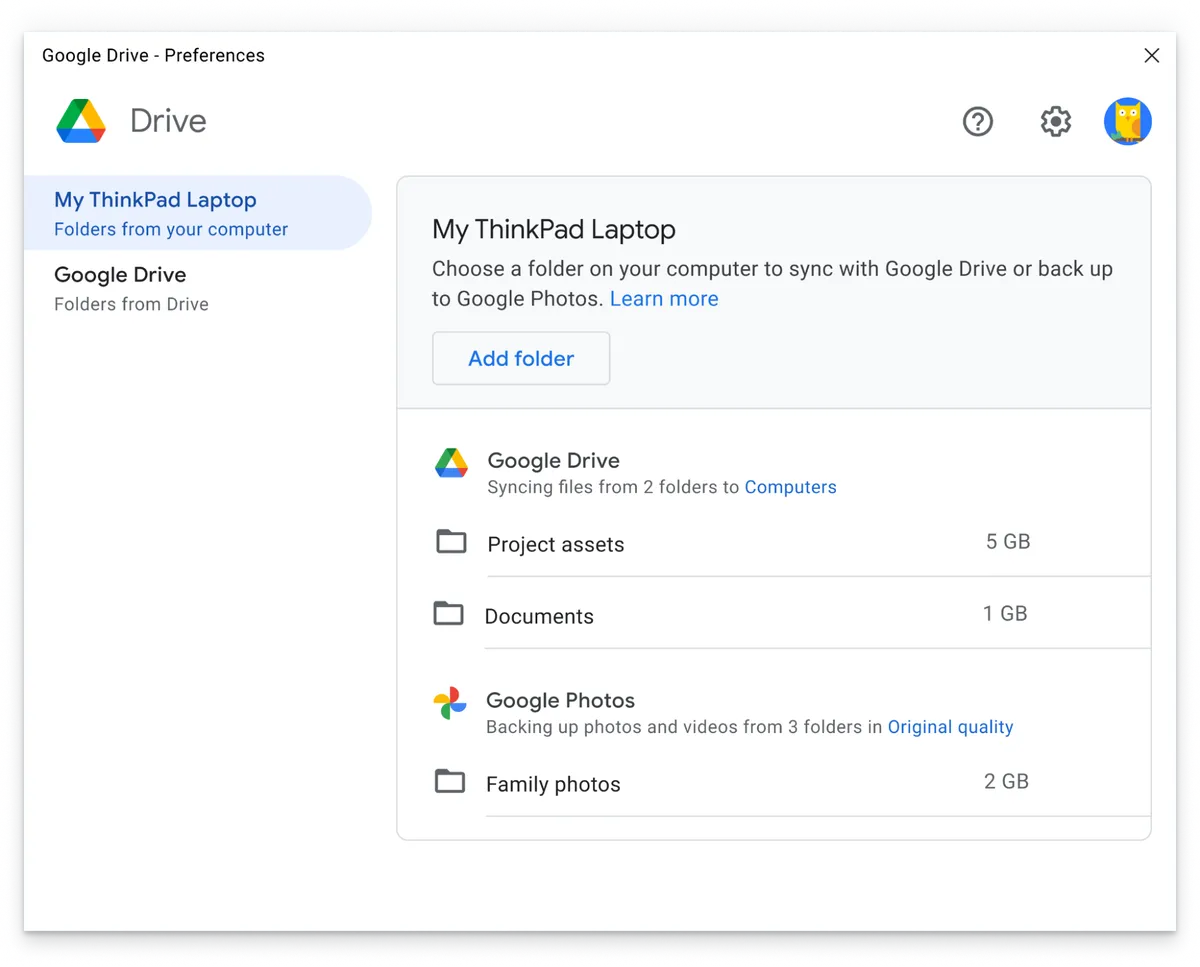
Real Drive for desktop interface; web storage cleanup uses a different screen. Credit: Google Workspace Blog. Product names and interfaces © Google LLC.
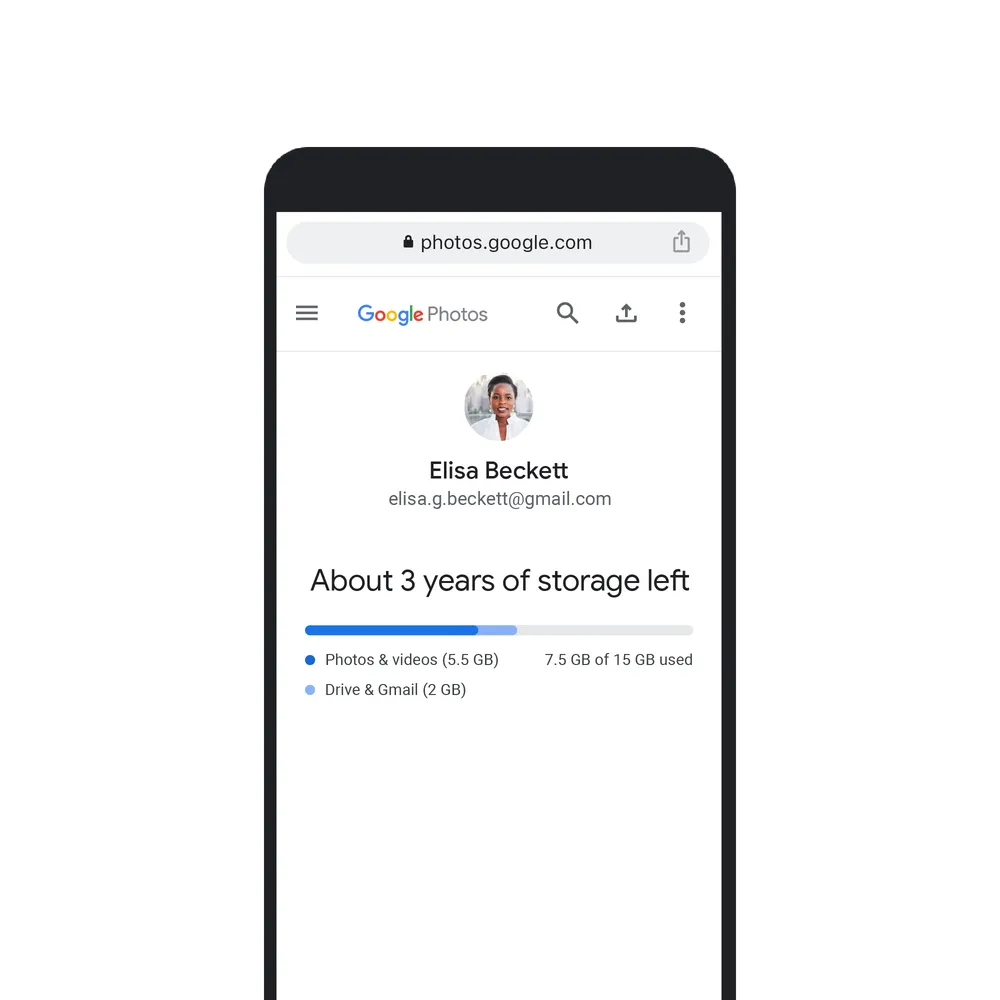
Real Google Photos storage quota screen, from a 2020 Google product article (some menu details may have changed). Credit: Google Photos Blog. Product names and interfaces © Google LLC.
In Drive Storage, use Storage used to review large files, then check Trash before permanently removing anything. You can also look in Drive for old copies, but identical names alone do not prove files are duplicates.
For Google Photos on a computer, open Google Photos, choose Storage near the bottom left and review suggested categories such as large photos and videos. On Android, the current documented path is Profile → Photos settings → Backup → Manage storage; menu names can vary by version. Choose specific items to review, rather than using broad deletion indiscriminately. Removing backed-up media can also affect devices using the same synced library. See Google Photos’ cleanup guidance.
Google’s storage accounting also has exceptions. For example, certain older Photos uploads made under earlier storage policies do not count toward the quota. Deleting files that never counted will not free storage. Check the storage manager rather than judging by photo count alone.
4. Empty trash only after you check it
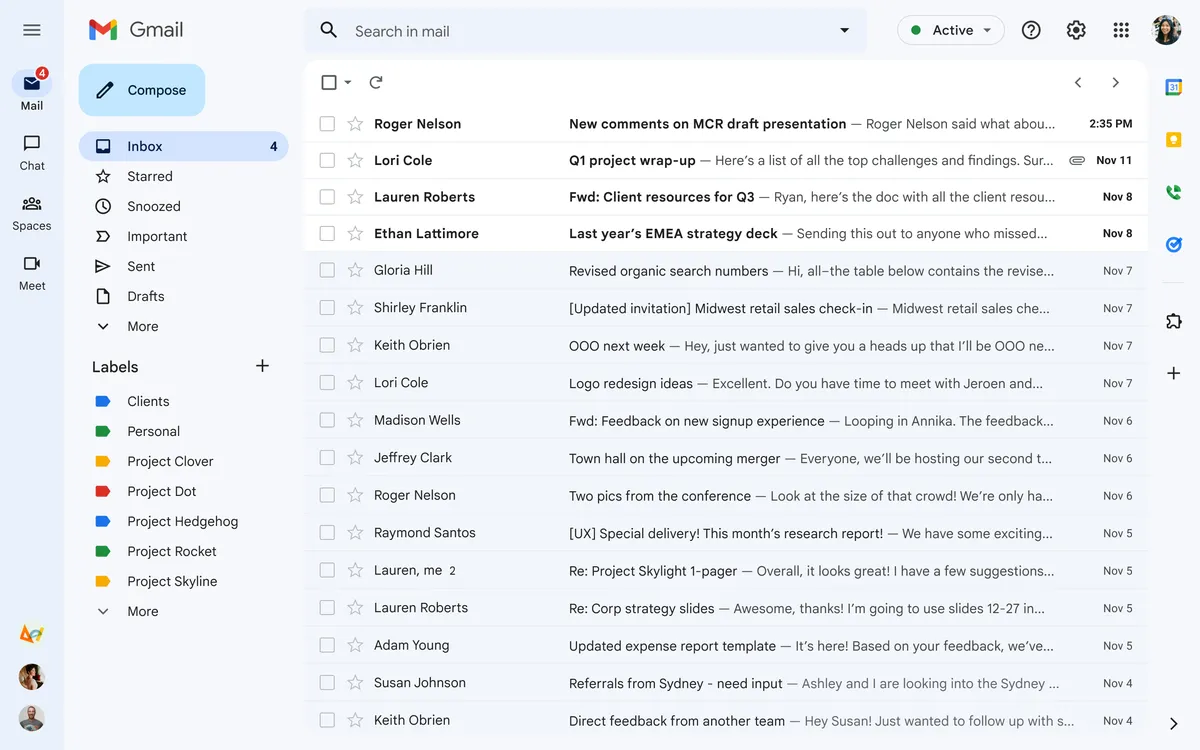
Gmail desktop navigation example. Open the Trash folder from the sidebar (under More if hidden); this screenshot does not show the deletion confirmation screen. Credit: Google Gmail Blog. Google and Gmail are trademarks of Google LLC.
Moving files to Trash is not always enough. If you have confirmed you do not need the contents, check Gmail’s Trash/Bin and Spam, Drive’s Trash/Bin, and Google Photos’ Trash/Bin. Some deleted items continue to use storage until those folders are emptied. UK accounts may use the label “Bin” rather than “Trash.” Emptying these folders can permanently destroy files and email. Back up anything you need before taking that step.
If you emptied large folders but the storage bar still shows full, do not keep deleting at random. Google says a large cleanup can take 48–72 hours to fully appear in its storage calculations. Smaller changes may show sooner.
Gmail still isn’t receiving messages after freeing space
Follow this decision guide instead of repeatedly deleting more data.
| What you see | Next step |
|---|---|
| Storage still shows 100% used | Allow the quota to refresh; check whether other services or backups are still filling the account. Google’s help pages note that large cleanups can take 48–72 hours to reflect accurately. |
| Storage is below the limit but mail is missing | Send a fresh test message from another address. Check Spam, filters, forwarding and the sender’s delivery error. Do not assume a quota problem remains. |
| You recently upgraded Google One storage | Check the new allowance after signing out and in. Google says a storage-plan change may take up to 24 hours to apply. |
| The sender received a bounce notification | Ask the sender to resend after your account is receiving new mail. A previous bounced email is not restored to the inbox simply by deleting files. |
| Only a phone’s Gmail app seems affected | Check Gmail in a web browser. If web Gmail works, investigate the app’s sync, network and notification settings separately. |
For a storage-upgrade delay, Google’s own troubleshooting suggests signing out and back in, testing in a private browsing window, and trying another browser. Those steps are intended to isolate account or browser issues; they cannot themselves create cloud storage.
How to confirm Gmail is receiving emails again
- Check your Google storage usage. Make sure the account is no longer at or over its quota; if you deleted many files recently, allow time for the meter to refresh.
- Open Gmail on the web to separate an account-wide delivery problem from a phone app or notification problem.
- From another email address you control, send a new message with a unique subject such as “Storage recovery test.” Note whether it arrives in Inbox, All Mail or Spam and whether the sender receives a delivery-failure notice.
- If the new test arrives, ask important contacts to resend anything that bounced earlier. If it fails despite available storage, check Google’s missing-mail checklist, including filters, forwarding and Spam, before deleting additional content.
What this verifies: A successful new delivery shows current incoming mail is working. It does not prove that every message attempted during the full-storage period was accepted or preserved.
Can you recover emails that were sent while Gmail was full?
Do not count on it. Google explains that messages sent to a full account may be returned to senders. Once your account has capacity again, request a new copy from the sender. For time-sensitive invoices, interview invitations or one-time security codes, contact the sender or service directly rather than waiting for a message that might never arrive.
If there was no bounce and you cannot find the message, search All Mail, Spam and Trash and check any forwarding rules. Those checks are useful for ordinary missing-mail problems but do not reverse a failed delivery that the sender needs to retry.
Should you pay for more Google storage?
Official Google One product image (2020); not an account-specific price or plan quote. Credit: Google One Blog. Product names and interfaces © Google LLC.
Not necessarily. A paid Google One plan can increase your storage allowance, but cleanup may be enough if the account contains a few large, disposable files. Before paying, compare the value of keeping your existing Drive and Photos library with the ongoing subscription cost and your expected storage growth. Confirm pricing and availability in your region through the official Google One plans page; pricing changes and is not quoted here.
If you use a work or school Google Account, contact the organization’s administrator about storage limits rather than purchasing an unrelated personal plan.
Three common cleanup mistakes to avoid
- Deleting hundreds of tiny emails without checking the storage breakdown. A single large video or backup may account for more space. Inspect Google One Storage first.
- Assuming that clearing the phone’s Gmail cache clears cloud storage. Local app data and your online account allowance are separate.
- Emptying every bin in a hurry. Trash can contain client files, important receipts or irreplaceable media. Check them first; permanent deletion is not a harmless troubleshooting step.
Common questions
Why is Gmail full when I barely have any emails?
Gmail, Drive and Photos share cloud storage in a standard personal Google Account, and certain backups can use it too. Start with the service-by-service breakdown, not the inbox message count.
Can I remove just an attachment from a received Gmail message?
For an ordinary received Gmail message, do not assume you can delete only its attachment and keep the original message unchanged. Save a needed attachment securely first, then decide whether the whole email can be deleted. The message may continue to use storage while it remains in Trash. After large cleanups, the quota may take 48–72 hours to update.
Does clearing Gmail’s cache on Android or iPhone fix a full Google Account?
No. App cache is local to the device, whereas the quota is attached to the Google Account. The safest first step is to verify cloud usage in the storage overview.
Does buying Google One recover bounced emails?
Increasing storage may restore the ability to receive new mail after the plan becomes active. It does not mean that earlier messages rejected while your account was full automatically appear. Ask senders to resend urgent items.
Source notes and editorial method
How this guide was prepared (reviewed October 23, 2026): We cross-checked the recovery sequence, storage-delay guidance and service-specific cleanup paths against Google’s current support documentation. The steps and decision tables are editorial explanations of those sources; we have not independently run a controlled test of a full Gmail account, and we do not claim otherwise. Product screenshots credited to Google illustrate interfaces from different publication dates and are not a record of our own testing. The featured storage-warning graphic is an editorial mockup. Verify that you are signed in to the correct account before deleting data; your screens may differ.
- Google One Help: Manage storage in Drive, Gmail and Photos — quota impact, cleanup and recovery timing.
- Google One Help: Clean up and fix storage issues — upgrade timing and troubleshooting.
- Google One Help: How storage works — shared quota, included files and exceptions.
Additional documentation used in this revision: Google Account storage and emergency cleanup; Google Drive file sorting; Google Photos storage cleanup; and Google’s missing-mail troubleshooting checklist. These sources support the steps, but they do not substitute for independent testing on a live full-storage account.
For related everyday email and account troubleshooting, explore our Email & Gmail Help section. See our Editorial Policy and Corrections & Updates page to learn how we source and revise our guides.